
Who can do this
Section titled “Who can do this”- Only Company Owners and Company Admins can change billing permission toggles.
- Toggles apply company-wide and affect what every Company Member can see and do in the Billing module.
- For non-permission billing settings (rounding, invoice dates, numbering, email delivery, PDF grouping), see Billing settings.
How to open the permission toggles
Section titled “How to open the permission toggles”- Click Settings & Apps from the main navigation.
- Open the Billing app.
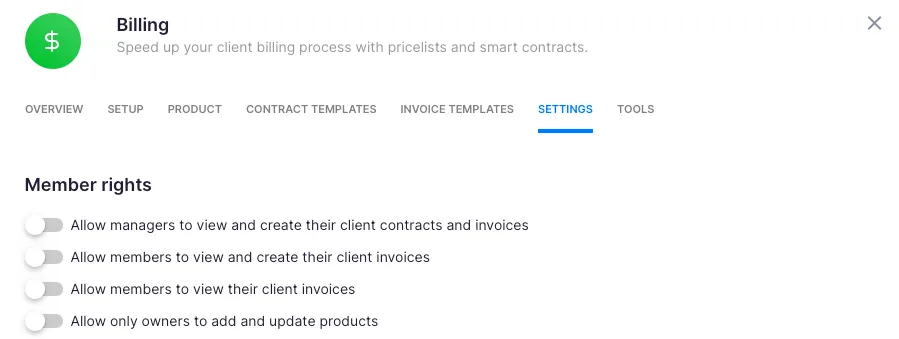
- Go to the Settings tab and scroll to Member rights.
- Make your changes and click Save.
Understanding the two-axis permission system
Section titled “Understanding the two-axis permission system”Uku has two independent permission axes that interact in billing:
- Company role — Company Owner, Company Admin, or Company Member. Set via the Administrator checkbox on the member profile.
- Client permission — Client Admin or Client Member on a specific client. Set under the client profile > Members tab.
Company Owners and Company Admins bypass all billing permission toggles — they always have full billing access. The toggles only affect Company Members. Within Company Members, some toggles apply to all Company Members, while toggle 1 applies only to those who also hold Client Admin permission on the specific client in question.
The five permission toggles
Section titled “The five permission toggles”1. Allow contract and invoice management for users with Client Admin permission
Section titled “1. Allow contract and invoice management for users with Client Admin permission”When enabled, a Company Member who holds Client Admin permission on a client can:
- View and create contracts for that client
- View and create invoices for that client
- Export invoices for that client
- Edit invoice rows on that client
This capability is scoped to the specific clients where the user holds Client Admin permission — it does not grant company-wide billing access. Without this toggle, only Company Owners and Company Admins can work with contracts.
Note on UI wording: The toggle label uses “managers” as shorthand for “Company Members with Client Admin permission on the client.” There is no Manager company role in Uku — the three company roles are Company Owner, Company Admin, and Company Member.
2. Allow all Company Members to view and create invoices
Section titled “2. Allow all Company Members to view and create invoices”When enabled, all Company Members (regardless of client permissions) can:
- View invoices on clients they are assigned to
- Create new invoices on those clients
- Export invoices
This does not grant access to contracts.
3. Allow all Company Members to view client invoices
Section titled “3. Allow all Company Members to view client invoices”The most restrictive option. When enabled, Company Members can view invoices on clients they are assigned to but cannot create, edit, or export them. Read-only access only.
4. Allow only Company Owners to add and update products
Section titled “4. Allow only Company Owners to add and update products”When this toggle is on, only Company Owners can create or edit products in Billing. Company Admins lose access to product management when this setting is enabled.
5. Allow members to send invoices to clients
Section titled “5. Allow members to send invoices to clients”When enabled, Company Members can email finalised invoices directly to clients from Uku. Works in combination with the other permission toggles — a Company Member needs at least view-and-create access (toggle 2) to have an invoice to send.
How the toggles stack
Section titled “How the toggles stack”| Action | Company Owner | Company Admin | Member + Client Admin (toggle 1 on) | Member (toggle 2 on) | Member (toggle 3 on) |
|---|---|---|---|---|---|
| View contracts | Yes | Yes | Yes | No | No |
| Create/edit contracts | Yes | Yes | Yes | No | No |
| View invoices | Yes | Yes | Yes | Yes | Yes |
| Create invoices | Yes | Yes | Yes | Yes | No |
| Edit invoice rows | Yes | Yes | Yes | No | No |
| Export invoices | Yes | Yes | Yes | Yes | No |
| Send invoices to clients | Yes | Yes | Per toggle 5 | Per toggle 5 | No |
| Manage products | Yes | Per toggle 4 | No | No | No |
| Change billing settings | Yes | Yes | No | No | No |
If all toggles are off, Company Members see no billing data at all.
Troubleshooting
Section titled “Troubleshooting”I cannot see the Settings tab in Billing
Section titled “I cannot see the Settings tab in Billing”Only Company Owners and Company Admins can access billing settings. If you need a setting changed, contact your Company Owner or Company Admin.
A Company Member cannot create invoices on their clients
Section titled “A Company Member cannot create invoices on their clients”Check toggle 1 (contract and invoice management for Client Admins) and toggle 2 (all Company Members view and create). Toggle 1 only applies if the member holds Client Admin on the client; toggle 2 grants invoice creation to every Company Member on clients they are assigned to.
A Company Admin cannot edit products
Section titled “A Company Admin cannot edit products”Check toggle 4 (Allow only Company Owners to add and update products). When this toggle is on, Company Admins lose product management access.
A Company Member can view invoices but cannot send them
Section titled “A Company Member can view invoices but cannot send them”Toggle 5 (Allow members to send invoices to clients) controls send capability separately from view/create. Enable toggle 5 in addition to toggle 2 to let Members email finalised invoices.