How to set task Due Date in Uku
TL;DR: Set due dates for single tasks by picking a date from the calendar. For recurring tasks, choose between a specific date or a calculated number of days from a reference point, with options for handling weekends and holidays.
Who can do this
Users with permission to create or edit tasks
Users with access to task templates or client task plans
Understanding due dates in Uku
Due dates work differently depending on the task type. Single tasks use simple calendar-based deadlines. Recurring tasks can calculate due dates dynamically based on the billing period or task start date.
Important: For recurring tasks, always set the recurrence pattern first, then configure the due date. The available due date options change based on the selected recurrence type.
Setting due dates for single tasks
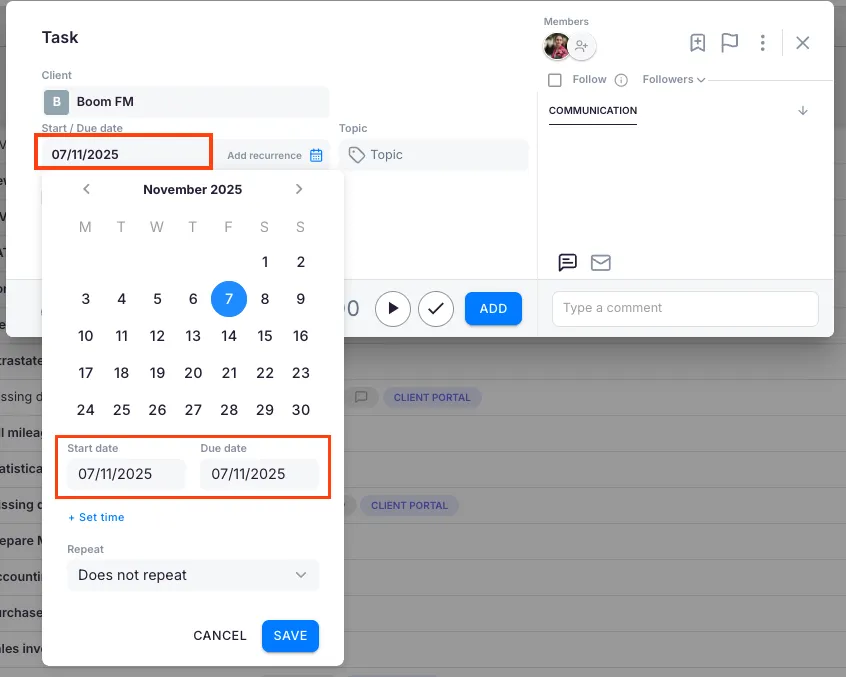
Create or open a task.
Select the Due date field.
Select your desired date from the calendar, or type the date manually.
Optionally, add a specific time for the deadline.
Save the task.
The current date appears by default. Change it by selecting any date from the calendar or typing the date manually.
Setting due dates for recurring tasks
Recurring tasks offer advanced due date options that adapt to each task instance automatically.
Monthly recurrence due dates
Monthly recurring tasks provide the most flexibility for accounting work.
Create a task and set Monthly recurrence first.
Select the Due date field.
Choose your calculation method (see options below).
Save your settings.
Option A: Specific date
Select a day of the month (e.g., the 15th).
Choose behavior for weekends and holidays:
Before -- Move the deadline earlier if it falls on a day off.
After -- Move the deadline later if it falls on a day off.
Exact -- Keep the date regardless of weekends.
Option B: Plus days calculation
Set the due date as a number of days after a reference point.
Choose the reference point:
From start of task -- Counts from when the task appears.
From beginning of month -- Counts from the 1st of the month.
Select which days to count:
Monday to Friday, excluding public holidays (most common)
Monday to Friday, including public holidays
All days (calendar days)
Example: For VAT return tasks due 20 business days after month-end, set recurrence as monthly, then choose From beginning of month with 20 days using Monday to Friday, excluding public holidays.
Weekly recurrence due dates
Weekly tasks have simpler due date options since they are tied to specific weekdays.
Set Weekly recurrence.
Select the day of the week for the task.
Add a specific time for the deadline (e.g., 5:00 PM).
Save your settings.
Weekly tasks cannot automatically move to different days if they fall on holidays. You will need to reschedule these tasks manually.
Quarterly recurrence due dates
Quarterly tasks offer the same flexibility as monthly tasks but occur every three months.
Set Quarterly recurrence.
Select the Due date field.
Choose your month (first, second, or third month of the quarter).
Select a calculation method:
Specific date with before/after day-off rules
Plus days from start date or beginning of quarter
Add a time if needed.
Save your settings.
Annual recurrence due dates
Annual tasks support all due date options.
Set Yearly recurrence.
Select the month.
Choose the date using either:
Specific date with day-off handling
Plus days calculation from a reference point
Set counting rules (business days vs. calendar days).
Add a time if needed.
Save your settings.
Task end dates for recurring tasks
Control when recurring tasks should stop appearing on your dashboard.
Open a recurring task.
Navigate to the Recurrence settings.
Set an End date for the recurrence.
Save the changes.
Use case: Monthly bookkeeping tasks for a client contract that runs from January 2025 to September 2025.
Troubleshooting
Q: My recurring task's due date is not calculating correctly.
A: Check that you set the recurrence pattern first, then configured the due date. The due date options change based on recurrence type.
Q: Tasks are appearing on weekends when they should not.
A: Edit the task's due date settings and select Monday to Friday, excluding public holidays in the counting rules.
Q: I want tasks due 20 business days after month-end, but they are calculating wrong.
A: Use From beginning of month with 30-35 days (depending on month length) and select Monday to Friday, excluding public holidays.
Q: Can I set different due date rules for different clients?
A: Yes. Create separate templates or client plans for each client with different due date configurations.
Q: The task appears too early on my dashboard.
A: Check the task's start date, Repeats from date, and recurrence settings. Adjust the start date calculation to make tasks appear closer to their due date.
Q: How do I handle tasks that need to be done by the 20th, or earlier if the 20th is a weekend?
A: Use the specific date selection (20th) with the Before option to automatically move weekend deadlines to the preceding Friday.