
Who can do this
Section titled “Who can do this”Company Admin or Company Owner role on a paid Uku plan (Solo, Team, or Elite). You also need a Trigon user account whose role grants List and View permission for every firm whose data should flow into Uku.
Trigon is the right integration for Estonian accounting firms that use Trigon accounting software for their clients.
What the Trigon integration does
Section titled “What the Trigon integration does”The Uku ↔ Trigon integration lets you:
- Import clients from Trigon into Uku, matched by registration code.
- Auto-generate monthly summary tasks for each connected client with transaction counts pulled from Trigon (sales invoices, purchase invoices, financial entries, expense lines, fixed-asset depreciation entries, etc.).
- Drive billing by feeding the monthly counts into Uku custom task fields, which Uku invoicing then bills against.
Trigon is one-way inbound — Uku reads data from Trigon. Nothing is written back.
Step 1: Prepare a Trigon user account
Section titled “Step 1: Prepare a Trigon user account”Before activating the integration in Uku, in Trigon either pick an existing user or create a new one. The role assigned to that user must include the List and View permissions for every firm you want Uku to read.
Picking a user with access to all firms means you don’t have to add permissions one firm at a time later.
Step 2: Enable the Trigon integration in Uku
Section titled “Step 2: Enable the Trigon integration in Uku”Path: Settings & Apps → Trigon
- Open Settings from the Uku main menu and click the Trigon card.
- In the dialog, click Activate.
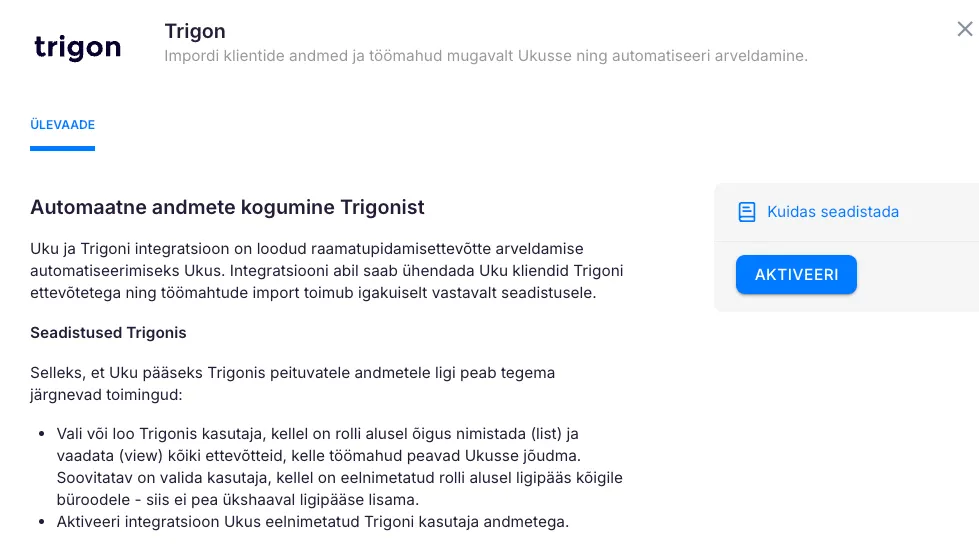
Step 3: Connect with your Trigon email and password
Section titled “Step 3: Connect with your Trigon email and password”Enter the email address and password of the Trigon user you prepared in Step 1.
- Enter the Trigon user email.
- Enter the password.
- Click Connect.
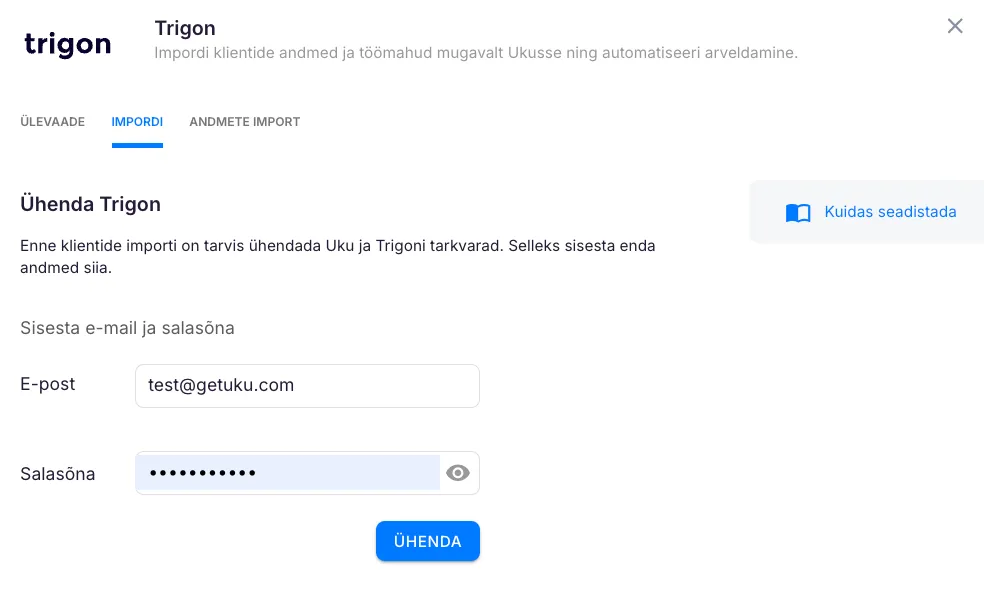
The connection is secure — Uku does NOT store your Trigon password. After the connection is established, Uku uses a refreshable token to read data on your behalf.
Step 4: Import clients from Trigon
Section titled “Step 4: Import clients from Trigon”After the systems are connected, click Start import to begin pulling clients.
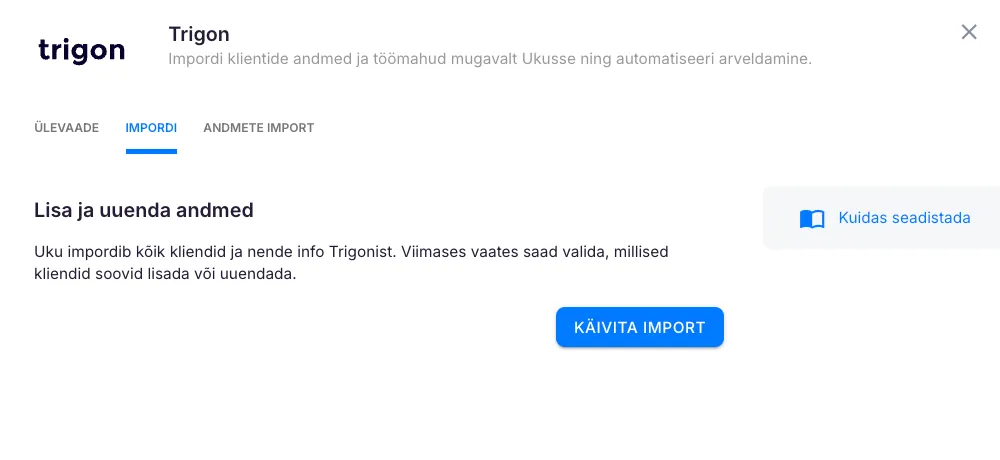
A notification appears when the import completes. Review the client list, watch for duplicates, then click Confirm import.
You can deselect any client you don’t want to bring into Uku by clearing the Action column checkbox.
If a client’s registration code in Trigon doesn’t match a record in the Estonian Business Register, that row is marked with a red X. Red-X clients are still imported — the mark is just a heads-up.
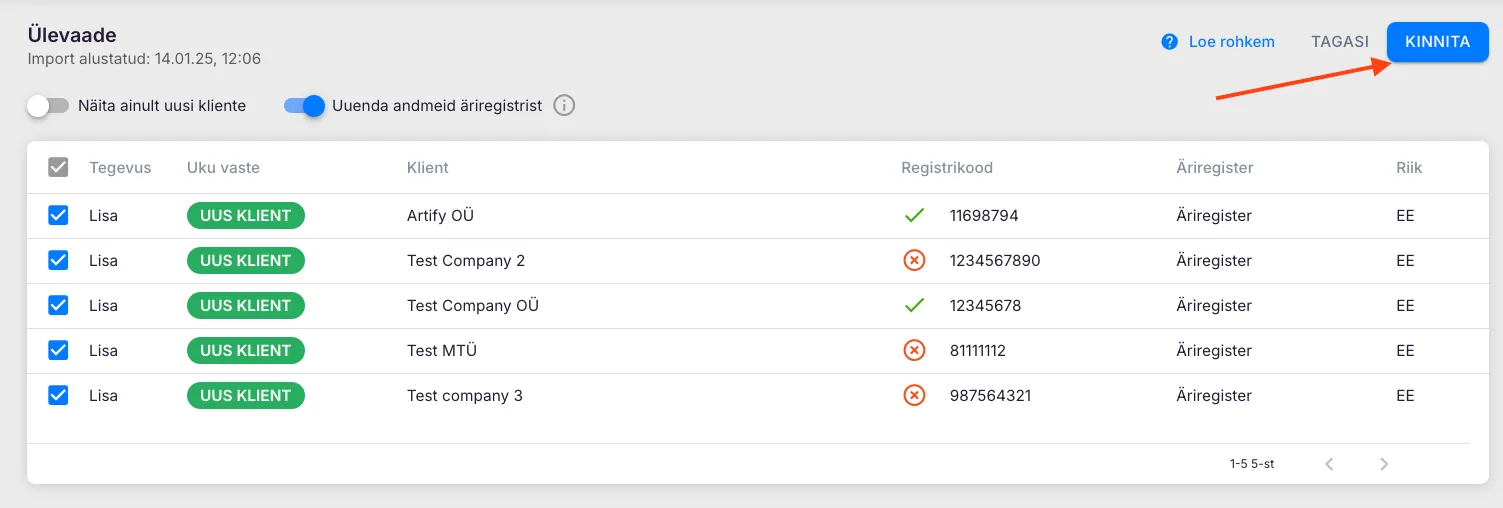
When you’re ready, click View clients to jump to your client list.
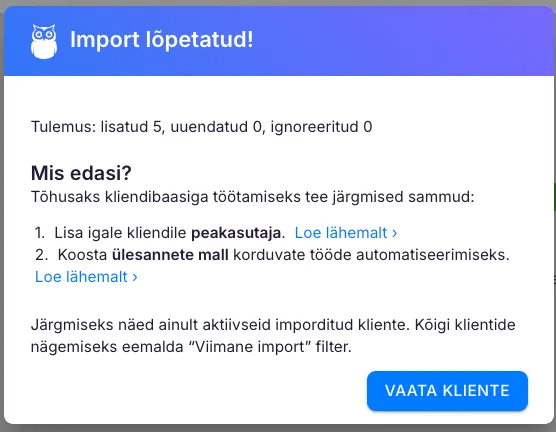
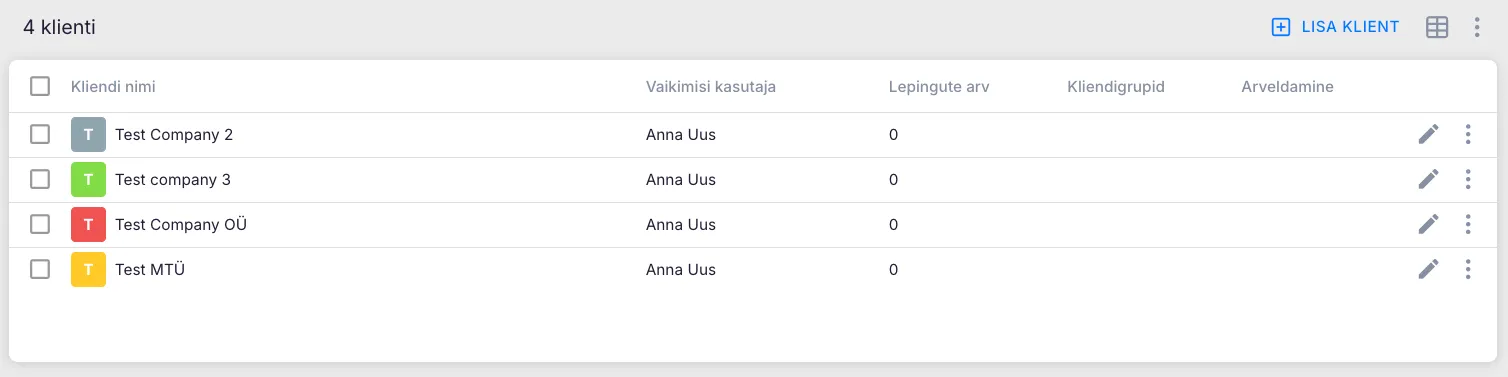
After import, for each new client:
- Assign a Client Manager.
- Set up a client workflow.
- Configure the automatic monthly summary (next section).
Step 5: Configure the monthly summary task
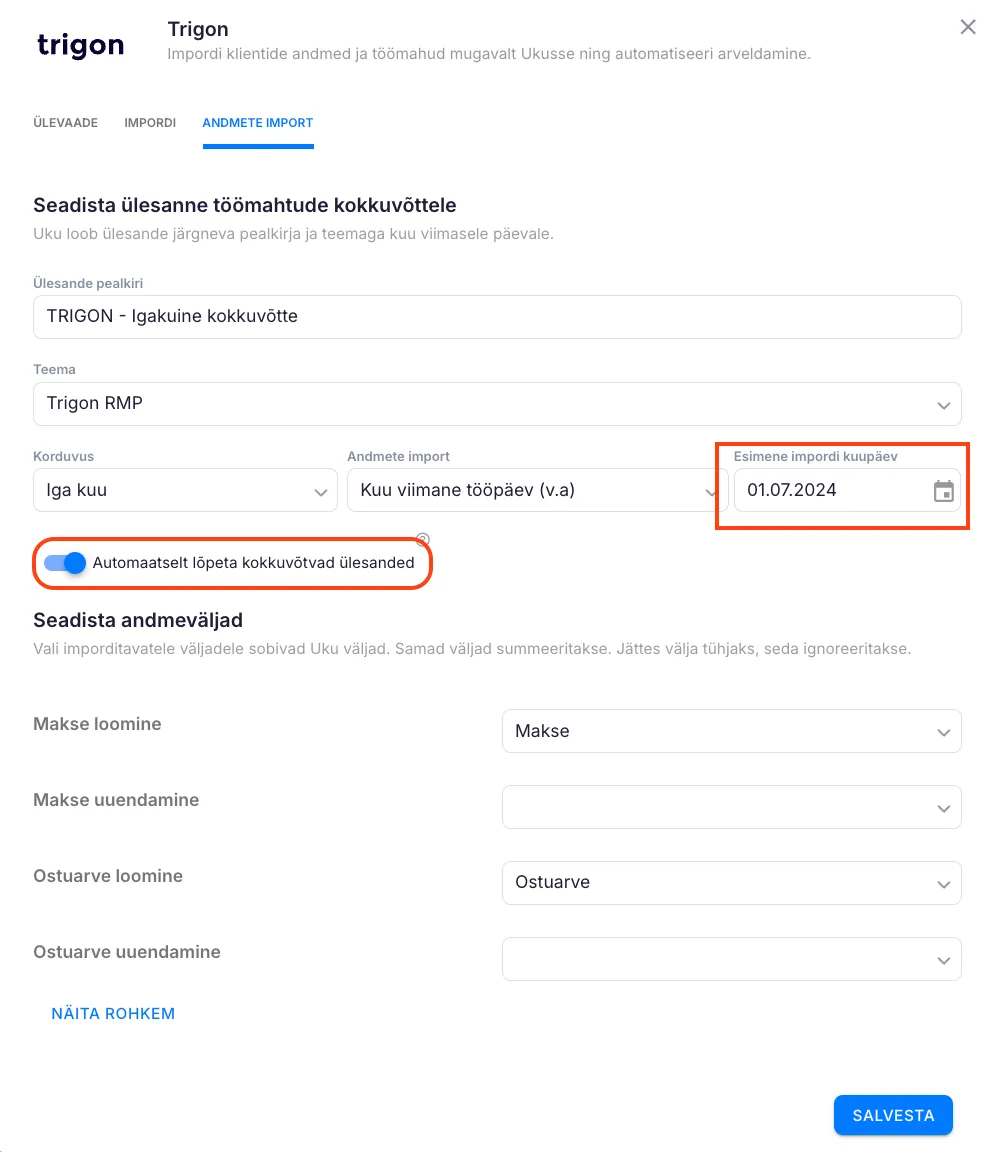
Section titled “Step 5: Configure the monthly summary task”After clients are imported, open Settings → Trigon → Data import tab to configure how Uku creates monthly summary tasks for each connected client.
Required fields:
- Task title — name applied to every auto-generated summary task.
- Topic — which topic the summary task is filed under. Create one in advance if you need a new one.
- Custom fields — the Uku custom fields that will receive each Trigon count.
- Data import — when in the month the import runs (last work day, last calendar day, or a specific day of the following month).
First import date
Section titled “First import date”When you configure recurrence, set the First import date — this is the day from which Trigon counts start being measured.
Worked example. First import date = 01.10.2024, with import scheduled for the last calendar day:
- 31.10.2024 — Uku imports counts for the period 01.10.2024 – 30.10.2024.
- 30.11.2024 — counts for 31.10.2024 – 29.11.2024 (so the 31st of October isn’t lost).
- If you switch to last work day mid-November, the run on 29.11.2024 (Friday) covers 31.10.2024 – 28.11.2024, and the next run on 31.12.2024 (Tuesday) covers 29.11.2024 – 30.12.2024.
This way no day’s transactions are skipped or double-counted across the boundary.
Available Trigon fields
Section titled “Available Trigon fields”Each field appears once for created records and once for updated records:
- Payment created / updated — Makse loomine / uuendamine
- Purchase invoice created / updated — Ostuarve loomine / uuendamine
- Sales invoice created / updated — Müügiarve loomine / uuendamine
- Financial entry created / updated — Finantskande loomine / uuendamine
- Expense line created / updated — Kulurea loomine / uuendamine
- Fixed-asset depreciation entry created / updated — Põhivara amortisatsiooni loomine / uuendamine
Plus two snapshot counts:
- Active reporting persons — Aktiivsete aruandvate isikute arv
- Depreciable fixed assets — Amortiseeritavate põhivarade arv
For each Trigon field you want to track, pick it in the left column and map it to a Uku custom field in the right column. Fields left unmapped are not imported.
Behind the scenes
Section titled “Behind the scenes”For each Uku client, one summary task is created in the current month and (optionally) auto-completed. The data is pulled at 00:30 on the configured import day.
Step 6: Run a monthly clients refresh before each scheduled import
Section titled “Step 6: Run a monthly clients refresh before each scheduled import”Before each automatic monthly import, run a client import in Uku so any newly added Trigon clients exist in Uku and Trigon’s monthly counts land under the right Uku client.
The volume import only reads data for the clients Uku already knows about — if a Trigon client was created since the last sync, run the import (Step 4 above) to add it before the scheduled monthly run.
Troubleshooting
Section titled “Troubleshooting”Connection fails when entering email and password
Section titled “Connection fails when entering email and password”Almost always one of:
- The Trigon user’s role is missing List or View permission for the firms you want to read.
- Typo in the email or password — try logging into Trigon directly with the same credentials to confirm.
- The Trigon user is inactive or has been removed.
Some firms aren’t visible after import
Section titled “Some firms aren’t visible after import”The Trigon user you connected with doesn’t have permission for those firms. Update the user’s role in Trigon to include List and View for the missing firms, then re-run the import.
Monthly summary tasks aren’t being created
Section titled “Monthly summary tasks aren’t being created”Check that the integration is enabled, that Task title / Topic / Data import are all filled in on the Data import tab, that each client has its Integration column set to Trigon, and that you’ve run at least one client import in Uku since adding the Trigon user to those firms.
Counts look stale or wrong
Section titled “Counts look stale or wrong”Re-run the monthly client import and the data sync. Counts are read based on Trigon’s created / updated timestamps for the period — back-dated entries in Trigon will be picked up by the next scheduled run.
What’s next
Section titled “What’s next”After Trigon is connected, set up client workflow templates so the imported clients get the right recurring tasks, and configure your billing products to bill against the Trigon counts.