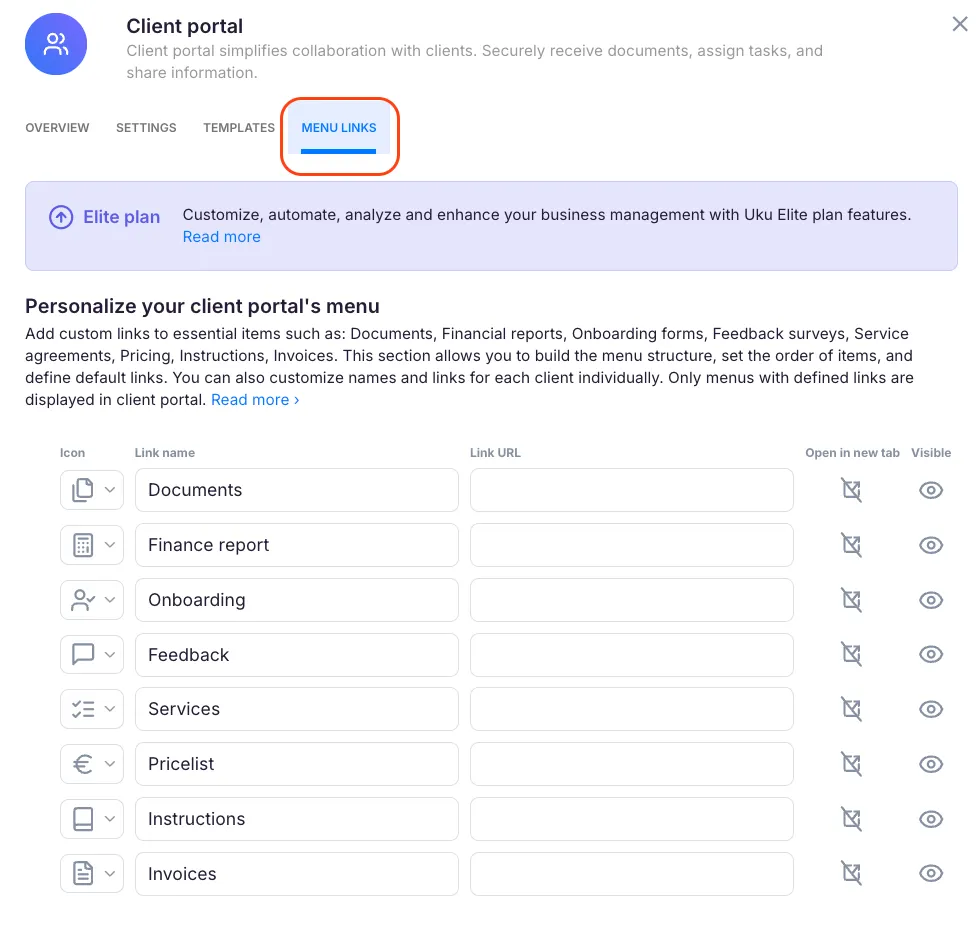
The Client Portal is available on all Uku plans. One Elite-plan feature extends it: custom menu links. Custom menu links add items to the client-facing sidebar: documents, forms, reports, pricing pages, or any external address. Your clients then reach everything from one place, without leaving the portal.
Who can do this
Section titled “Who can do this”- Plan required: Elite (the Menu links tab is visible on other plans but changes cannot be saved).
- Role required: Company Admin or Company Owner.
What is the Client Portal menu?
Section titled “What is the Client Portal menu?”Every client who logs into your Client Portal sees a left sidebar. Dashboard is at the top, your menu links come next, and Settings and Log out close the list.
Each menu item has a Link type, and the type decides what the item does:
| Link type | Where it takes the client | Link target needed |
|---|---|---|
| Link | any web address you enter | yes — an item with no target is hidden |
| Invoices | the client’s own invoices inside the portal | no |
| Documents | the client’s own documents inside the portal | no |
Link items are useful for resources you share with all clients: service agreements, pricing pages, onboarding forms, or financial dashboards. Invoices and Documents open views that already exist in the portal, so they need no address of your own. A Documents row opens the whole documents view — see Find your documents. To give one folder its own menu entry, turn on Client portal menu → Show on that folder in the folder template. For items that differ per client, you can override the defaults at the client level.
Uku offers the Invoices type only while the Billing app is on, and the Documents type only while the Documents app is on. If you switch one of these apps off later, its menu item is hidden from clients.
Configure company-wide menu links
Section titled “Configure company-wide menu links”- Go to Settings & Apps in the left navigation.
- Select Client Portal.
- Choose the Menu links tab.
The table lists all configured menu items. For each item you can:
- Set the name — click the name field and type the label shown to clients. An item with no name is hidden.
- Choose the Link type — Link, Invoices, or Documents.
- Set the Link target — paste the destination address. The address can carry each client’s own value, see Give each client their own link. A Link item with no target is hidden from clients. Invoices and Documents items need none, and the field is greyed out for them.
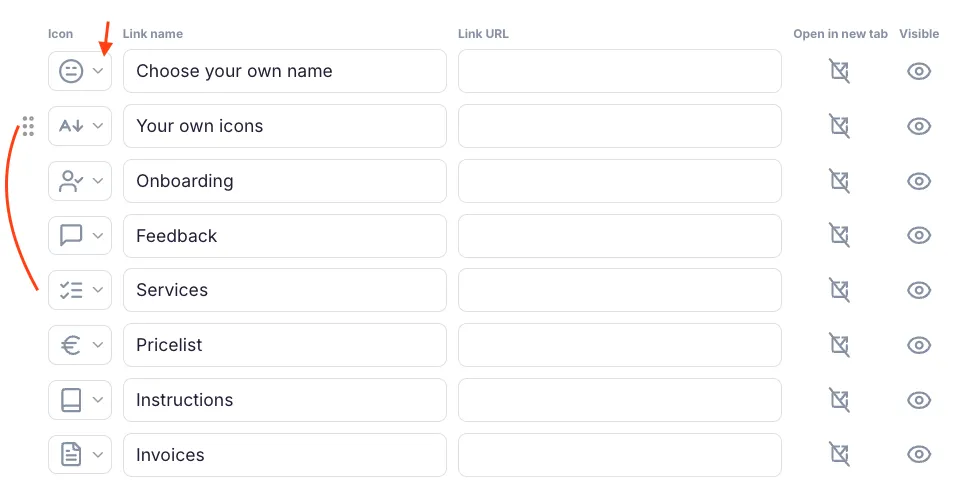
- Choose an icon — click the current icon to pick a replacement from the available set (Files, Calculator, UserCheck, MessageSquareText, ListChecks, Euro, Book, FileText).
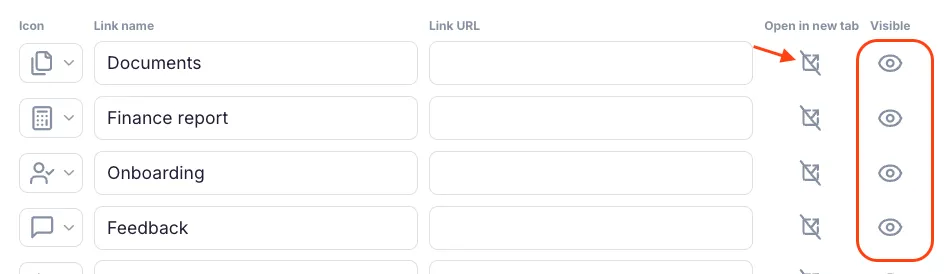
- Open in a new tab — click the arrow button. Its tooltip says External when the link opens in a new browser tab, and Not external when the link opens inside the portal.
- Show or hide an item — click the eye button. Its tooltip says Visible or Not visible.
Reordering menu items
Section titled “Reordering menu items”To change the order of the items in the sidebar, hover over the drag handle on any row. Then drag the row to a new position.
Click Save to apply all changes.
Give each client their own link
Section titled “Give each client their own link”A Link item can carry a variable: a placeholder that each client sees filled with their own value. One menu link then serves every client. For example, a report address can end in each client’s company number.
Path: Settings & Apps → Client Portal → Menu links
- In a row of type Link, click the Link target field where the client’s value should go.
- Type
{, or click the{}button at the end of the field. The button’s tooltip is Placeholders. - Pick a value from the list. The variable appears in the field in its own colour, for example
{client.reg_code}. - Click Save.
For example, the link target https://reports.example.com/{client.reg_code} takes a client with the company number 12345678 to https://reports.example.com/12345678.
The list offers these values:
- Client ID — the client’s number in Uku.
- Company number and Client code — under your firm’s own names for them, if you renamed these fields.
- Your firm’s own client fields of the type Text or Password.
A variable can also be the whole link target. Keep each client’s full address in a Text client field, then set the link target to that variable alone.
You cannot create your own variables in the link target. The list comes from your client fields. A variable that is not in the list shows in red, and Uku does not save the row.
A client does not see a variable link when their value is empty. The same happens when the filled address does not start with http:// or https://. If you archive or delete a client field, every link that uses the field disappears from the portal.
Show your clients their invoices
Section titled “Show your clients their invoices”Clients reach their invoices in the portal through a menu item, and only through a menu item. Without one, a client never sees an invoice in the portal at all.
- Go to Settings & Apps → Client Portal → Menu links.
- Pick the row you want to use, or a free row.
- Set its Link type to Invoices and give it a name, for example “Invoices”.
- Check that the row is visible, then click Save.
Clients now see a list of their invoices with dates, totals and status, and each invoice opens as a PDF.
Customise menu links for a specific client
Section titled “Customise menu links for a specific client”One client may have a separate document folder, its own onboarding form, or another resource of its own. You can override the default links for that client without changing the company-wide defaults.
- Go to Clients in the left navigation.
- Open the client you want to customise.
- Click Edit client.
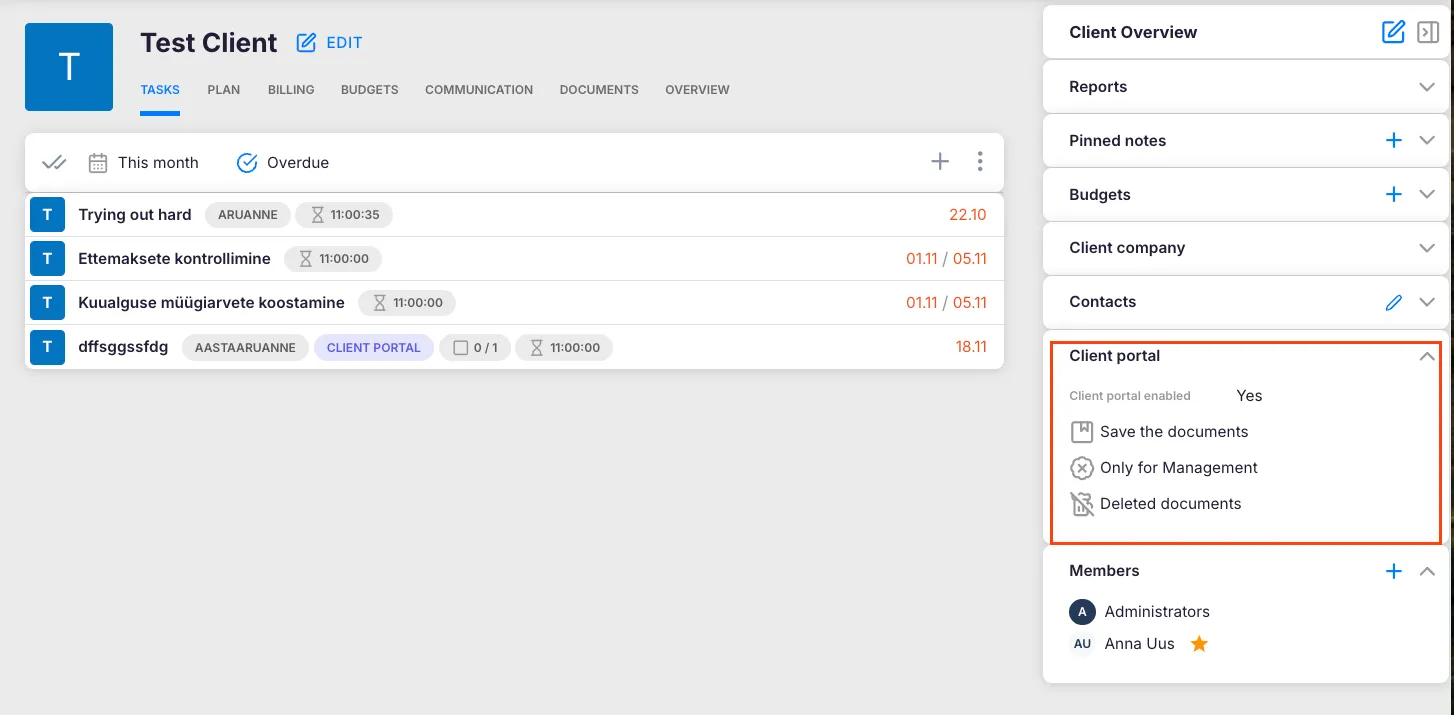
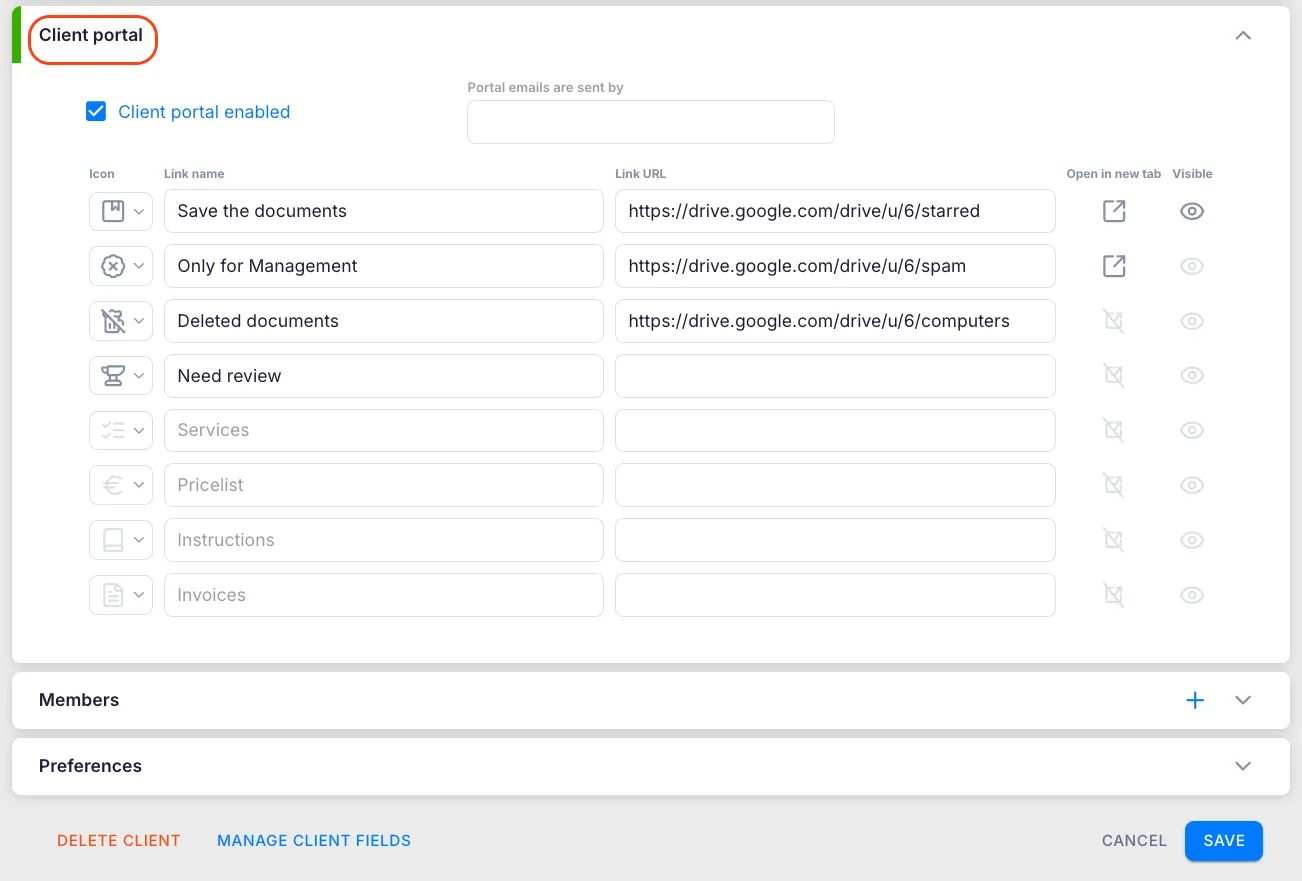
- Find the Client Portal section in the client settings.
- Adjust the icons, names, link types, and link targets for that client’s menu items. A link target here can carry variables too.
- To show or hide an item for this client only, click its eye button. Each click moves to the next state: Company default, then Not visible, then Visible. The arrow button works the same way for External.
- Click Save.
An empty field for a specific client does not hide the item. The client gets the company-wide value, which the empty field shows in grey. To hide an item from one client, set its eye button to Not visible.
How menu links appear inside Uku
Section titled “How menu links appear inside Uku”A client with its own menu links also shows them on the client info bar inside Uku. Links with variables are filled with that client’s own values. A team member who opens the client record can click any filled row to open the linked resource, without opening the portal. A client that uses only the company-wide links shows no menu links on the info bar.
Troubleshooting
Section titled “Troubleshooting”Menu items are not appearing in the Client Portal
Section titled “Menu items are not appearing in the Client Portal”Open Settings & Apps → Client Portal → Menu links and check the row. The row needs a name, and its visibility must be switched on. A row of type Link also needs a Link target, while Invoices and Documents rows need none. An Invoices row also needs the Billing app, and a Documents row the Documents app. Save after any change.
A link with a variable is missing for some clients
Section titled “A link with a variable is missing for some clients”Open one of those clients and check the client field that the variable uses. A client with an empty value does not see the link. If the variable is the whole link target, the field must hold a full address that starts with https://. A link also disappears when its client field is archived or deleted.
Clients cannot see their invoices in the portal
Section titled “Clients cannot see their invoices in the portal”Set the Link type of one menu row to Invoices, give the row a name, make it visible, and save. A row of any other type does not open the invoice view. If Invoices is missing from the Link type list, switch on the Billing app first.
Clients cannot see their documents in the portal
Section titled “Clients cannot see their documents in the portal”Set the Link type of one menu row to Documents, give the row a name, make it visible, and save. Clients reach their documents only through such a row. They then see the folders your template makes visible to them, and their own uploads. Find your documents explains what a contact sees. If Documents is missing from the Link type list, switch on the Documents app first.
Cannot save changes to Menu links
Section titled “Cannot save changes to Menu links”The Menu links tab is visible on all plans but changes can only be saved on the Elite plan. Check your subscription under Settings & Apps → Company. You also need Company Admin or Company Owner role — a Company Member cannot edit these settings. A variable shown in red also stops the save: pick the value from the list instead of typing its name.
A client-specific link is not overriding the company-wide link
Section titled “A client-specific link is not overriding the company-wide link”Make sure you clicked Save after editing the client card. Unsaved changes are discarded when you navigate away. Re-open the client, go to Edit client, and confirm the client-specific link target is present and saved. An empty field uses the company-wide value.
Links are opening in the same tab instead of a new one
Section titled “Links are opening in the same tab instead of a new one”Find the relevant row in Settings & Apps → Client Portal → Menu links and click its arrow button until the tooltip says External. Save the change. For a client-level override, also check that the client’s arrow button is not set to Not external.