
Who can do this
Section titled “Who can do this”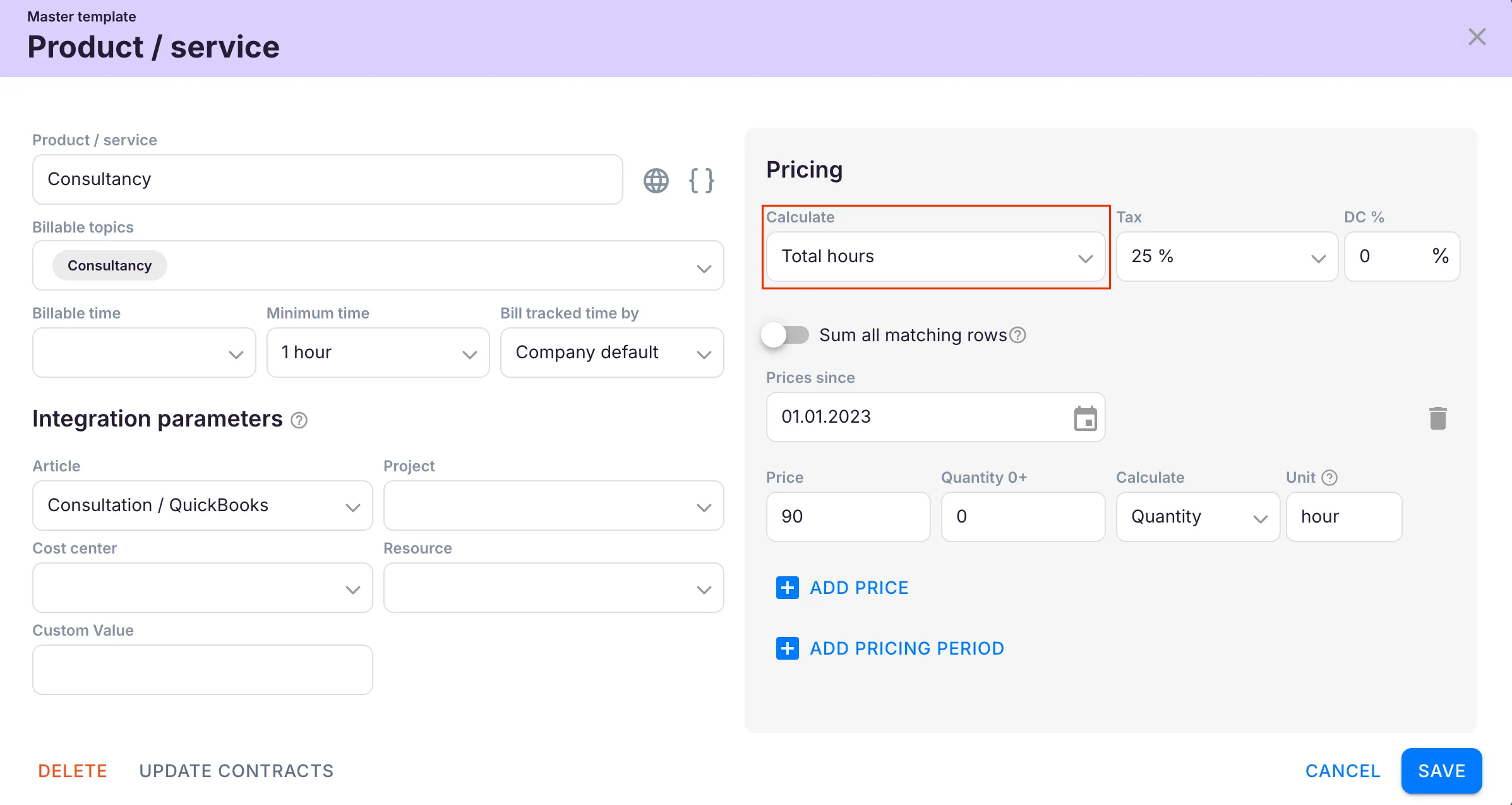
Company Owners and Company Admins can create and manage products. Company Admins’ product access comes from the Products team permission, granted to the Administrators team by default. If it is removed, only the Company Owner can add or update products. See Members and Teams permissions.
Creating an hourly product
Section titled “Creating an hourly product”- Open Settings & Apps > Billing > Setup > Articles and click + Add.
- Enter a descriptive name for the product.
- Set the pricing type to Hourly.
- Choose the hour type (see options below).
- Configure optional settings as needed.
- Set up pricing and click Save.
Hour type options
Section titled “Hour type options”- Total hours — counts all hours spent on the task
- Regular hours — counts only standard (non-extra) work hours
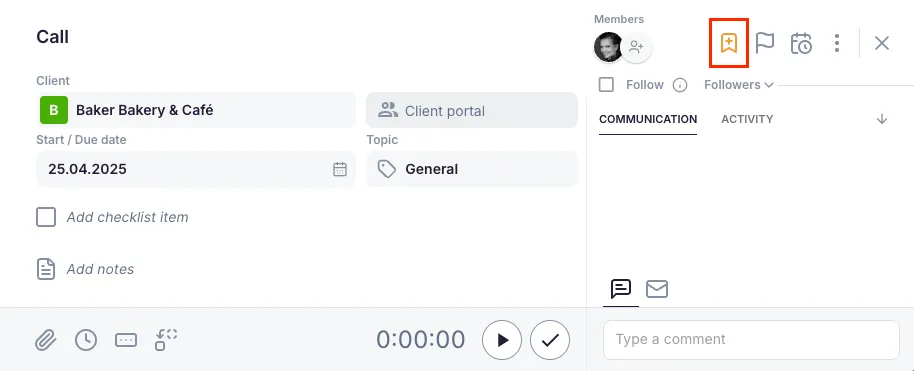
- Extra hours — counts only hours from tasks tagged with the Extra work flag
Optional settings
Section titled “Optional settings”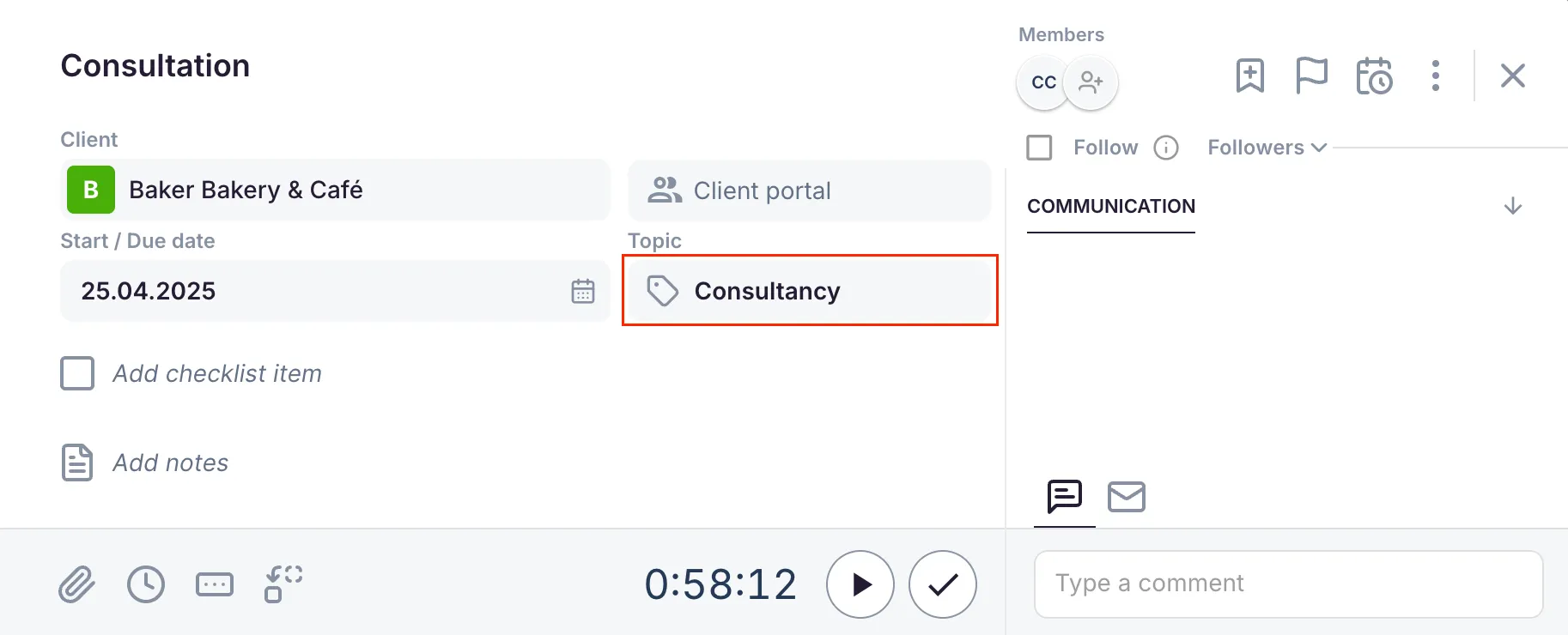
Topic selection
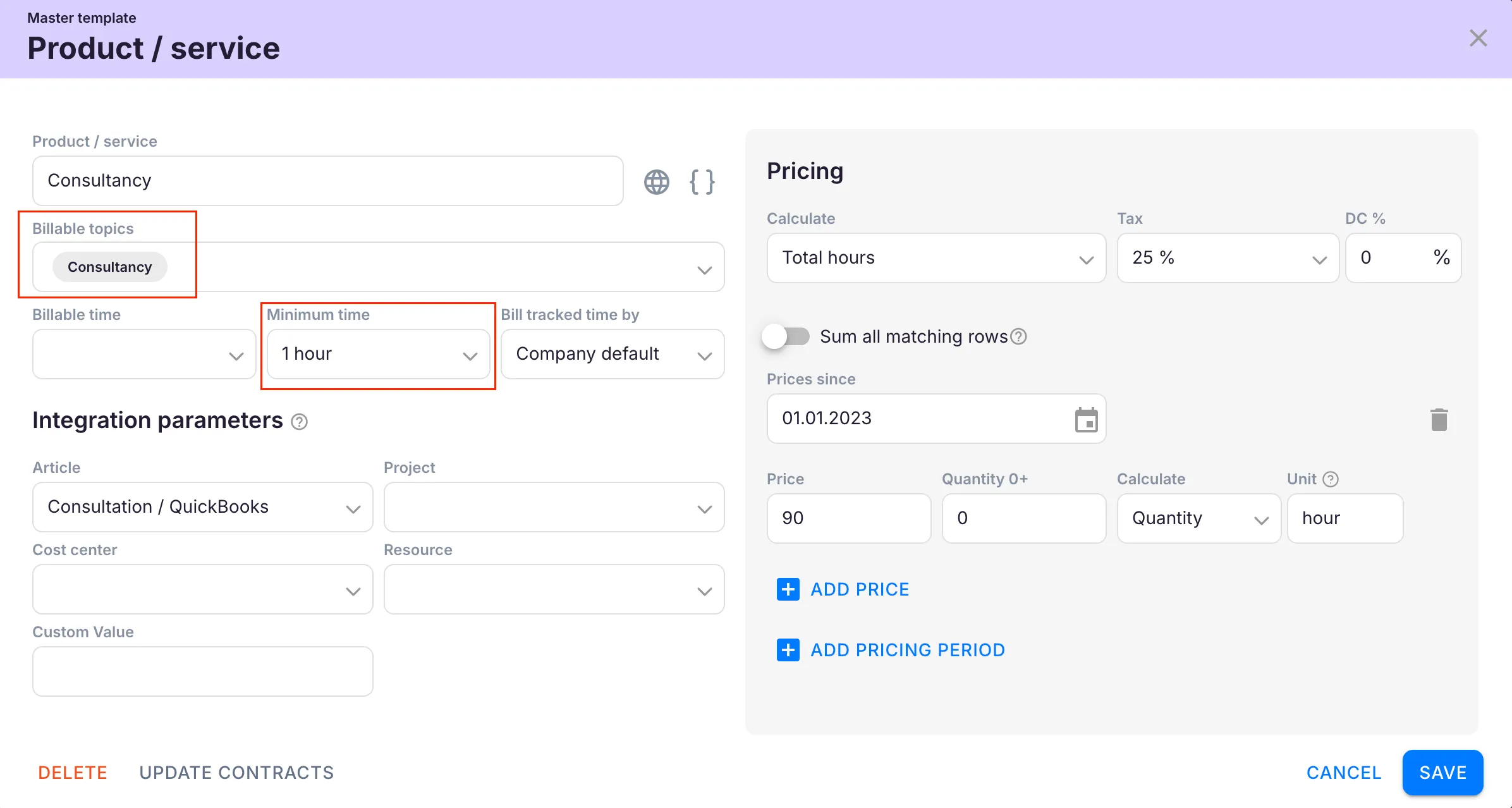
Section titled “Topic selection”Restrict billing to hours from tasks with a specific topic. When a topic is set, only time tracked on tasks with that topic is included in the billing calculation.
Minimum time
Section titled “Minimum time”Set a minimum billable time that is always charged, even if less time was tracked. For example, charge at least 1 hour even when only 5 minutes were logged.
Bill tracked time by
Section titled “Bill tracked time by”The dropdown decides which date puts an hour on an invoice, and it is how you bill only finished work.
- Time entry — the hour is billed for the period it was tracked in.
- Task due date — the hour follows the task’s due date rather than its own.
- Task finish date — the hour is billed only once the task is marked done, so work still in progress never reaches a partial invoice.
- Company default — follow the company-wide choice set in the Billing app’s settings. On a client’s own product the option reads Client default.
A product that bills a custom field rather than tracked time has the same dropdown under Bill task field by. Its choices are Task start date, Task due date and Task finish date.
Sum all matching rows
Section titled “Sum all matching rows”When enabled, the prices of all applicable pricing ranges are summed together. When disabled, only the single range in which the tracked value falls is applied.
Future pricing periods
Section titled “Future pricing periods”Add more pricing periods with future start dates. When the date arrives, the new prices apply automatically — useful for scheduling rate changes in advance.
Troubleshooting
Section titled “Troubleshooting”Hours are not being counted on the invoice
Section titled “Hours are not being counted on the invoice”Verify that time has been tracked on tasks linked to this product. If the hour type is set to Extra hours, only tasks tagged with Extra work are counted.
Invoice amount seems incorrect when using topic filtering
Section titled “Invoice amount seems incorrect when using topic filtering”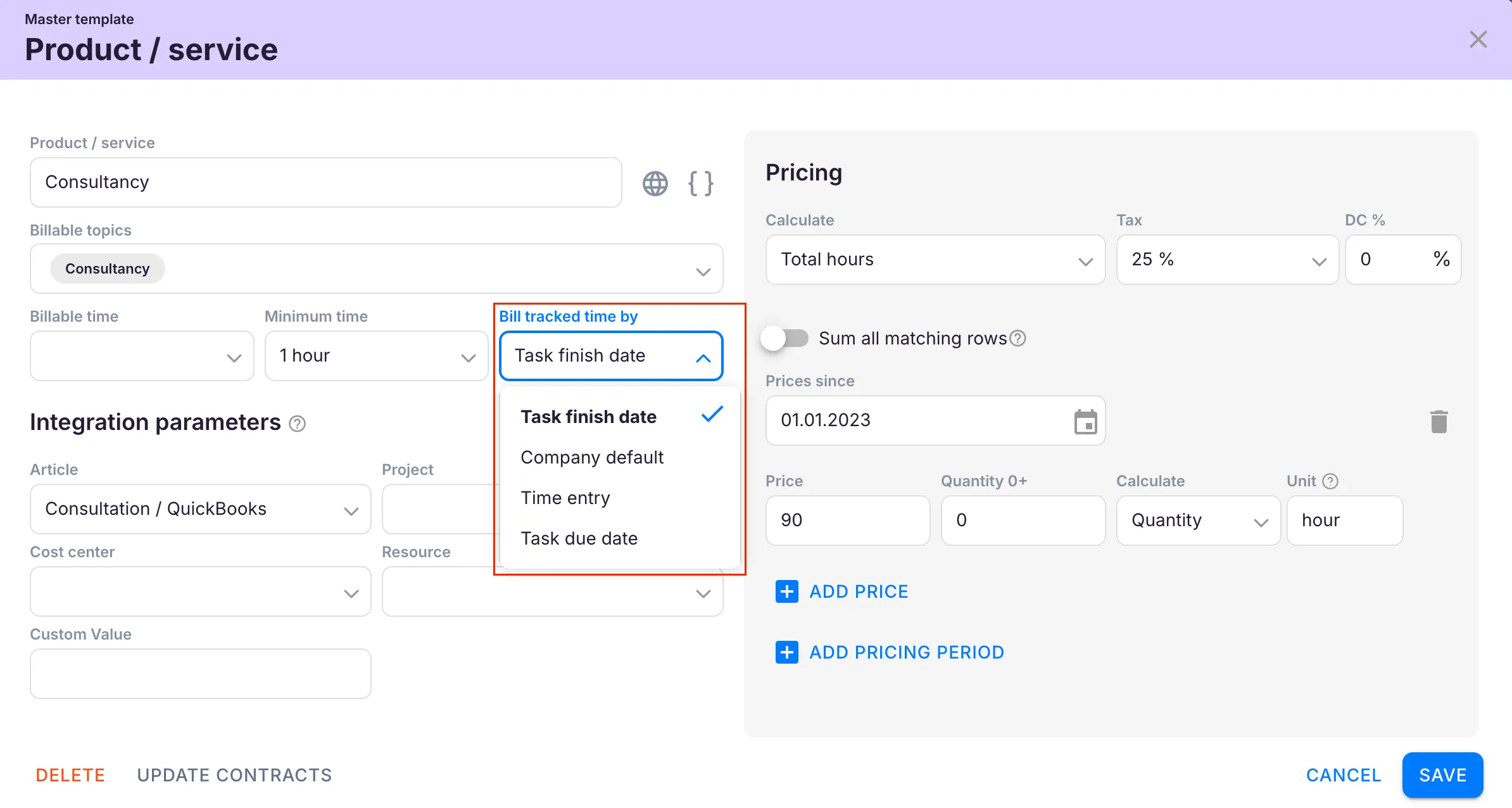
Confirm that the correct topic is assigned to the relevant tasks. Only time tracked on tasks with the matching topic is included.
Minimum time is not being applied
Section titled “Minimum time is not being applied”Check that the minimum time value is set on the product itself. The minimum applies per billing period, not per individual time entry.
New pricing rates are not taking effect
Section titled “New pricing rates are not taking effect”Check that the future pricing period start date has been reached. Pricing periods only activate on or after the configured date.