
Removing a product from your price list works in one of two ways — delete or archive — and Uku decides which one applies.
Who can do this
Section titled “Who can do this”Company Owners and Company Admins can delete and archive products. Company Admins’ product access comes from the Products team permission, granted to the Administrators team by default. If that permission is removed, only the Company Owner can delete or archive products. See Members and Teams permissions.
How to delete a product
Section titled “How to delete a product”You can permanently delete a product only if it is not used on any contract row or invoice row.
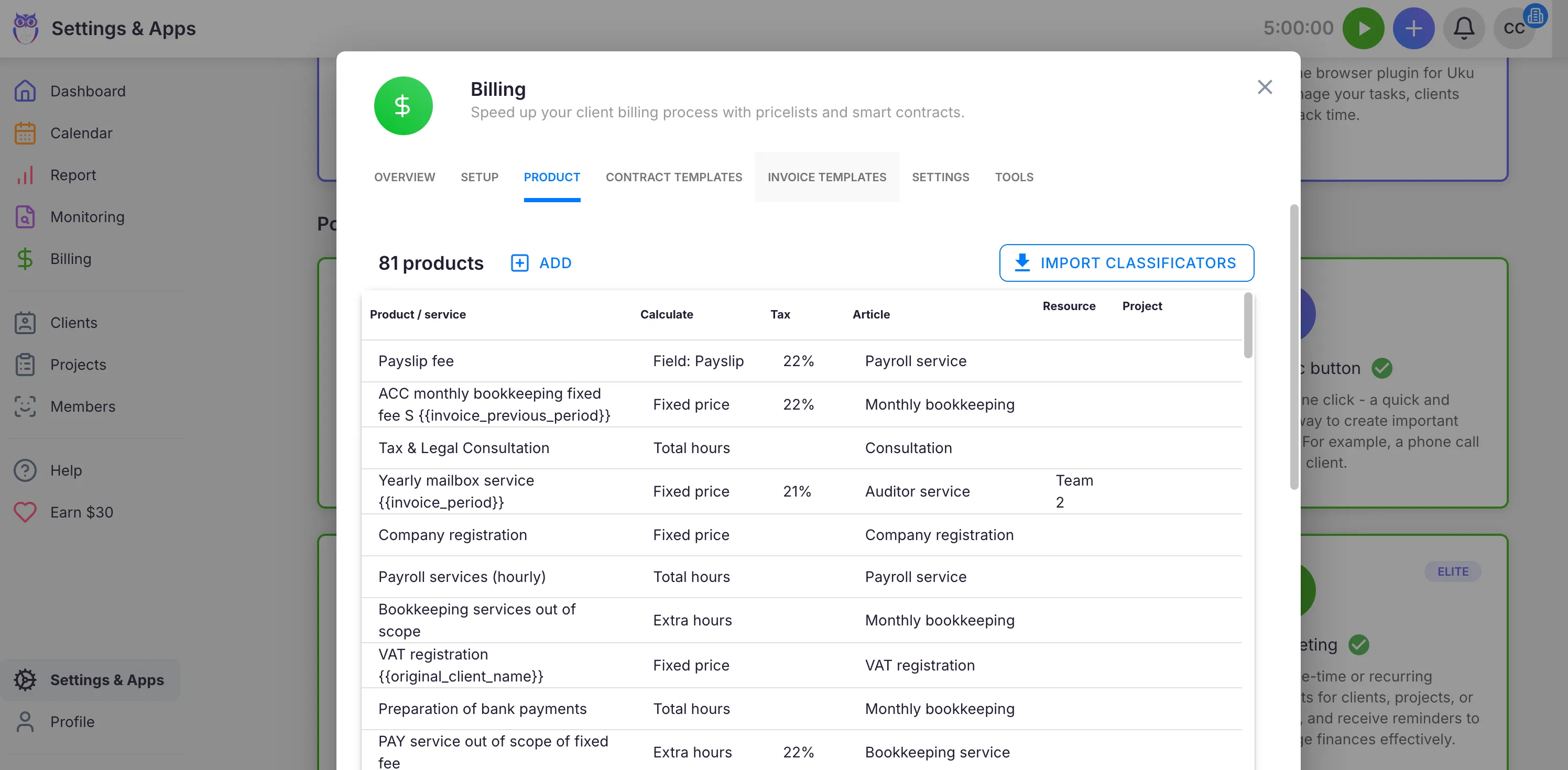
Path: Settings & Apps → Billing → Products
- Open Settings & Apps → Billing → Products.
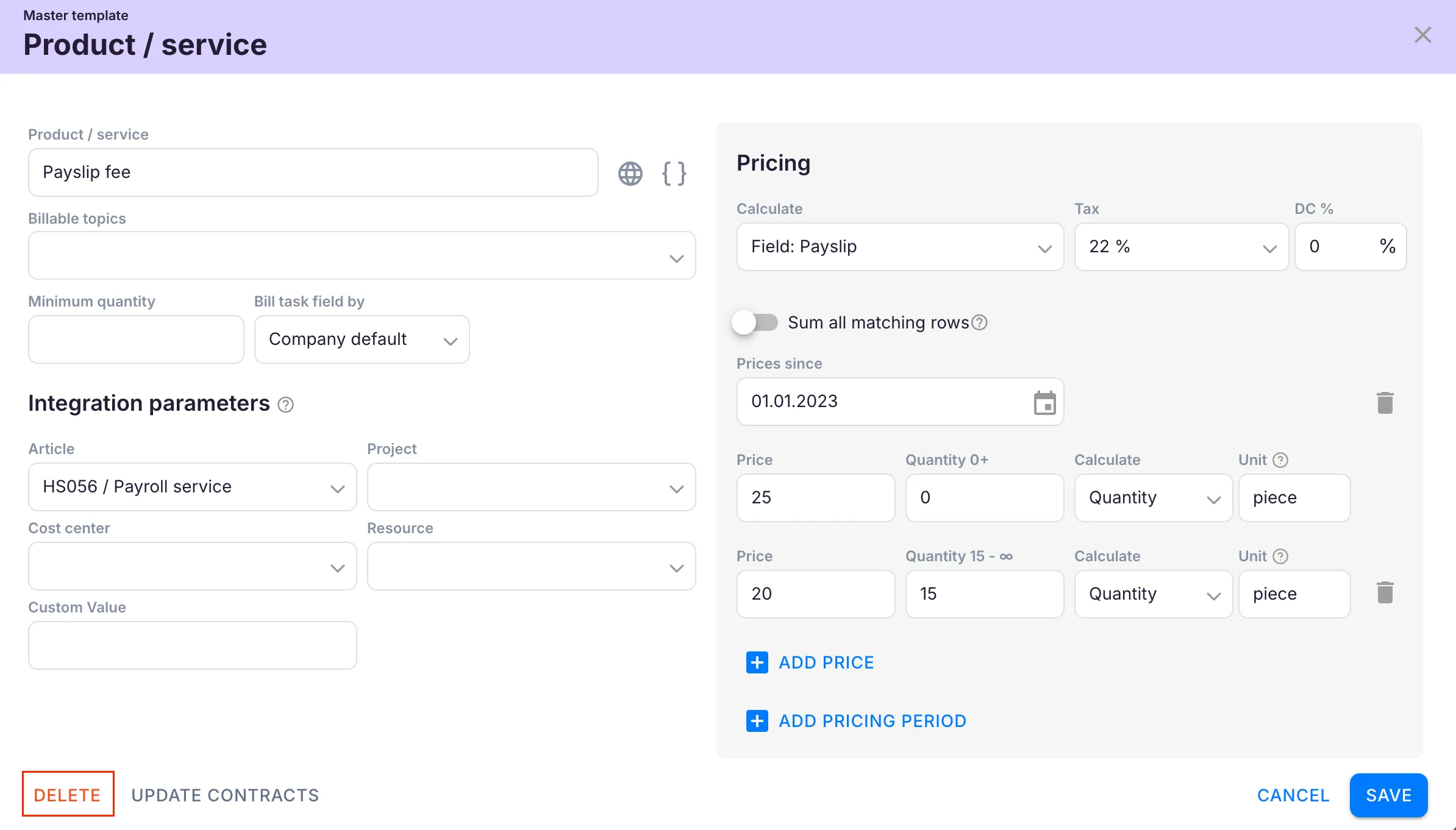
- Click the product you want to delete.
- Click Delete.
- Confirm Are you sure that you want to delete this product? with Yes.
How to archive a product
Section titled “How to archive a product”If the product is used on a contract or on an invoice, Uku will not delete it, and offers archiving in the same flow instead.
- Open the product in Settings & Apps → Billing → Products and click Delete.
- When Uku answers This product is in use. Do you wish to archive it?, click Archive.
Archiving is non-destructive. The product’s data stays intact on every existing contract and invoice. The product is removed from active selection, so it cannot be added to new contracts.
Archiving is the right option when you rebuild your price list: archive the old products and add the new ones, rather than clearing the list.
Restoring archived products
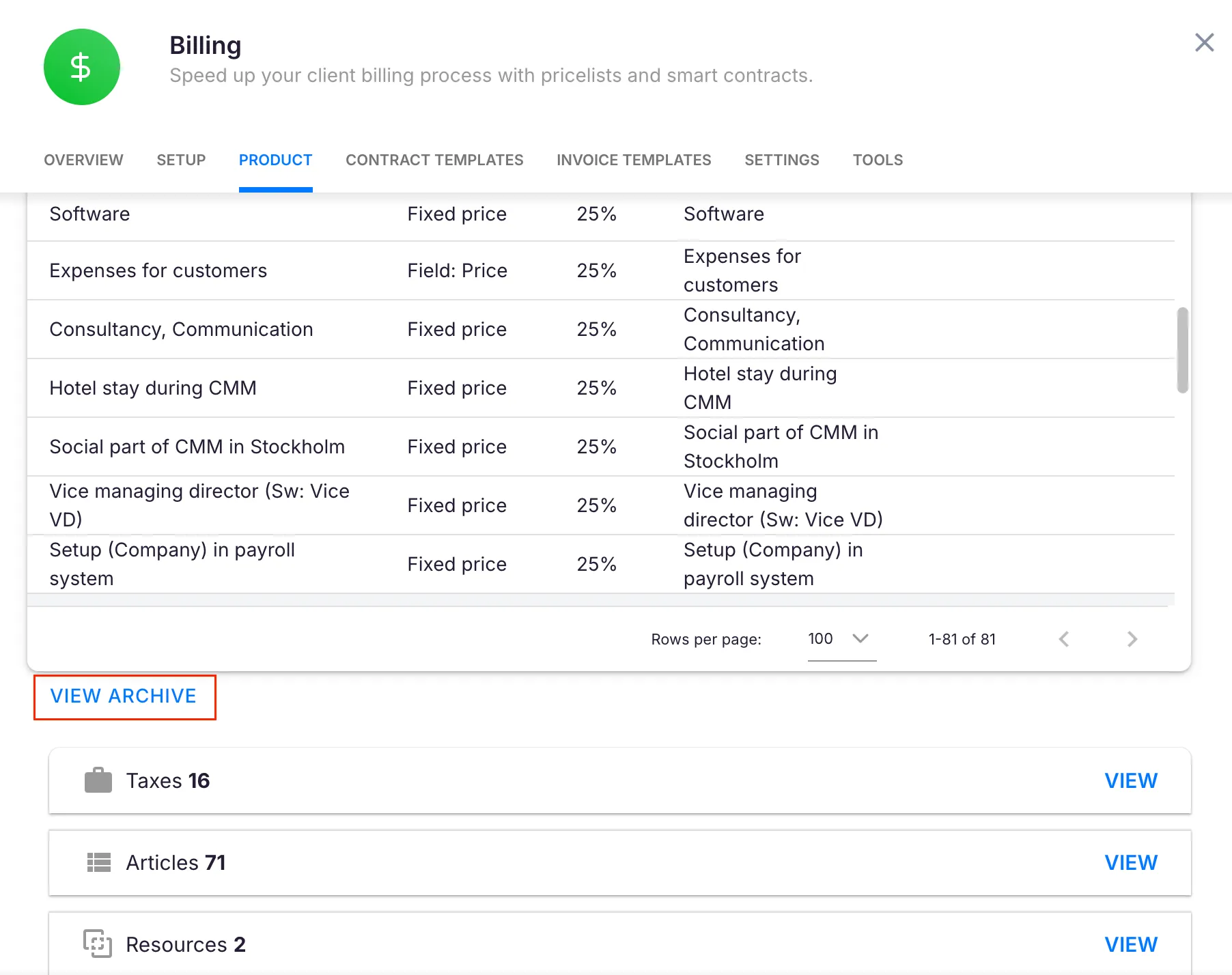
Section titled “Restoring archived products”Archived products are not in the product list — they live behind a separate archive view.
- Open Settings & Apps → Billing → Products.
- Click View archive at the bottom of the tab.
- Tick the products you want back and click Restore.
A restored product is added back to client contracts where it was in use and that have not been saved in the meantime.
Troubleshooting
Section titled “Troubleshooting”Cannot delete a product
Section titled “Cannot delete a product”The product is used on at least one contract row or invoice row. Use Archive instead — it removes the product from active use and keeps contract and invoice data intact. To delete it for good, first remove it from every contract; a product that has been invoiced can never be permanently deleted.
I cannot find the products — Setup only shows Taxes, Articles, Resources
Section titled “I cannot find the products — Setup only shows Taxes, Articles, Resources”The Setup tab holds product fields — taxes, articles, resources, billing projects, cost centers, units, bank accounts and invoice sellers. Products are on the separate Products tab.
The delete or archive option is not available
Section titled “The delete or archive option is not available”Only Company Owners and Company Admins can delete or archive products. Check whether the Products permission is still granted — by default it sits on the Administrators team. If it was removed, only the Company Owner can manage products. See Members and Teams permissions.
Archived product is not visible
Section titled “Archived product is not visible”Archived products are hidden from the product list. Open View archive at the bottom of the Products tab to see and restore them.
I need to remove the whole price list
Section titled “I need to remove the whole price list”There is no bulk delete — products are handled one by one. Archive the ones that are in use and delete the rest.