
Task statuses help you distinguish between work that is done, still to do, delayed, or set aside. Uku assigns statuses automatically based on dates and actions — you cannot set them manually.
Who can do this
Section titled “Who can do this”- All team members can view and filter by task statuses.
- Statuses are system-generated and update automatically — they cannot be manually overridden.
Status definitions
Section titled “Status definitions”The Task status filter offers these values (plus All tasks, which clears the status filter):
| Status | What it means |
|---|---|
| Todo | The task is open and not yet done — the default state for every new task, whether or not its due date has passed. This is the Dashboard’s default filter. |
| Done | The task has been marked done on or before its due date. (If it was marked done after the due date, it counts as Delayed.) |
| Delayed | The task was completed (marked done) after its due date had passed. |
| Overdue | The task is not yet done and its due date has passed. Overdue tasks are a subset of Todo — they stay in your active views and sort to the top of the Dashboard. |
| Archived | The task has been archived and is hidden from active views. Select Archived in the filter to find them. |
“Later” is not a status filter value — it’s a separate Dashboard tab where you park tasks to reappear on a chosen date. See Later and Catch up.
How to filter tasks by status
Section titled “How to filter tasks by status”Filtering on the Dashboard
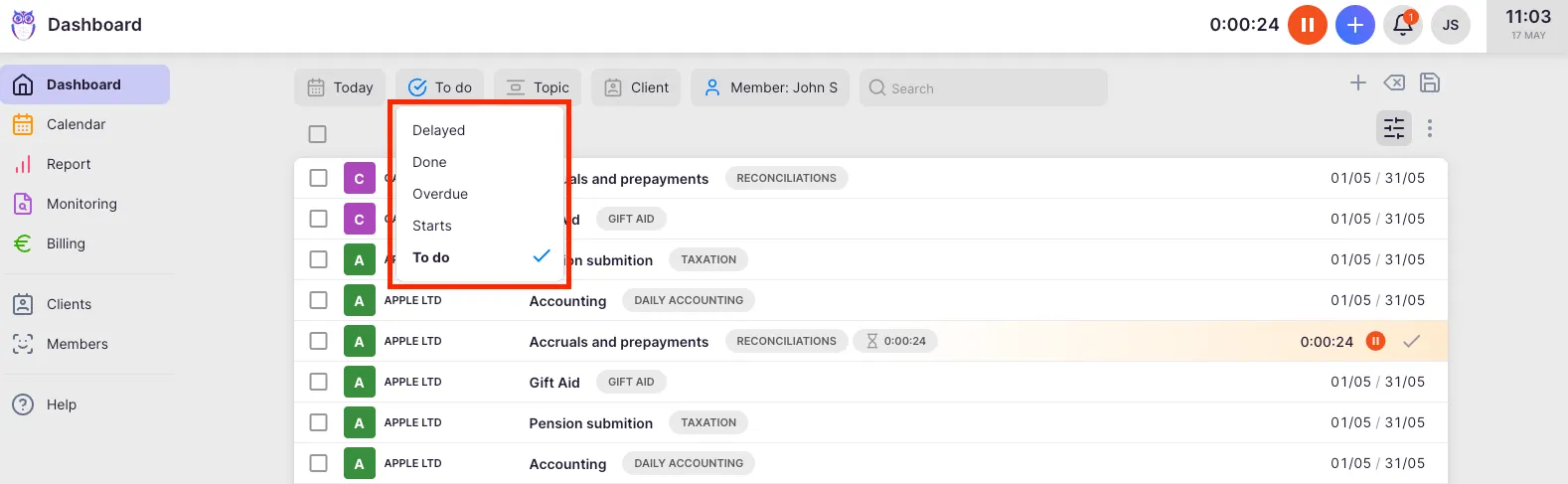
Section titled “Filtering on the Dashboard”- Open the Dashboard.
- Click the Filter icon in the filter bar.
- Select the desired task status to filter the view.
Filtering in Report and Calendar
Section titled “Filtering in Report and Calendar”You can also filter tasks by status in the Report and Calendar views using the same filter logic. Open the filter bar and add a Status filter.
Troubleshooting
Section titled “Troubleshooting”A task shows as “Overdue” but I already did the work
Section titled “A task shows as “Overdue” but I already did the work”The task was never marked done in Uku before its deadline passed. Open the task and click Mark done — its status then changes to Delayed (completed after the deadline).
Status filter shows no results
Section titled “Status filter shows no results”Verify that the date range selected on the Dashboard includes tasks with the chosen status. Expand the date filter to a wider range.
Cannot manually change a task status
Section titled “Cannot manually change a task status”Statuses are system-managed. To move a task to Done, mark it done. To clear an Overdue task, either complete it or update its deadline. To move a task to Later, use the row menu or right-click and select Later.