
Who can do this
Section titled “Who can do this”Company Owners and Company Admins can create and manage products. Company Admins’ product access comes from the Products team permission (granted to the Administrators team by default); if it’s removed, only the Company Owner can add or update products. See Members and Teams permissions.
Overview
Section titled “Overview”Most products bill the same amount on every invoice. A task-triggered product behaves differently: it only appears on the invoice when a designated task field is filled in or marked. This is the right pattern in two cases:
- Additional services — work done occasionally at a known price (annual accounts, ad-hoc consulting). The trigger is a checkbox or number field on the task.
- Disbursement fees — costs you pay on behalf of a client and pass through to the invoice (government filing fees, stamp duty). The amount varies, so the trigger is a Price-type field that carries the actual fee.
Both share the same setup pattern: create the task field first, then create the product and link it to that field.
Understanding task-triggered products
Section titled “Understanding task-triggered products”| Additional services | Disbursement fees | |
|---|---|---|
| Use case | Occasional work at a known price | Variable pass-through costs |
| Task field type | Checkbox or number | Price |
| Amount | Set on the product | Entered on the task each time |
| Example trigger | ”Annual accounts completed” checkbox | ”Filing fee paid” price field |
| What appears on the invoice | Product price × quantity | The exact amount entered on the task |
Step 1: Create a task field
Section titled “Step 1: Create a task field”Create the task field that will trigger invoicing.
- Open Settings & Apps → Tasks → Task fields.
- Create a new task field.
- Choose the field type that matches the use case:
- Checkbox for additional services that bill once when work is done.
- Number for additional services billed by quantity (e.g. number of extra payslips).
- Price for disbursement fees where the team member enters the actual amount.
- Give the field a descriptive name (for example, “Annual accounts completed” or “Government filing fee”).
- Save the field.
Step 2: Configure the product
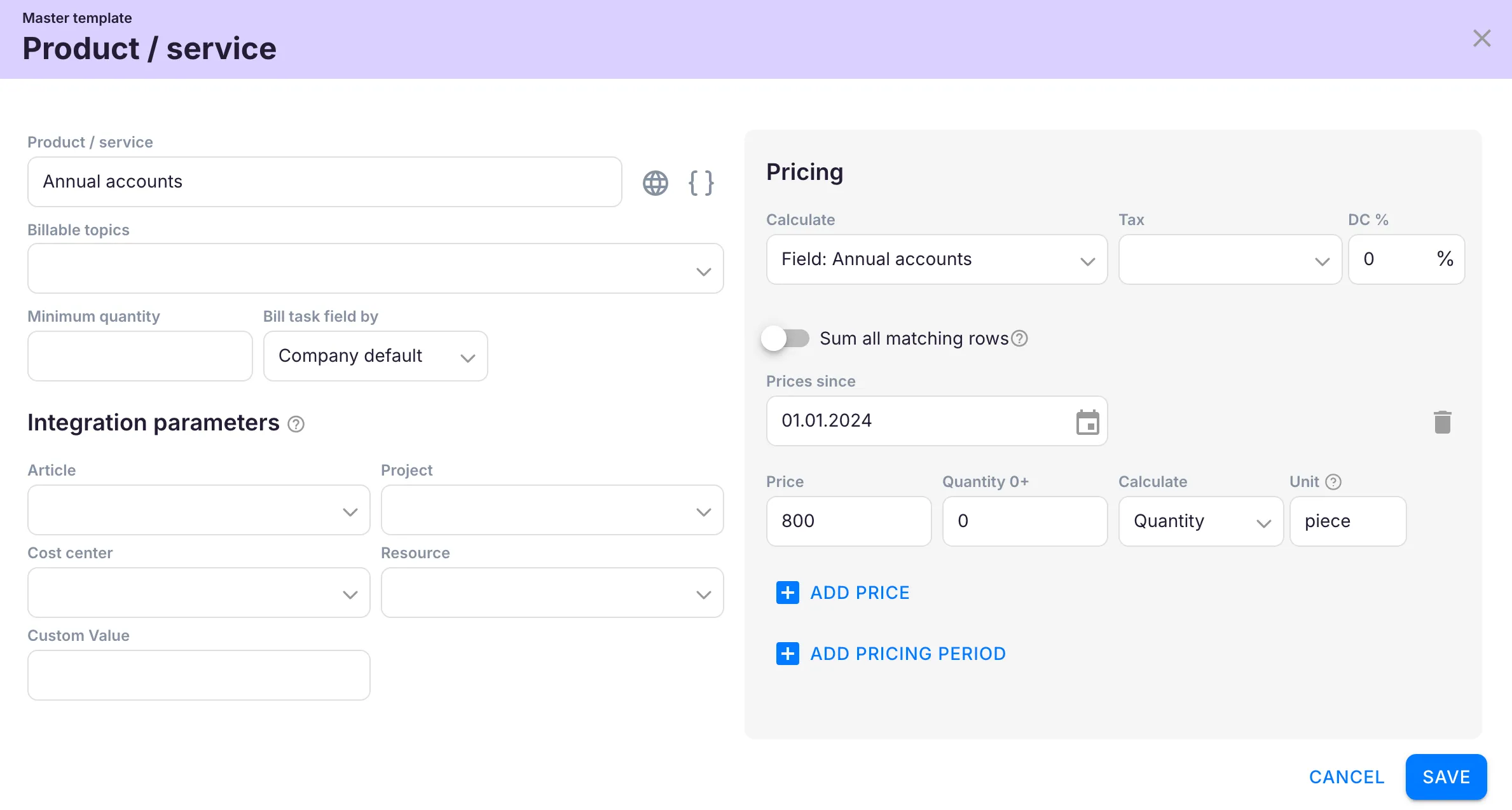
Section titled “Step 2: Configure the product”- Open Settings & Apps > Billing > Setup > Articles and click + Add.
- Enter a product name (for example, “Annual accounts” or “Government filing fee”).
- For additional services: configure the pricing as you would for any product (fixed, per piece, or hourly).
- For disbursement fees: set the product so its price is sourced from the Price-type task field instead of a fixed amount.
- Link the product to the task field you created in Step 1. This is what triggers invoicing.
- Click Save.
How it works on the invoice
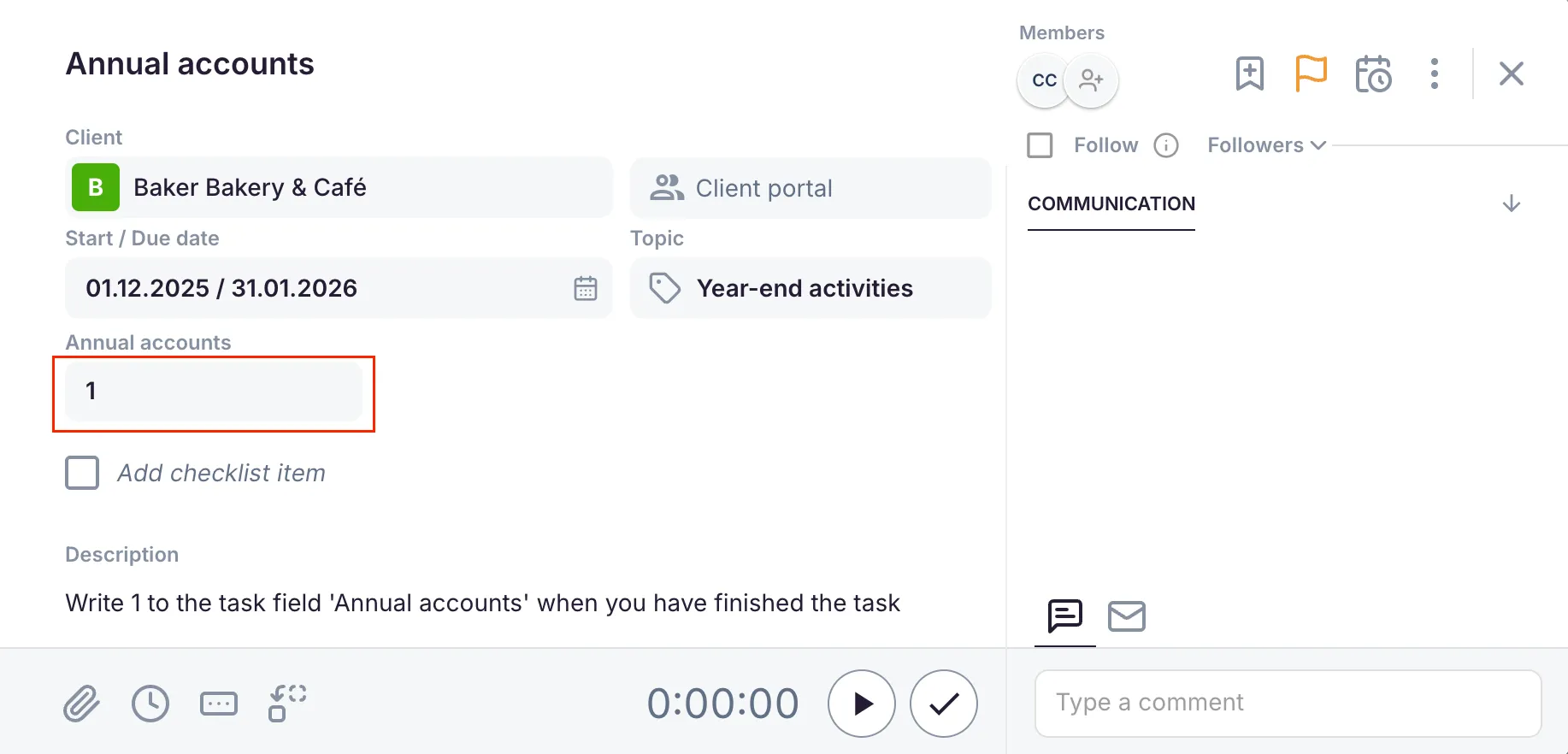
Section titled “How it works on the invoice”When the linked task field is filled in or checked, Uku queues the product for the next invoice on that client.
- Additional services: the accountant marks the “Annual accounts completed” checkbox. The product line is added to the next invoice at its configured price.
- Disbursement fees: the team member enters the actual fee in the Price field on the task. That exact amount becomes the invoice line value.
If the field is empty (or unchecked), the product does not appear on the invoice for that period.
Troubleshooting
Section titled “Troubleshooting”The product appears on every invoice
Section titled “The product appears on every invoice”Verify that the product is configured to bill based on the task field, not as a recurring fixed-price item. The product should only be triggered when the field value is set.
The product does not appear on the invoice even though the task field is filled in
Section titled “The product does not appear on the invoice even though the task field is filled in”Check that the product is correctly linked to the task field in the product configuration. Also verify the product is included in the client’s contract.
The disbursement fee shows a fixed price instead of the entered amount
Section titled “The disbursement fee shows a fixed price instead of the entered amount”Edit the product and ensure the pricing source is set to the Price-type task field, not a static amount.
Disbursement invoice line shows 0
Section titled “Disbursement invoice line shows 0”Confirm that the fee amount was entered in the Price task field on the specific task before generating the invoice.
The task field is not available when configuring the product
Section titled “The task field is not available when configuring the product”Make sure the task field has been created and saved in Settings & Apps → Tasks → Task fields before linking it on the product. Refresh the product setup page if it still does not appear.