
Recurring tasks repeat automatically on a schedule — weekly, monthly, quarterly, or yearly. Once you create a recurring task for a client, Uku adds it to the client’s Workflow and generates new instances on the configured schedule without any manual action.
Who can do this
Section titled “Who can do this”- Any team member with access to the client can add or edit a recurring task in that client’s Workflow.
- Company Admins and Company Owners can manage recurring tasks for any client.
Add a recurring task
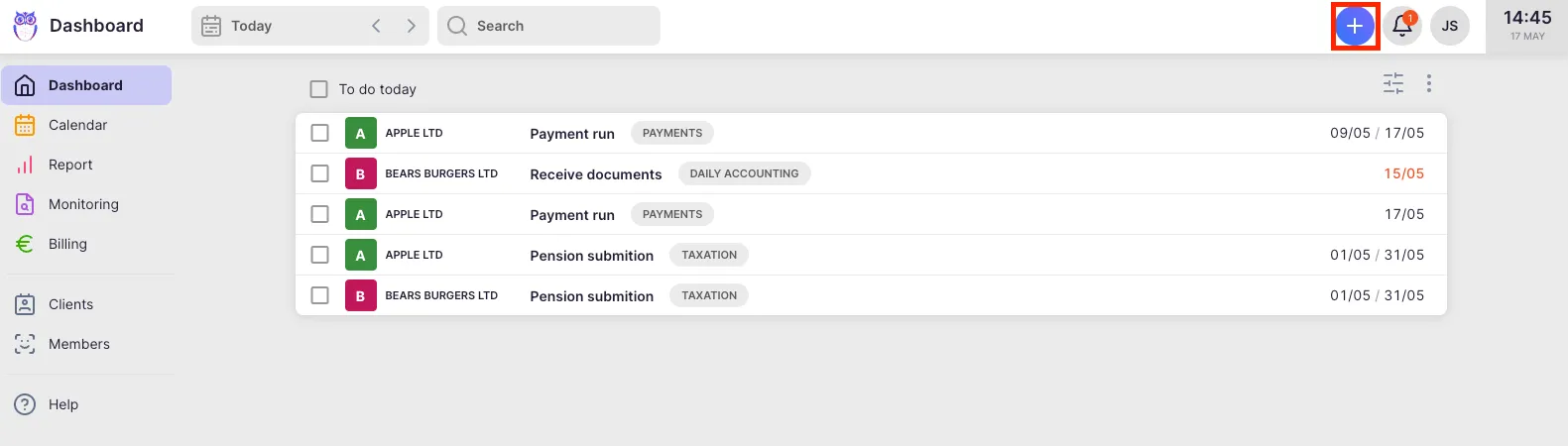
Section titled “Add a recurring task”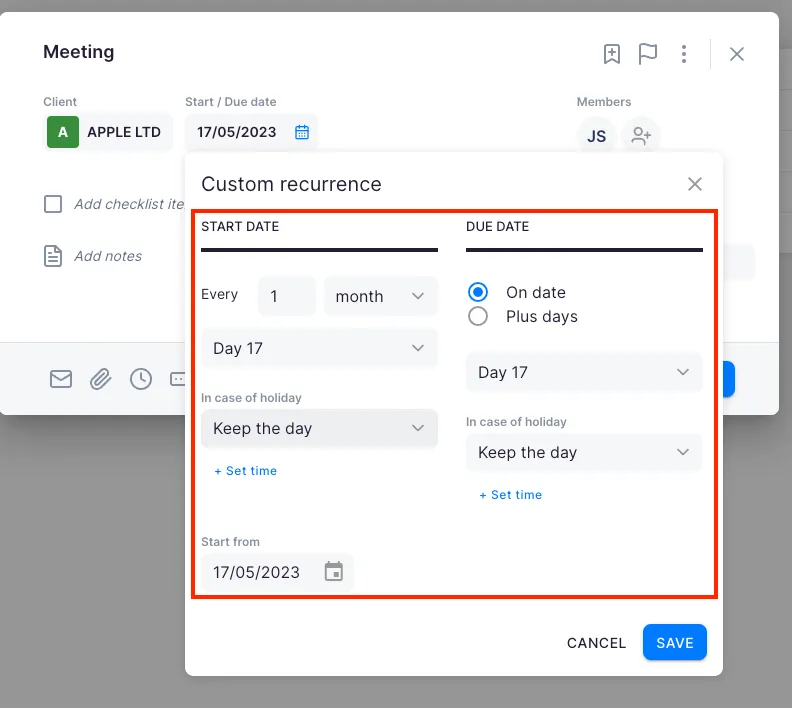
- Click the + button in the Dashboard or navigation bar to open the task creation form.
- Select the client you want to assign the task to.
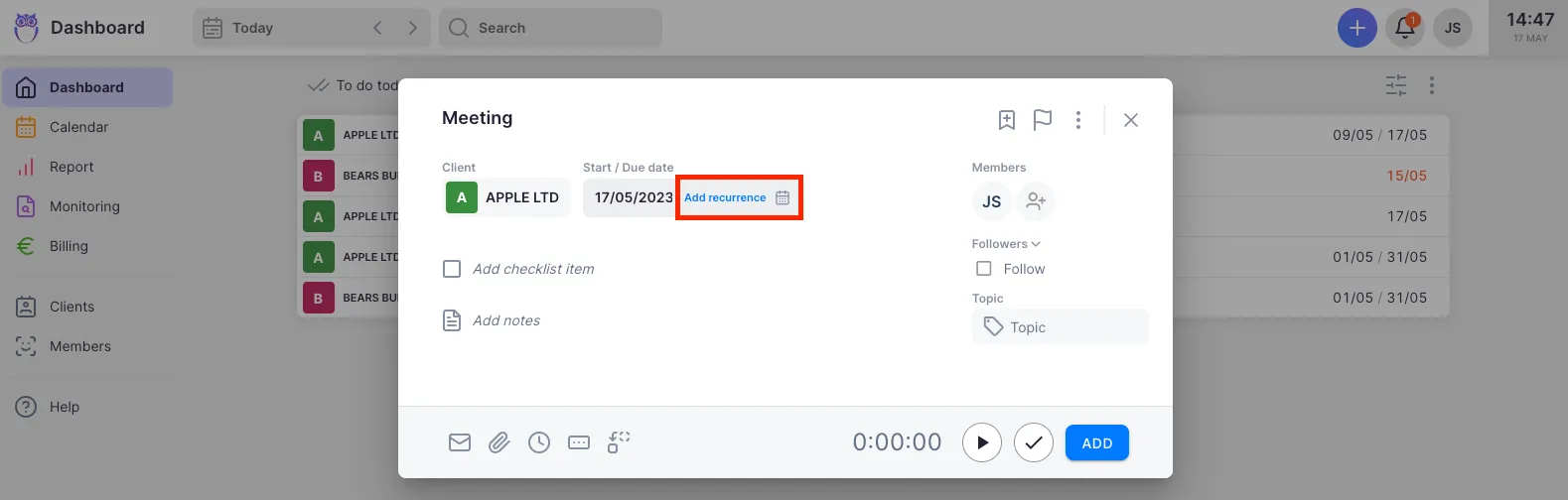
- Click the Start / Due date field and select the recurrence option.
- Choose a recurrence frequency: Weekly, Monthly, Quarterly, or Yearly.
- Add a Name and Topic to the task.
- Configure the recurrence schedule (see “Recurrence types” below for details on each).
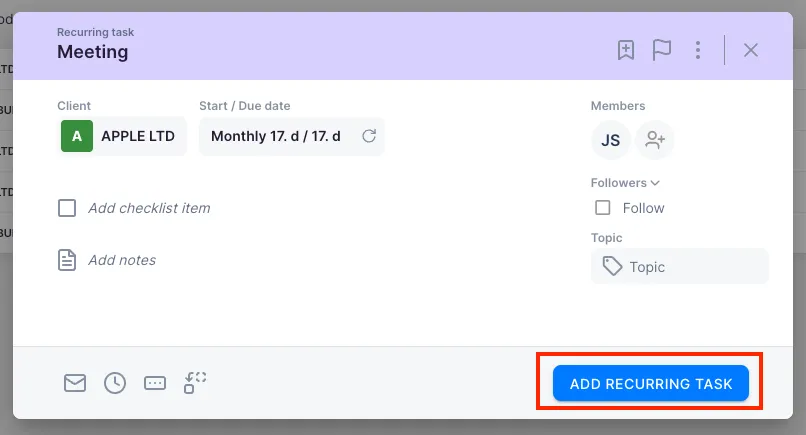
- Click Add recurring task to save the task to the client’s Workflow.
When recurrence is successfully configured, the task header turns purple, indicating it is a recurring task.
Recurrence types
Section titled “Recurrence types”Weekly recurrence
Section titled “Weekly recurrence”- Select the day(s) of the week when the task should appear on your dashboard.
- Set the interval — for example, an interval of 2 makes the task appear every other week.
- Use the + days field to offset the due date from the start date.
Monthly recurrence
Section titled “Monthly recurrence”- Select the start date and due date for each monthly occurrence.
- Choose what happens if the date falls on a weekend or public holiday: Show before, Show after, or Keep the date.
- Use the + days rule to set the due date as a number of working days from the start date or beginning of the month.
Example — VAT returns due 20 business days after month-end: set recurrence as monthly, then choose From beginning of month, 20 days, Monday to Friday, excluding public holidays.
Quarterly recurrence
Section titled “Quarterly recurrence”Uku organizes quarters as Q1 (January–March), Q2 (April–June), Q3 (July–September), Q4 (October–December).
- Choose whether the start/due date falls in the first, second, or third month of the quarter.
- Select the exact date within that month.
- The + days rule can also be used for quarterly recurrence.
Yearly recurrence
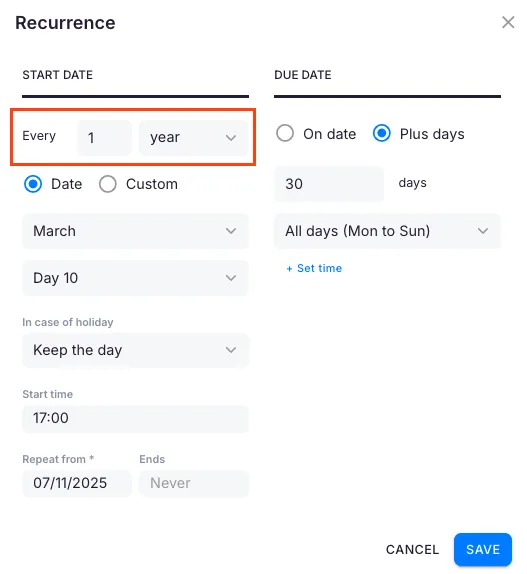
Section titled “Yearly recurrence”- Select the month and day for both the start and due dates.
- The + days rule can also be used for yearly recurrence.
Custom recurrence
Section titled “Custom recurrence”For schedules that do not fit the standard options, select Repeat and then choose Custom to define a fully custom recurrence pattern.
Configuring due dates for recurring tasks
Section titled “Configuring due dates for recurring tasks”The available due-date options change based on the recurrence type. Always set the recurrence pattern first, then configure the due date.
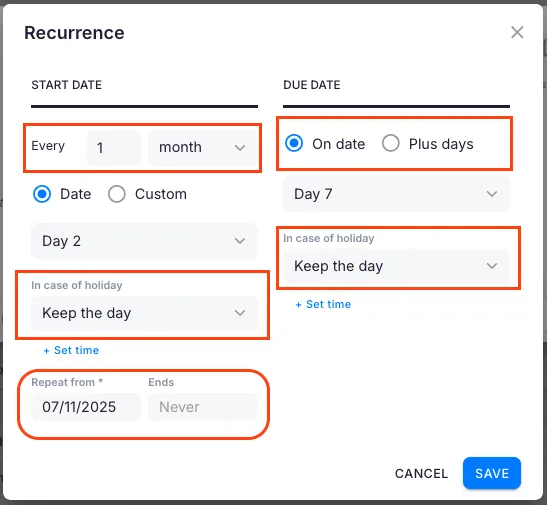
Monthly due dates
Section titled “Monthly due dates”Option A — Specific date
- Select a day of the month (e.g., the 15th).
- Choose behavior for weekends and holidays: Before (move earlier), After (move later), or Exact (keep the date).
Option B — Plus days calculation
- Set the due date as a number of working days after a reference point.
- Choose the reference: From start of task or From beginning of month.
- Select which days to count: Monday–Friday excluding public holidays (most common), Monday–Friday including holidays, or all calendar days.
Weekly due dates
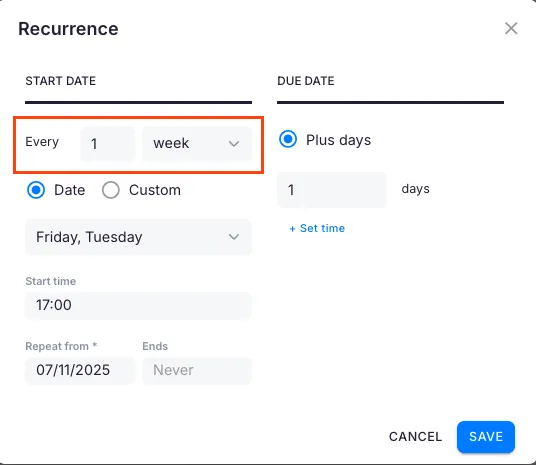
Section titled “Weekly due dates”- Set the day of the week for the task.
- Optionally add a specific time for the deadline.
Quarterly due dates
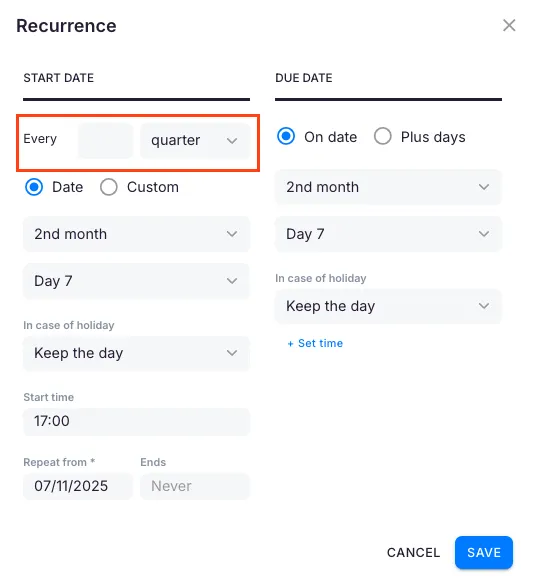
Section titled “Quarterly due dates”- Choose which month of the quarter the due date falls in (first, second, or third).
- Select a calculation method: specific date with before/after day-off rules, or plus days from start date or beginning of quarter.
Annual due dates
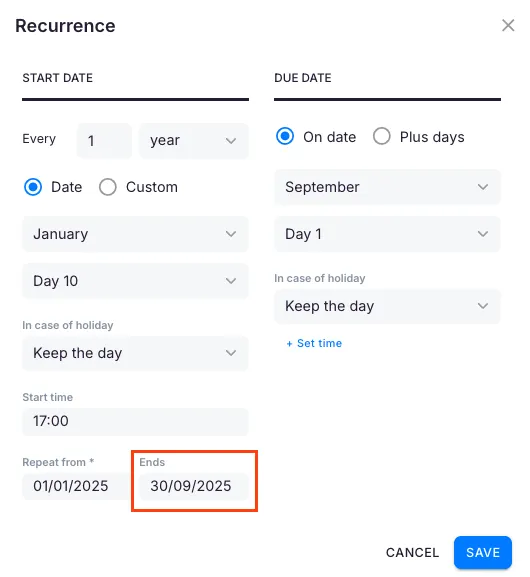
Section titled “Annual due dates”- Select the month and the day, using either a specific date (with day-off handling) or a plus-days calculation from a reference point.
- Set counting rules (business days vs calendar days).
Setting a recurrence end date
Section titled “Setting a recurrence end date”To stop a recurring task from generating after a certain date:
- Open the recurring task.
- Navigate to the Recurrence settings.
- Set an End date for the recurrence.
- Save the changes.
This is useful for tasks tied to a fixed-term contract — for example, monthly bookkeeping for a client engagement running January–September.
Start recurring tasks based on client date fields
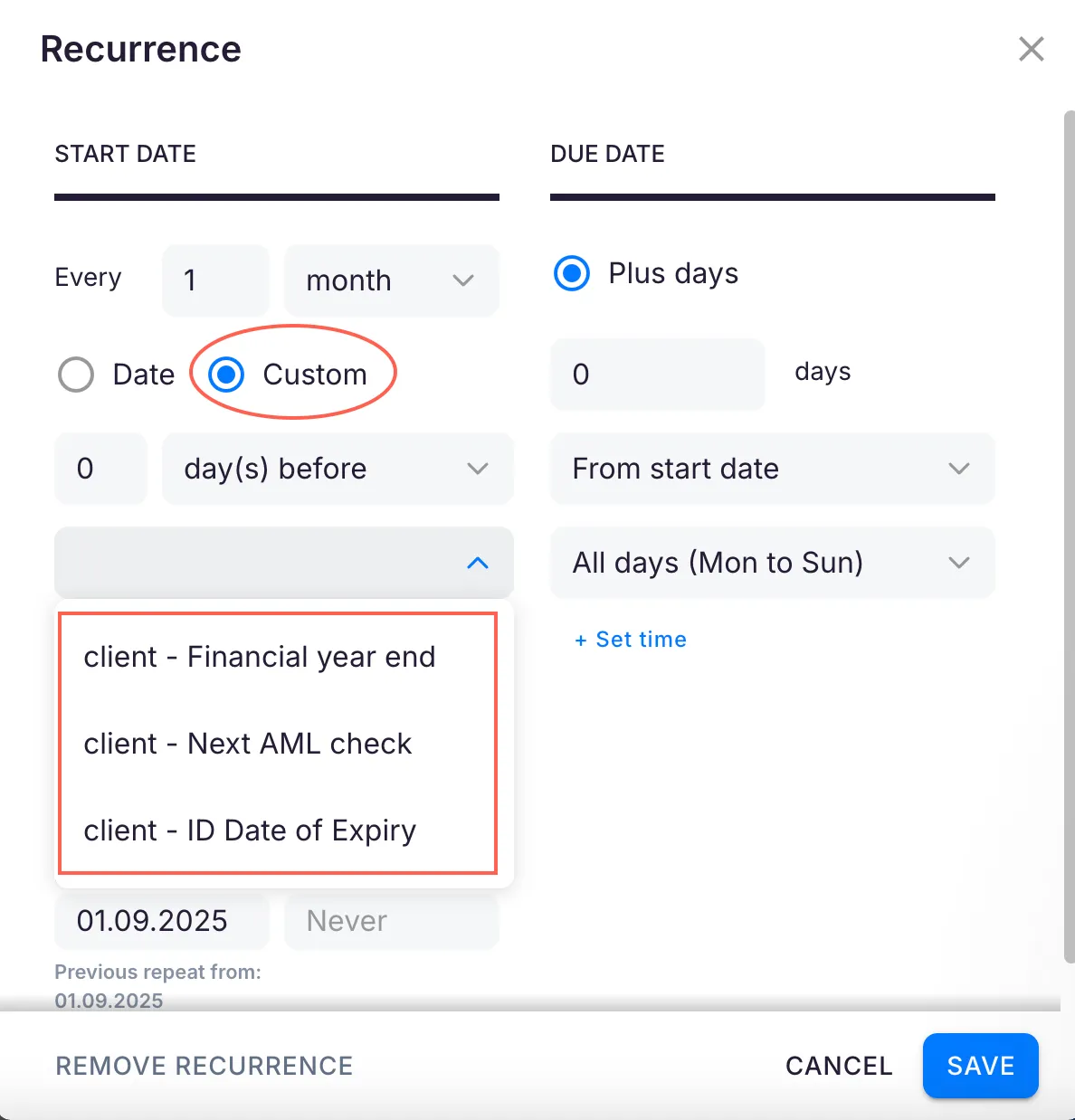
Section titled “Start recurring tasks based on client date fields”When recurring tasks need to follow a specific client deadline — year-end, payroll date, annual report, AML review — link the task start date to a client date field.
- Open the recurring task settings.
- In the start date options, choose Custom.
- Select which client date field the task should start from.
- Click Save.
Verify the task in the client’s Workflow
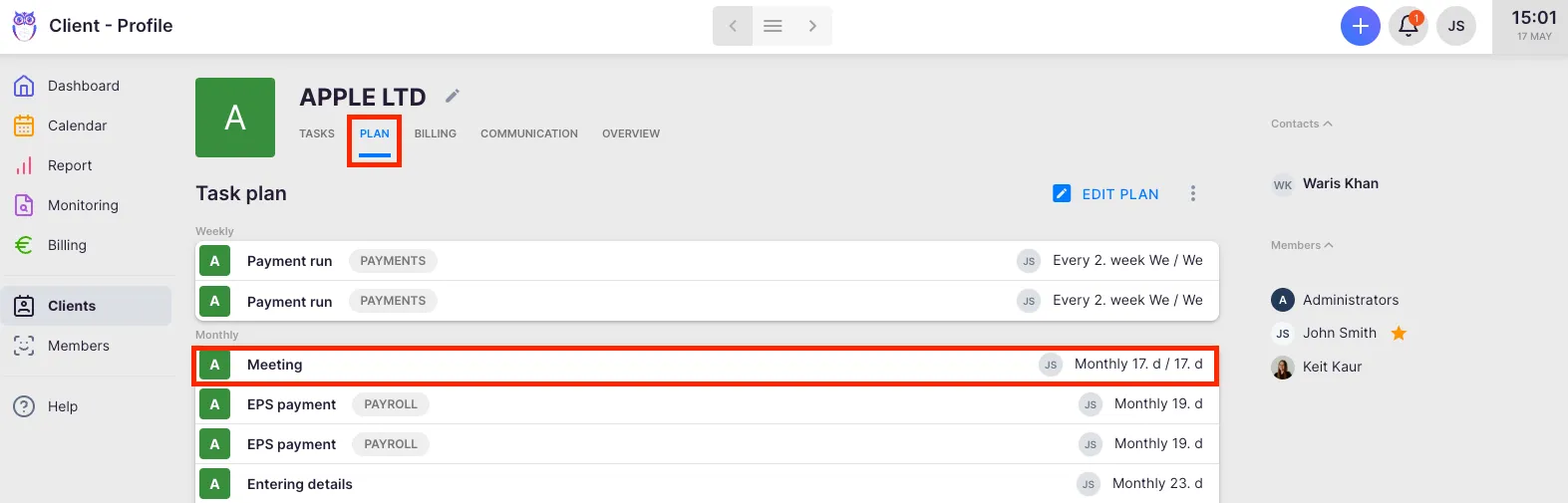
Section titled “Verify the task in the client’s Workflow”- Select Clients from the main navigation.
- Open the client’s profile.
- Select Workflow from the client menu.
Uku automatically adds all recurring tasks to the client’s Workflow. You can view and edit them there.
Removing a recurring task
Section titled “Removing a recurring task”A recurring task can be removed in two ways. If another team member is also assigned to the task, you can choose to remove only your own assignment instead of deleting the template entirely.
Method 1 — Uncheck in the client’s Workflow
Section titled “Method 1 — Uncheck in the client’s Workflow”- Open the client’s profile (click the client icon next to the client name on a task, or open Clients → client).
- Select the Workflow tab.
- Click Edit workflow.
- Uncheck the recurring task you want to remove.
- Click Confirm workflow to save.
Method 2 — Delete the template from the task view
Section titled “Method 2 — Delete the template from the task view”You can delete a recurring task from the Dashboard, Calendar, Report, or client profile views.
- Open the recurring task you want to delete.
- Click the three-dot menu and select Edit template task.
- The Recurring Task view opens. Click the three-dot menu again and select Delete task template.
- Uku asks you to confirm the deletion.
- If another member is involved in the recurring task, choose whether to delete the task completely or remove only your account from it.
- Confirm to proceed.
Method 3 — Stop the repeat but keep the task
Section titled “Method 3 — Stop the repeat but keep the task”Use this when the work is still needed once, and to make a template task selectable in the Templates dropdown when creating a task.
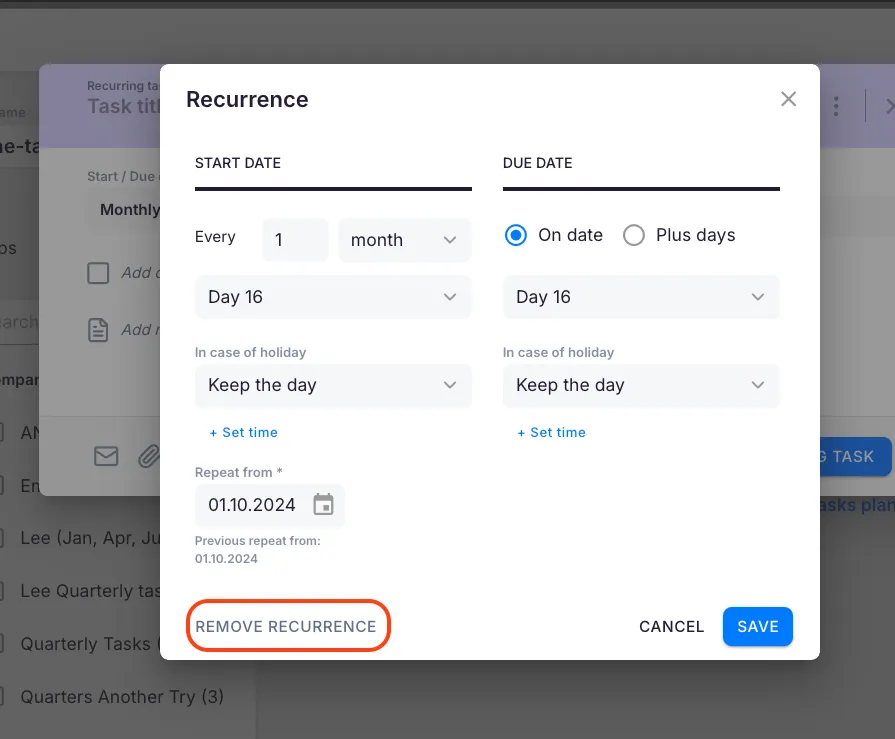
- Open the task and click the Start / Due date field.
- In the recurrence window, click Remove recurrence.
- Click Save.
The task becomes a one-time task. Its start and due dates are reset to today, so set the dates you need before saving.
Troubleshooting
Section titled “Troubleshooting”The recurring task is not appearing on the dashboard
Section titled “The recurring task is not appearing on the dashboard”Verify that the recurrence start date has been reached. Tasks do not appear on the dashboard until their scheduled start date. Also check whether the start date falls on a weekend or holiday that is configured to shift the date.
The recurring task was not created for the current period
Section titled “The recurring task was not created for the current period”Check the Repeats from date. If it is set in the future or after the current period, tasks will not be generated until that date is reached.
Tasks appear on the wrong date or are offset from the expected schedule
Section titled “Tasks appear on the wrong date or are offset from the expected schedule”For quarterly tasks, confirm the task aligns with Uku quarter definitions (Q1 starts January 1). Check the recurrence settings and verify they match the expected schedule.
The due date does not match what I expected
Section titled “The due date does not match what I expected”Check whether the + days rule is configured. If set, the due date is calculated as working days from the start date or the beginning of the month, rather than a fixed calendar date. Also check the weekend/holiday handling setting.
Tasks appear on weekends or holidays when they should not
Section titled “Tasks appear on weekends or holidays when they should not”For monthly, quarterly, and yearly recurrences, set the day-off handling to Before or After. Weekly recurrences do not auto-adjust for holidays — reschedule those manually.
I set a past start date but no retroactive tasks were created
Section titled “I set a past start date but no retroactive tasks were created”Verify that the Repeats from date covers the past period you need. Tasks are only created for periods on or after the Repeats from date.
Cannot find the recurring task in the client’s Workflow
Section titled “Cannot find the recurring task in the client’s Workflow”Navigate to the client’s profile and select Workflow. If the task is not listed, confirm that you clicked Add recurring task after configuring the recurrence. The task header should have turned purple before saving.
Cannot set recurrence — only see option to add a one-time task
Section titled “Cannot set recurrence — only see option to add a one-time task”Project tasks do not support recurrence. If the task is assigned to a project, the recurrence option is not available. Create the recurring task from the client’s Workflow tab instead.
Task reappears after unchecking in the Workflow
Section titled “Task reappears after unchecking in the Workflow”Make sure you clicked Confirm workflow after unchecking. Changes are not saved until you confirm.
Cannot find “Edit template task” in the menu
Section titled “Cannot find “Edit template task” in the menu”Verify you are opening a recurring task (indicated by a purple header). One-off tasks do not have the Edit template task option.
Want to remove yourself but not delete the task for everyone
Section titled “Want to remove yourself but not delete the task for everyone”Use Method 2. When Uku asks you to confirm, select the option to remove only your account from the task instead of deleting it entirely.
Deleted task still showing on the dashboard
Section titled “Deleted task still showing on the dashboard”Refresh the page. If the task still appears, check whether the same task exists under a different recurring template for the same client.