
Who can do this
Section titled “Who can do this”- Company Admins and Company Owners see all tabs and have full editing access.
- Company Members with Client Admin rights on a client see tabs relevant to that client. Financial tabs (Invoices, Contracts) require additional billing permissions.
- Company Members without Client Admin rights see a limited set of tabs based on their role.
Tab layout overview
Section titled “Tab layout overview”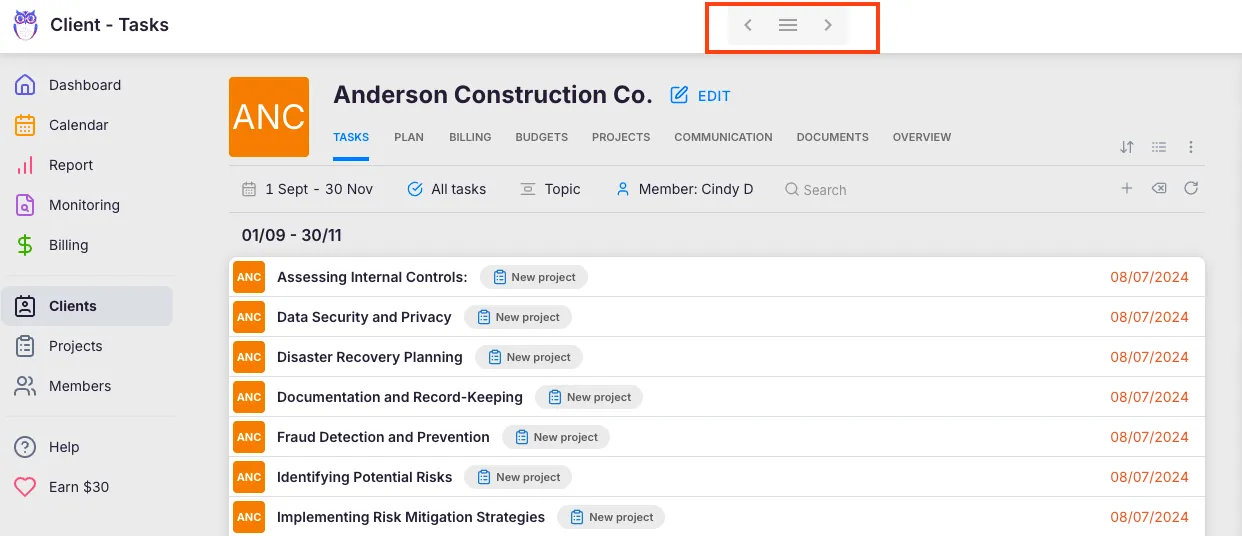
At the top of the client view you see the client avatar, name, and an Edit button. To the right of the header, a row of group buttons organizes the client’s data into four high-level categories:
- Client tasks — your day-to-day work hub.
- Activity — communication and change history.
- Documents — the client’s folders and every file attached to this client (visible when the Documents app is enabled).
- Financials — invoices, contracts, budgets, and analytics (visible when billing is enabled).
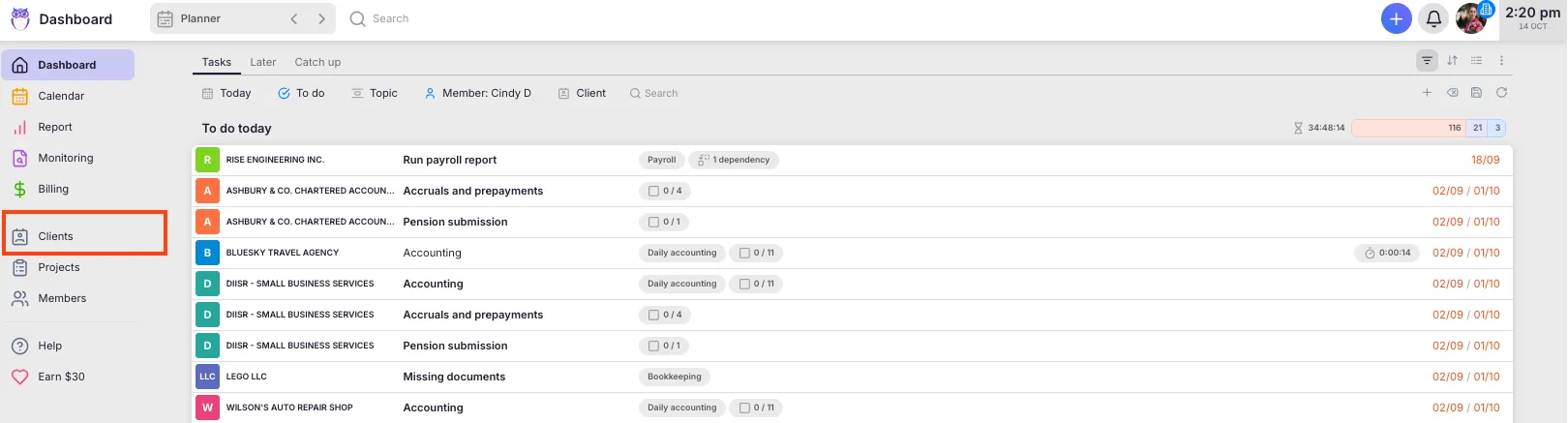
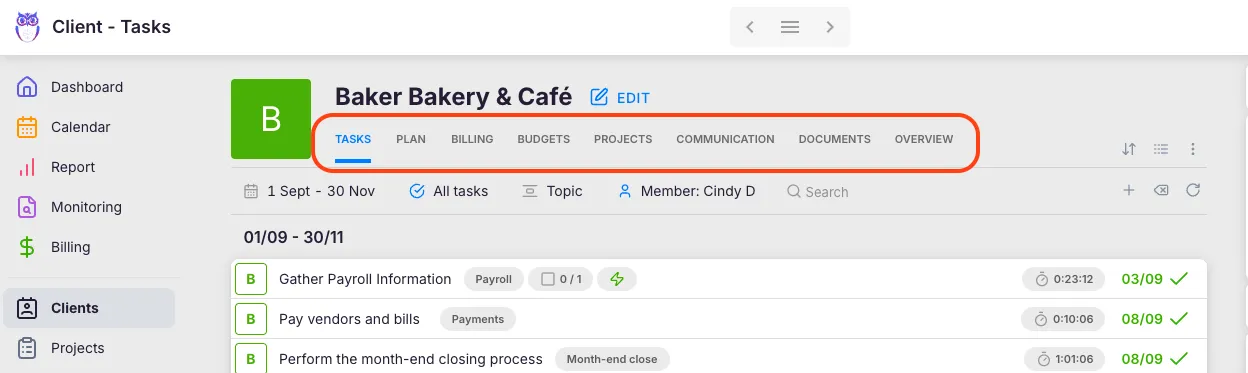
Click any group button to switch to that section. If a group has multiple sub-tabs, a dropdown arrow lets you jump directly to a specific one. A traditional tab bar below the group buttons shows the sub-tabs for the selected group.
Client tasks group
Section titled “Client tasks group”This is the default landing view when you open a client. It contains three sub-tabs:
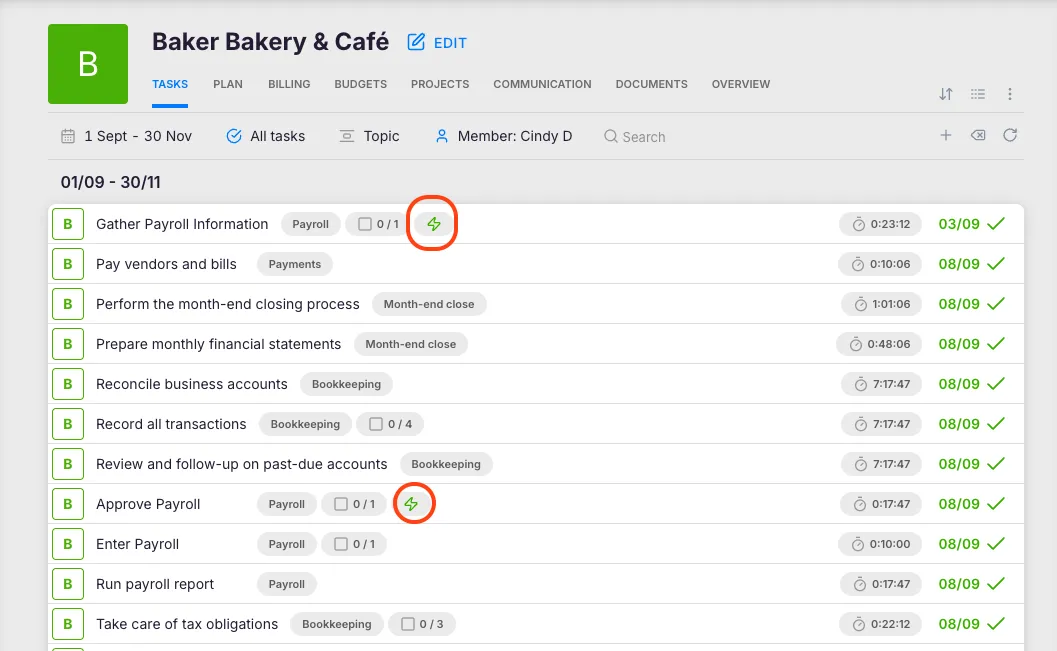
- Tasks — the full task list for this client, with filters, sorting, and bulk actions.
- Workflow — the client’s workflow showing recurring task templates, deadlines, and progress.
- Projects (or Events, depending on your account configuration) — a project list scoped to this client. This tab only appears when the Projects feature is enabled and the client has at least one project.
Activity group
Section titled “Activity group”The Activity group gives you a timeline of everything that has happened with this client:
- E-mails — all emails sent to or received from this client through the email integration. View full email threads and attachments without leaving the client view. This tab is read-only — to send a new email, use the compose action from a task or the client’s contact details.
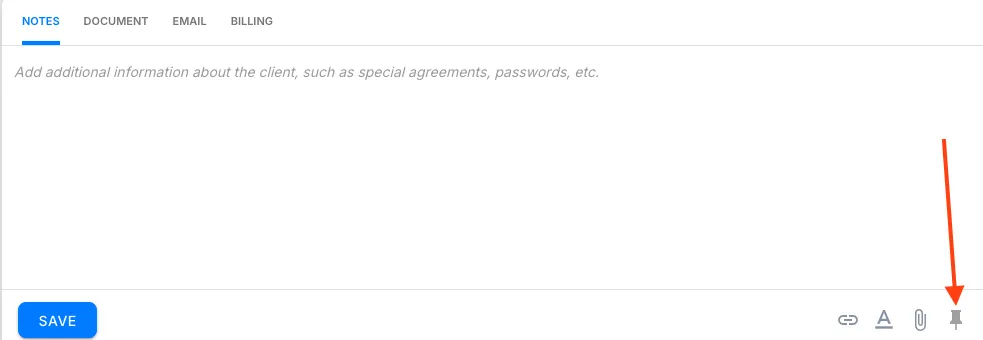
- Notes — internal notes added by your team. Use these for meeting summaries, phone call records, or any context that helps colleagues stay informed.
- Audit log — a chronological record of every change made to the client record, tasks, projects, and related data. Useful for compliance, troubleshooting, and tracing who changed what and when.
Documents group
Section titled “Documents group”The Documents group has one tab, Documents, the client’s folder browser. The tab opens on Recent, which lists the client’s newest files from a folder, a task, a note, an e-mail or the client portal. The folder tree on the left holds the client’s folders: New files, Public, Private and the year and month folders.
The list shows each file’s Name, Creator, Date, Location and Info. Click Show all to show only files from Tasks, Notes, E-mail or Client portal. Click a file to preview it. The full guide is Browse and manage a client’s documents.
The Files tab without the Documents app
Section titled “The Files tab without the Documents app”Without the Documents app, the group is called Files and has one tab, Files. The tab lists every file of the client, newest first, with Name, Creator and Added. Click a file name or the Download icon to download the file. The list has no folders, preview, upload or delete.
Financials group
Section titled “Financials group”When billing is enabled for your account, the Financials group appears with these sub-tabs:
- Invoices — all invoices issued to this client.
- Contracts — active and past service contracts.
- Contract settings — billing configuration specific to this client.
- Budgets — budget tracking (visible when the budgets feature is enabled).
- BI Analytics — analytics data for this client. Available to Company Owners and Company Admins on the Elite plan.
- In Documents, click Show all above the list and pick Tasks, Notes, E-mail or Client portal to narrow Recent to those files.
- Check the Audit log in the Activity group when a client questions a change — every field edit, status update, and user action is recorded.
- Bookmark the client view URL in your browser if you work with the same client daily. The URL is stable and takes you back to the same tab.
Troubleshooting
Section titled “Troubleshooting”I cannot see the Financials group
Section titled “I cannot see the Financials group”The Financials group only appears when billing features are enabled for your company account. If billing is enabled but the tab is still missing, your role may not include billing permissions. Ask your Company Admin to review your access in Settings & Apps → Members.
I cannot see the Documents group
Section titled “I cannot see the Documents group”The Documents group appears only when the Documents app is active for your company. Without the app, the same place shows the Files group, a download-only list of the client’s files. A Company Admin can activate the app in Settings & Apps.
The Projects sub-tab is not visible under Client tasks
Section titled “The Projects sub-tab is not visible under Client tasks”The Projects tab only appears when the Projects feature is enabled for your company and the client has at least one project linked. If Projects is disabled company-wide, enable it in Settings & Apps. If Projects is enabled but the tab is still missing, create the client’s first project first.
The Audit log tab in Activity is empty
Section titled “The Audit log tab in Activity is empty”The Audit log starts recording from the moment it is enabled for your company. If your account is new or the feature was recently activated, there may not be historical entries yet. The full Audit log (team-wide view with extended history) requires the Elite plan.