
Who can do this
Section titled “Who can do this”Company Admin or Company Owner role on a paid Uku plan (Solo, Team, or Elite). You also need:
- A Merit Aktiva Pro or Premium account — API access is not available on lower Merit tiers.
- A Merit Aktiva login for the company you want to connect.
- 2FA disabled on the Merit account during the initial connection (see Troubleshooting).
Merit Aktiva is the right integration for accounting firms in Estonia, Finland, and Poland (where Merit is sold as 360 Księgowość). Each country runs as a separate Merit instance — credentials issued in one don’t work against another.
What the Merit Aktiva integration does
Section titled “What the Merit Aktiva integration does”The Uku ↔ Merit integration lets you:
- Import clients and contacts from Merit into Uku.
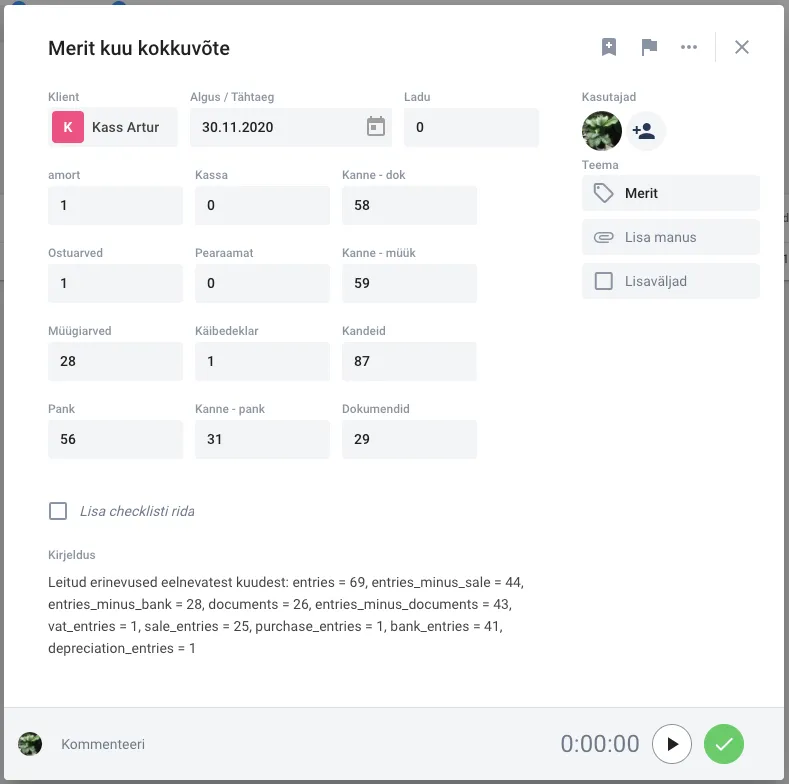
- Configure automatic monthly summary tasks counting sales invoices, purchase invoices, entries, and other accounting records.
- Send Uku invoices directly to Merit.
- Automatically fetch invoice paid status from Merit back to Uku.
Invoices created in Uku before the integration is enabled cannot be sent to Merit retroactively.
Step 1: Activate Merit Aktiva in Uku
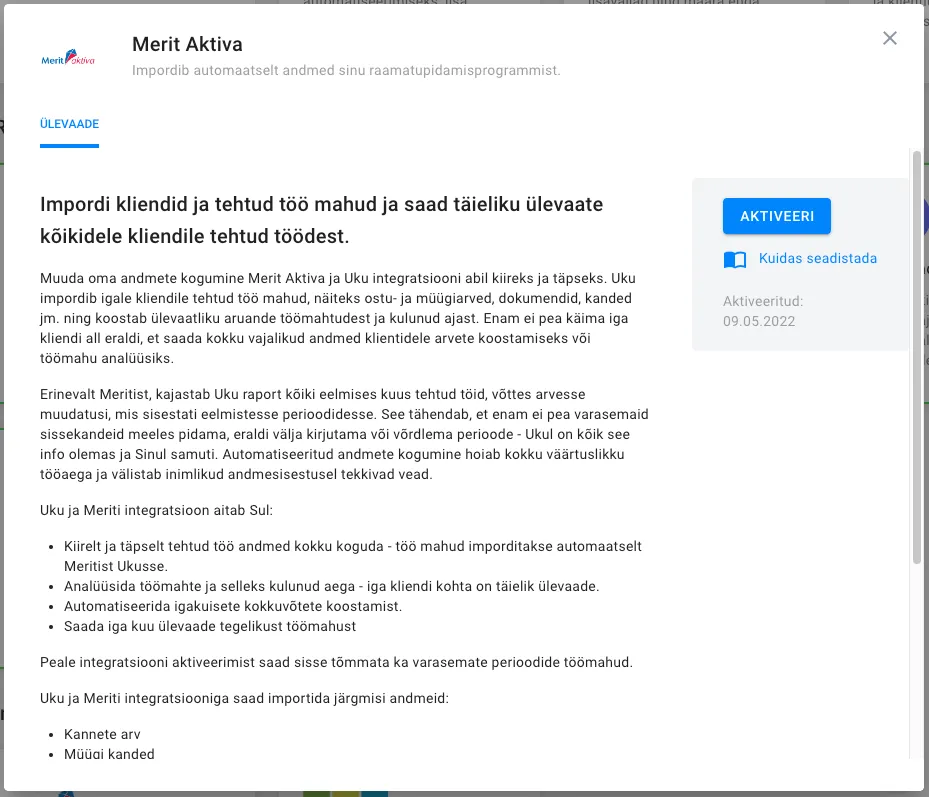
Section titled “Step 1: Activate Merit Aktiva in Uku”Path: Settings & Apps → Merit Aktiva
- Open Settings from the Uku main menu.
- Find Merit Aktiva in the integrations list.
- Click Activate.
Step 2: Import clients
Section titled “Step 2: Import clients”There are two entry points — both run the same flow:
- From Settings & Apps: Open the Merit Aktiva integration and switch to the Import tab.
- From the client list: Open Clients, click the three-dot menu and choose Import clients, then pick Merit Aktiva.
Log in to Merit
Section titled “Log in to Merit”- Pick the country matching the Merit branch you’re connecting (Estonia / Finland / Poland).
- Enter your Merit Aktiva email and password.
- Click Start import.
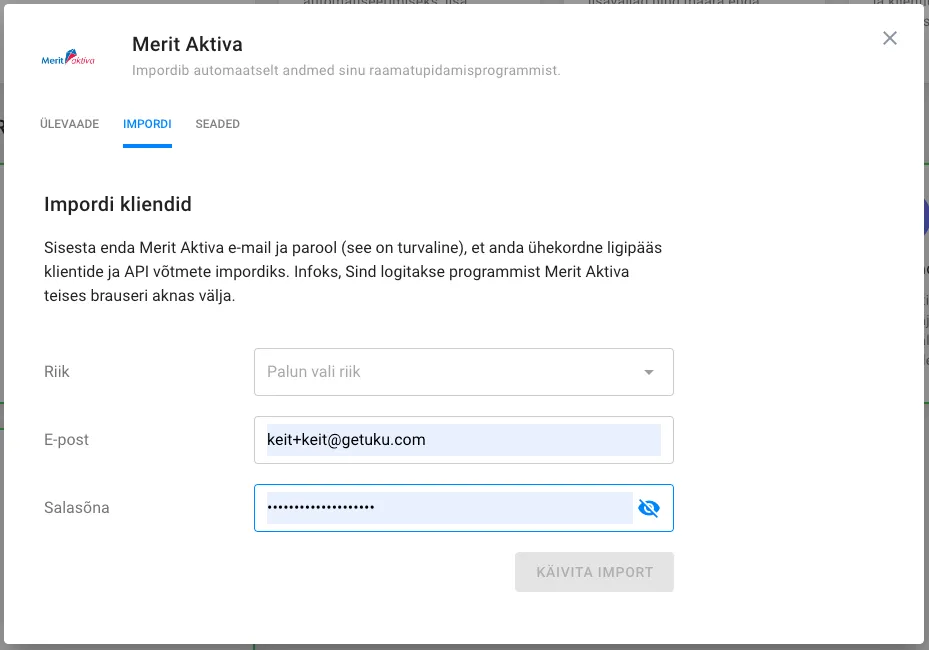
The connection is secure — Uku does NOT store your Merit password. Starting the import logs you out of any active Merit Aktiva sessions.
Choose how Uku handles API keys
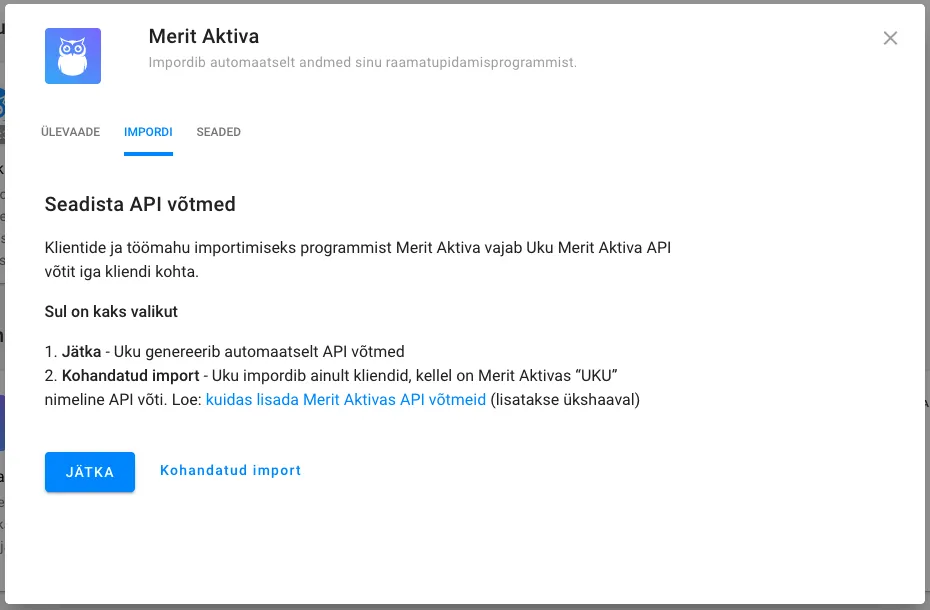
Section titled “Choose how Uku handles API keys”After login, Merit offers two paths:
- Continue — Uku pairs with the existing Merit API keys automatically, or generates new ones if none exist. Recommended for most firms.
- Custom import — Uku pairs only with existing API keys named “Uku”. No new keys are created. Use this if you want to manage API keys manually. The Merit Aktiva PDF instructions cover the manual setup (look for “API seadistus”).
Wait for the import to finish
Section titled “Wait for the import to finish”Larger client bases can take up to 10 minutes. You can close the import dialog and keep working — it continues in the background.
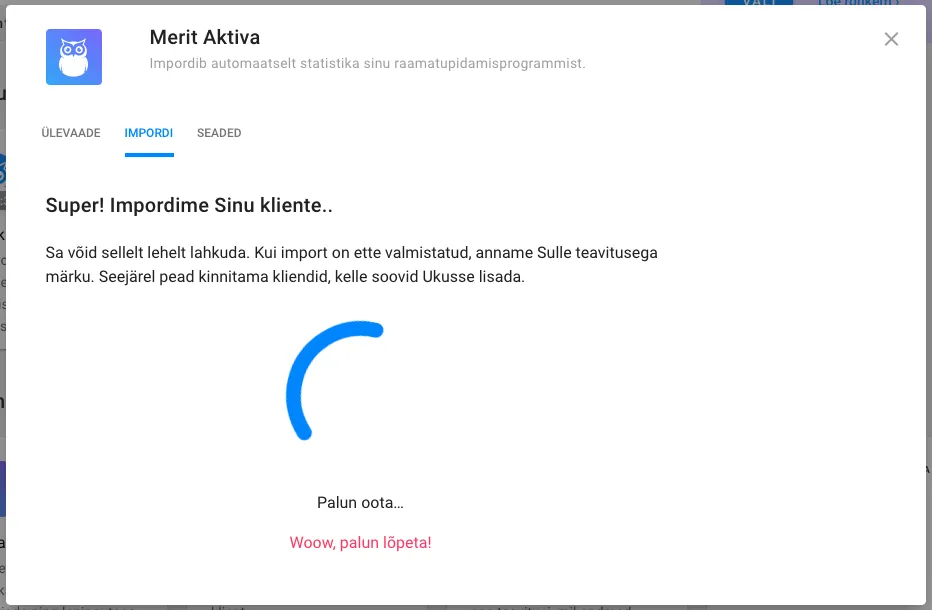
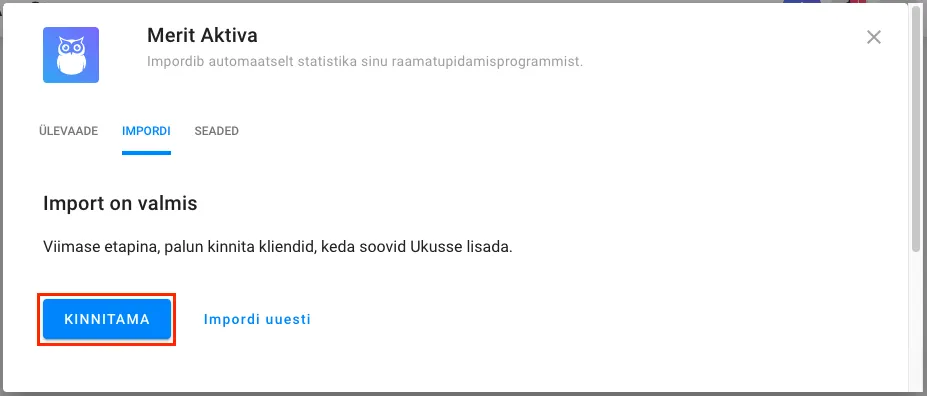
When the import is ready, click Confirm to review the list.
Deselect any clients you don’t want by clearing the Import column checkbox, then click Confirm.
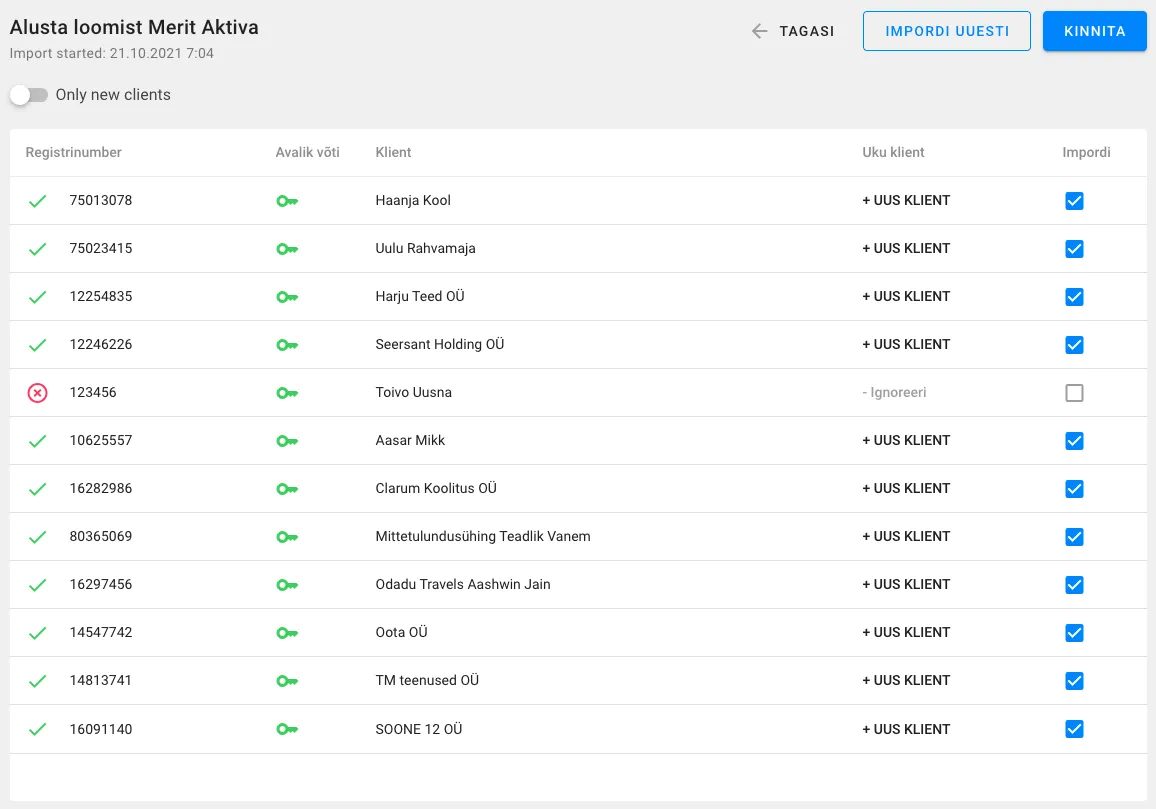
If a Merit client’s registration code doesn’t match the Estonian Business Register, that row is marked with a red X. Red-X clients are still imported — the mark is just a heads-up.
After the import
Section titled “After the import”You’re taken to the client list. For each new client:
- Assign a Client Manager.
- Set up a client workflow.
- Configure the automatic monthly summary (next step).
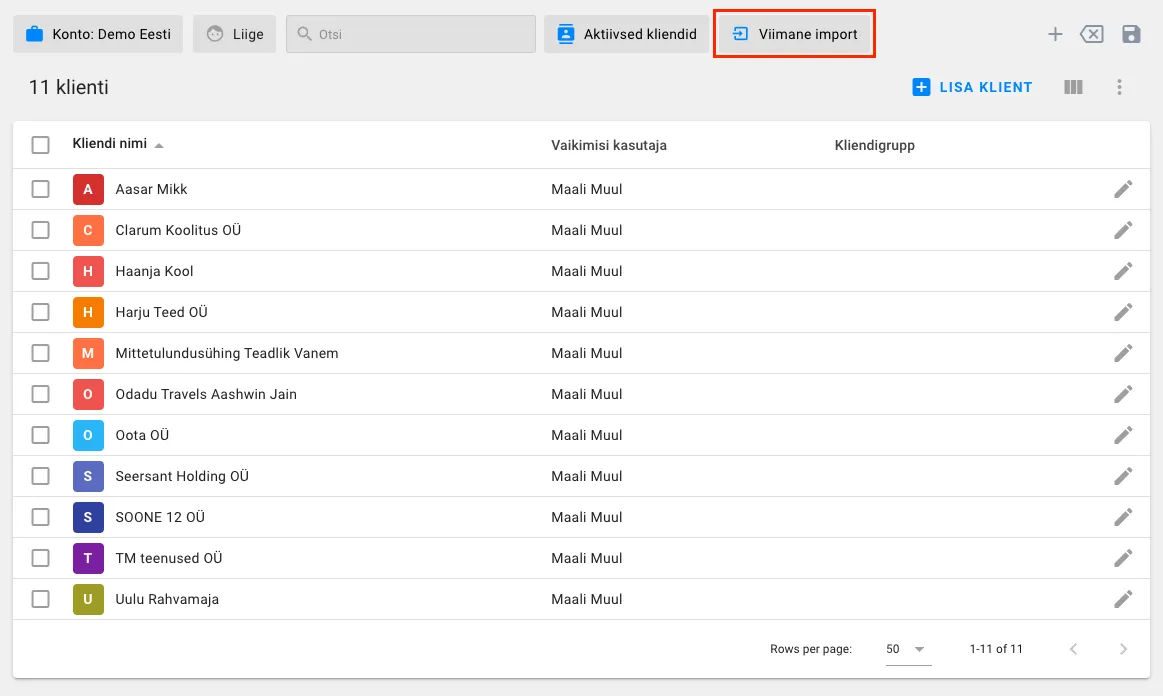
The client list has a Last import filter active by default — it shows only the clients imported in this round. Clear the filter to see your full client list.
Step 3: Configure the monthly summary task
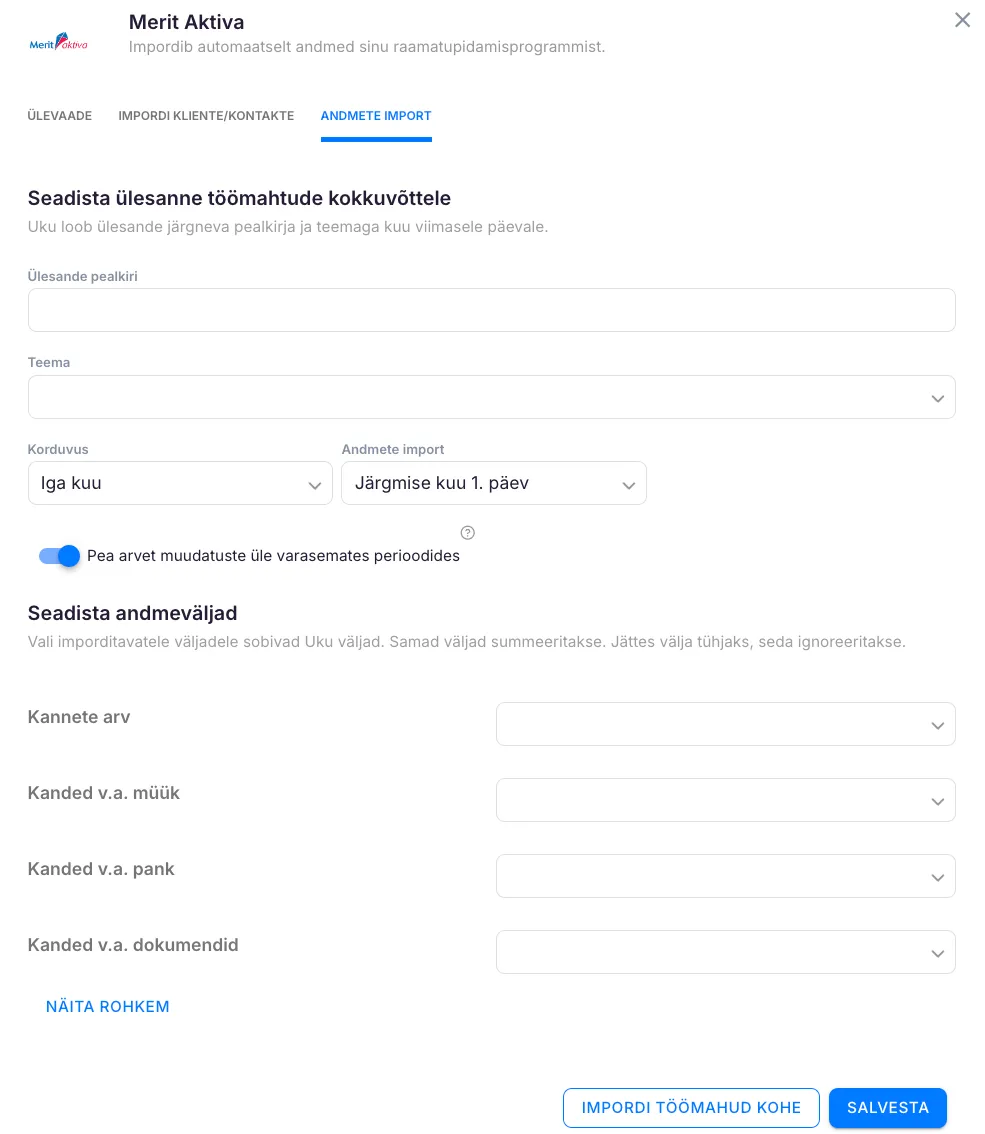
Section titled “Step 3: Configure the monthly summary task”Open Settings → Merit Aktiva → Settings tab. Required fields:
- Task title — name applied to every auto-generated summary task.
- Topic — which topic the summary task is filed under.
- Recurrence — when monthly counts are imported.
- Data import — last work day, last calendar day, or a specific day of the following month.
Map data fields to Uku custom fields
Section titled “Map data fields to Uku custom fields”Below the settings, pair each Merit data field with a Uku custom task field. Click Show more to reveal less-common fields.
Import past periods now (optional)
Section titled “Import past periods now (optional)”- Track changes in past periods — when on, retroactive changes in Merit are picked up by the next monthly auto-import. When off, only the chosen month’s count is used.
- Import workloads now — first-time setup button. Brings in all data (entries, documents) for the last 12 months. On a configured integration, this overwrites existing counts with fresh data.
Behind the scenes
Section titled “Behind the scenes”For each Uku client, one summary task is created on the last day of the month and assigned to the client’s Client Manager (or to the company owner if no Client Manager is set). Data is pulled at 00:30 on the configured import day. Uku looks back up to 12 months for Merit entries.
Step 4: Verify the per-client integration
Section titled “Step 4: Verify the per-client integration”Each Uku client must be linked to its Merit company.
- Open the Clients view.
- Click Edit fields and add the Integration column.
- Check that each connected client shows the Merit partner name.
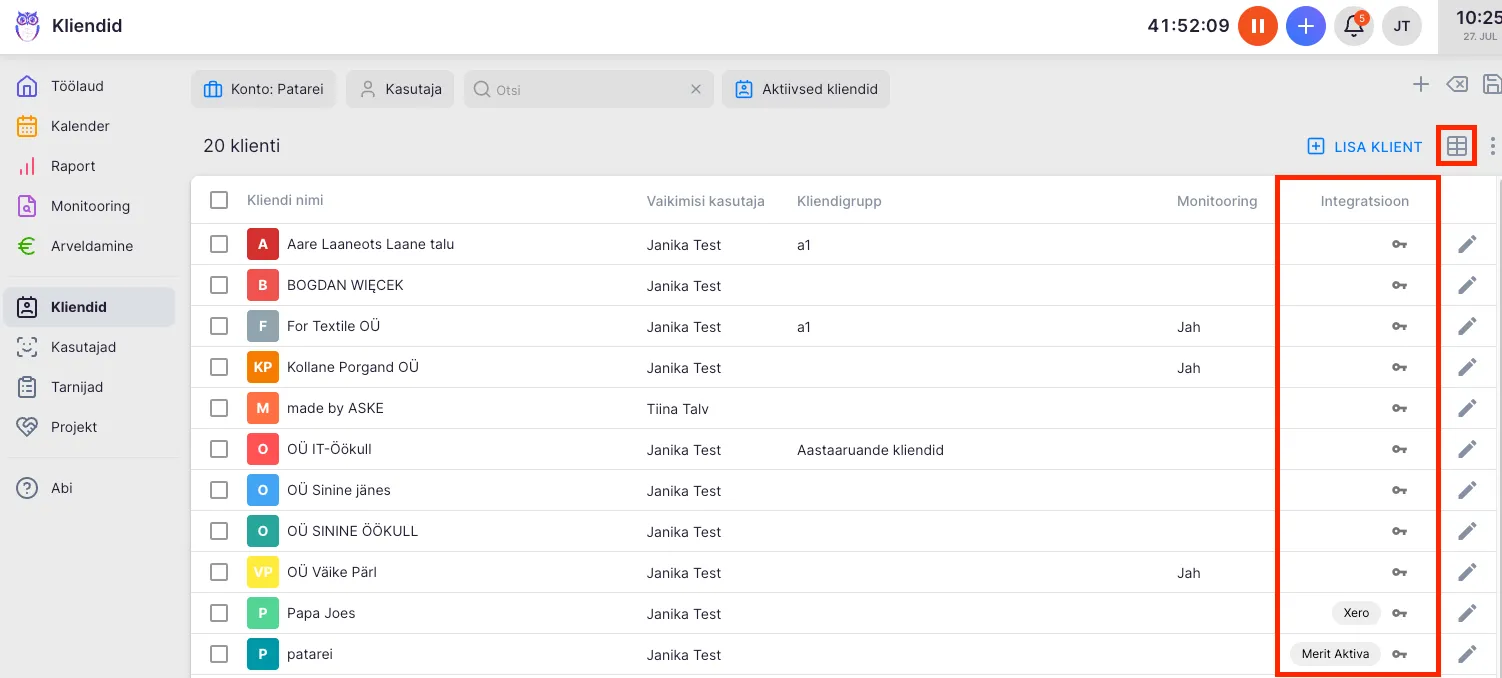
If the column is empty for a client, click the integration icon on that client’s row to set up the connection.
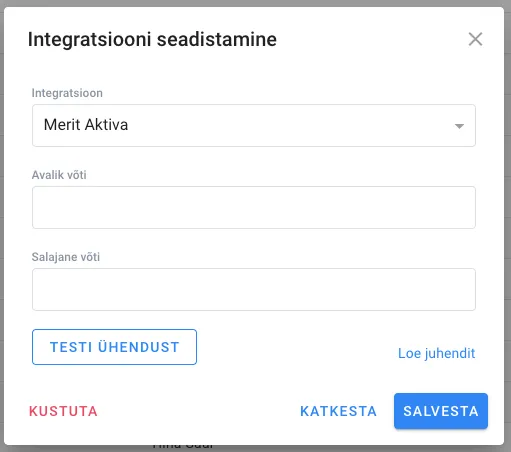
Test the connection
Section titled “Test the connection”- Click the integration partner name on the client row.
- Choose Test connection.
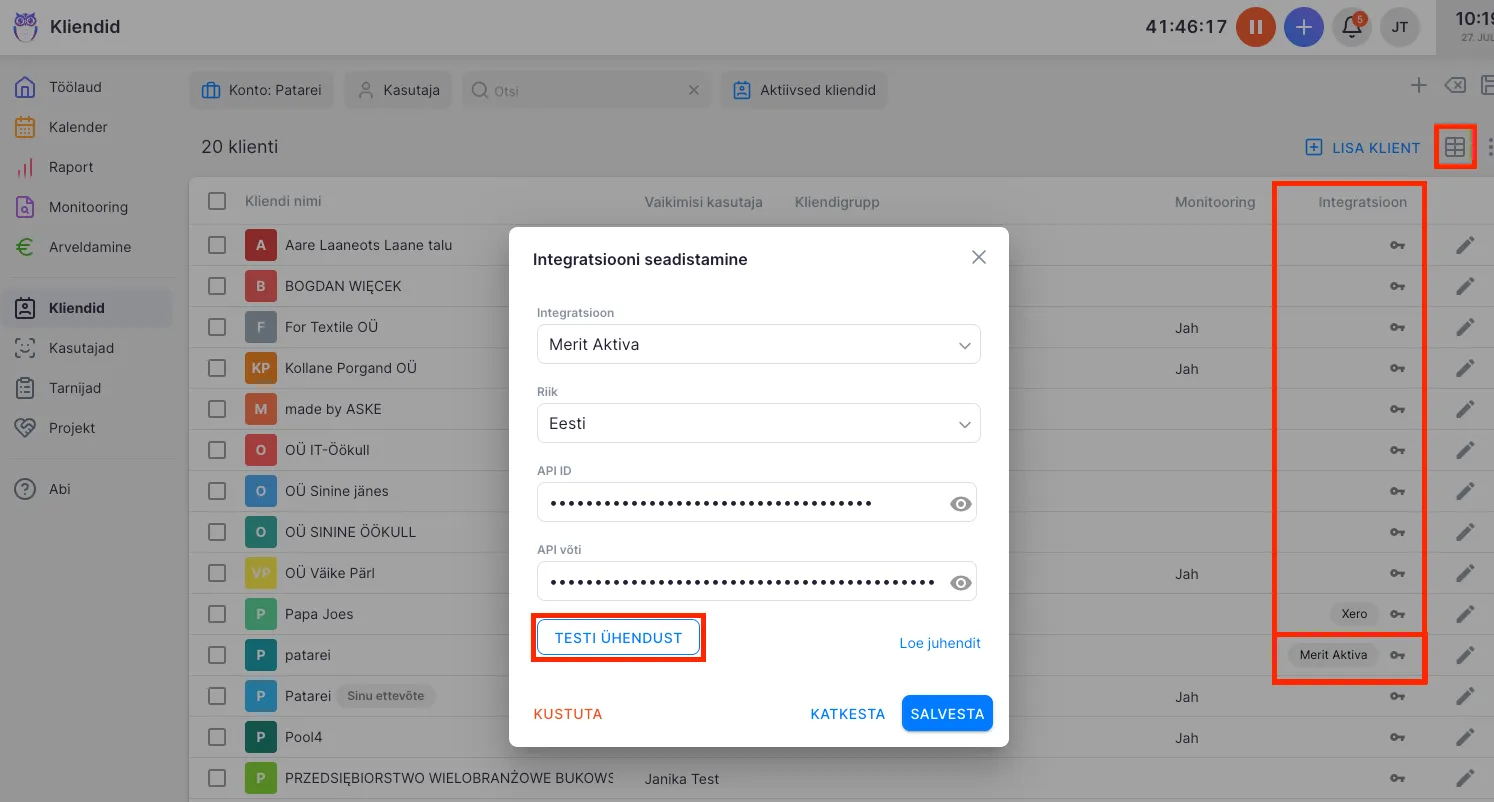
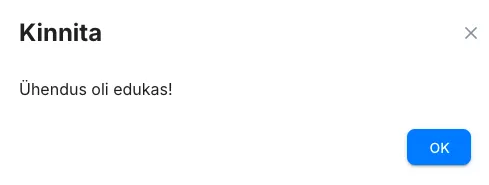
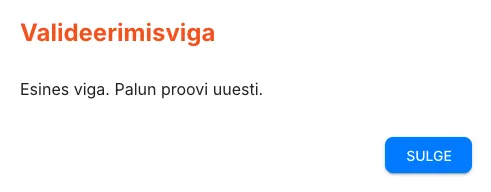
A successful test shows a green confirmation; a failure shows the validation error.
Step 5: Refresh data manually
Section titled “Step 5: Refresh data manually”You can refresh Merit data at any time without waiting for the scheduled monthly run.
Refresh one client
Section titled “Refresh one client”- Open the Clients view, tick the client, and click the integration icon on the client row.
- Click Import workloads now.
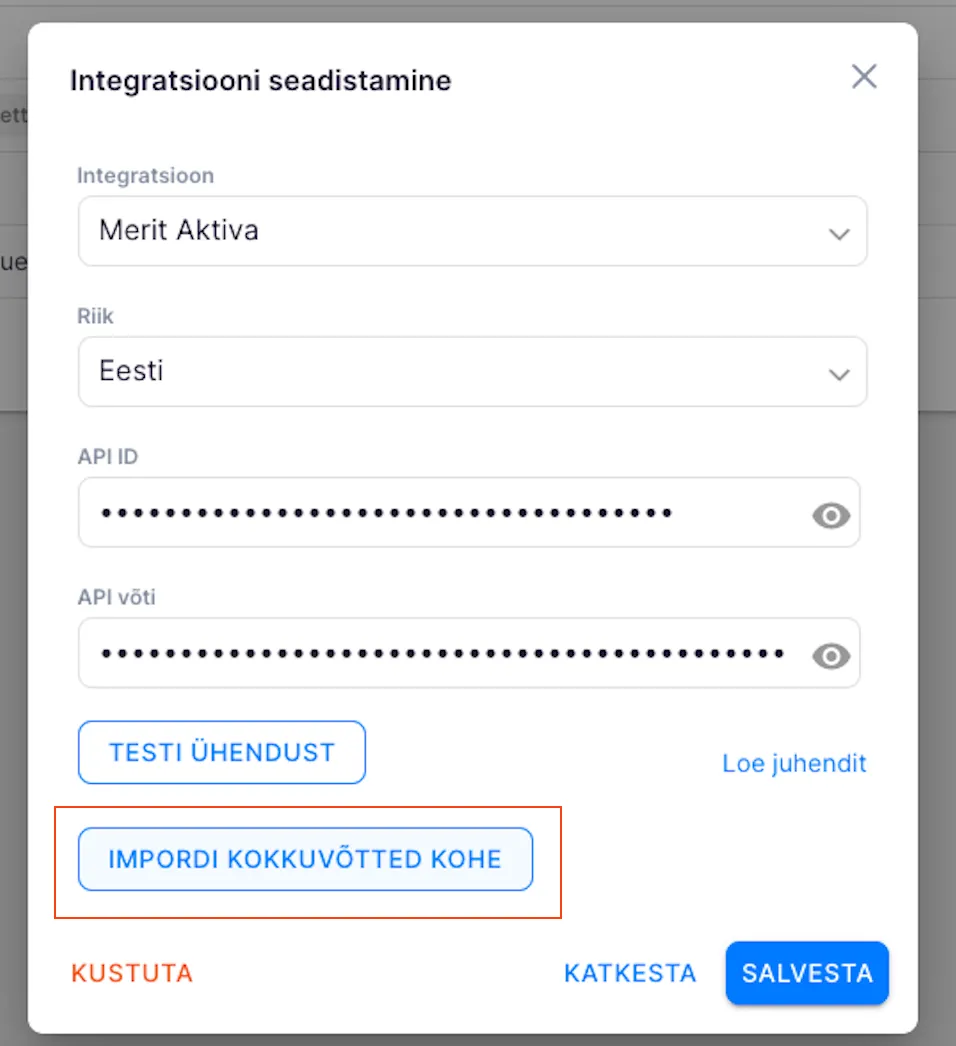
This refreshes all existing data for the last 12 months.
Refresh a specific period
Section titled “Refresh a specific period”- Open the per-client integration view.
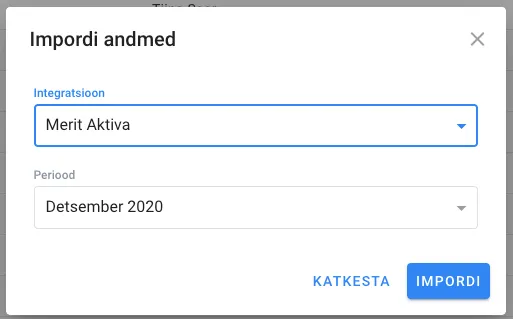
- Click Import data.
- Pick the integration (Merit Aktiva) and the period.
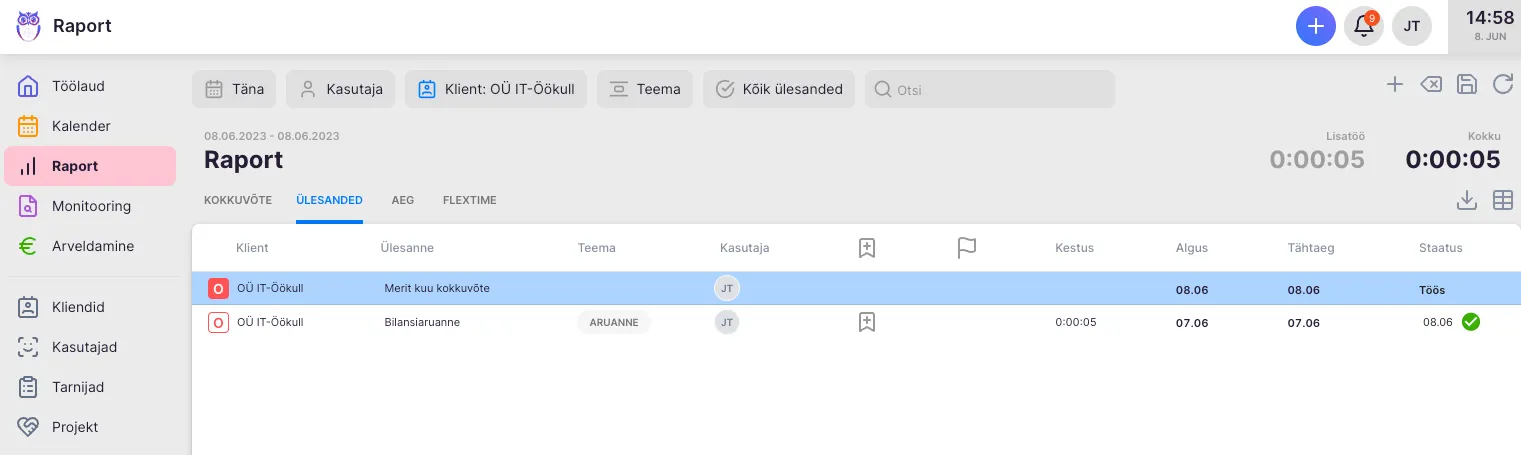
Uku notifies you when the import finishes. A summary task with the populated custom fields lands in Reports.
Step 6: Send Uku invoices to Merit (Billing app)
Section titled “Step 6: Send Uku invoices to Merit (Billing app)”To send Uku-issued invoices directly to Merit, set up the Billing app’s Merit connection.
- Open the Billing app in Uku.
- Switch to the Settings tab.
- Fill in the required fields.
- Click Test connection.
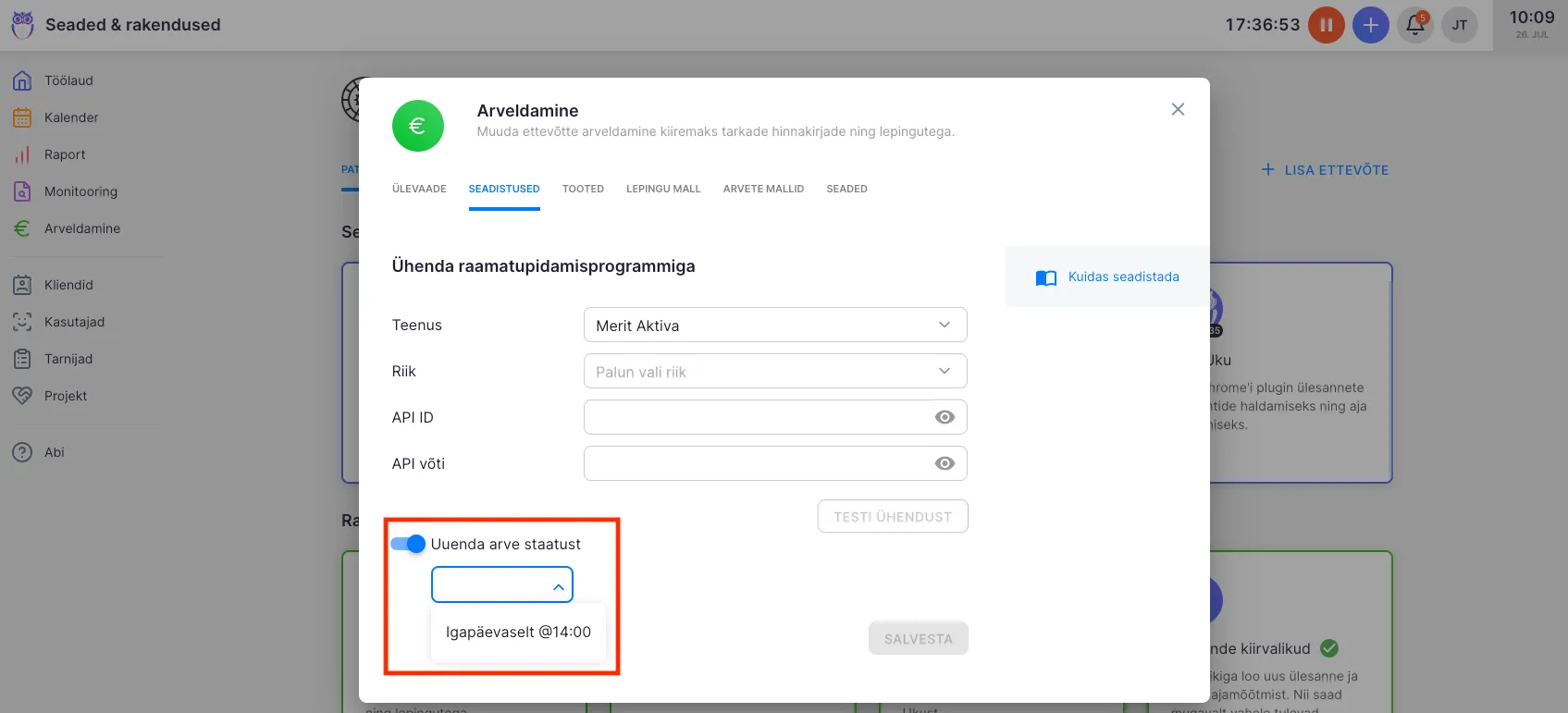
Uku confirms success and offers an option to also automate the invoice paid-status update.
Import classifiers
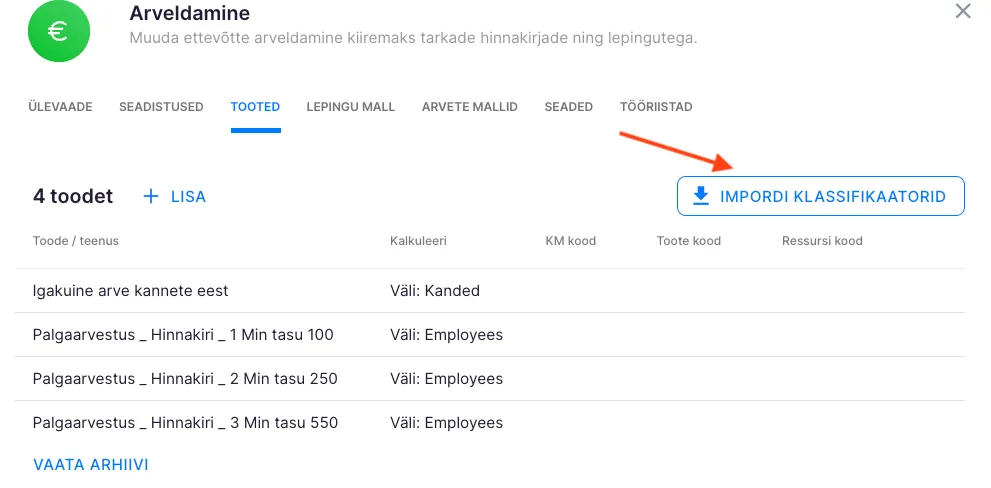
Section titled “Import classifiers”For invoices to export cleanly, import Merit’s classifiers (articles, VAT rates, units, resource codes) into Uku.
- Switch to the Products tab.
- Click Import classifiers.
Merit constraint: one article = one VAT rate
Section titled “Merit constraint: one article = one VAT rate”In Merit, each article (product) is tied to one VAT rate — Merit does not let you assign multiple rates to a single article. This is a Merit-side constraint, not Uku’s.
If you bill the same service at multiple VAT rates (e.g. 24% to Estonian clients and 0% under EU reverse charge), create a separate product per rate in both Merit and Uku. The invoice description can be identical across variants — only the article code differs.
A practical naming pattern:
- AUDIT-24 — audit service, 24% VAT
- AUDIT-0 — audit service, 0% VAT (reverse charge)
- CONSULT-24 — consulting service, 24% VAT
- CONSULT-0 — consulting service, 0% VAT
Resources, cost centers, projects
Section titled “Resources, cost centers, projects”Uku billing settings can map three Uku fields to corresponding Merit fields:
| Uku field | Merit Aktiva field |
|---|---|
| Resource | Department (Osakond) |
| Cost center | Cost center (Kulukoht) |
| Project | Project (Projekt) |
These mappings are optional. If your Merit account doesn’t use departments/cost centers/projects, leave the fields empty — invoices export fine without them.
To enable: open a client’s profile → Billing → Settings → set Default resource, Cost center, or Project. On invoice export these values flow into Merit automatically.
Disconnecting
Section titled “Disconnecting”Remove the whole integration
Section titled “Remove the whole integration”- Open Settings → Merit Aktiva.
- Click Deactivate.
Remove the integration for a single client
Section titled “Remove the integration for a single client”- In the client list, click the integration icon on the client’s row.
- Click Delete.
Troubleshooting
Section titled “Troubleshooting”Validation error on login
Section titled “Validation error on login”Check the Merit email and password — try logging into Merit directly with the same credentials. Confirm the account is active and on the Pro or Premium plan.
Two-factor authentication (2FA) blocks the connection
Section titled “Two-factor authentication (2FA) blocks the connection”If your Merit Aktiva account has 2FA enabled, the import login can fail. Contact Uku support to work around it.
Test connection fails (per-client)
Section titled “Test connection fails (per-client)”Check that the API keys are set up correctly. If they were created manually under “Custom import,” try regenerating them: remove the existing keys in Merit and let Uku create new ones via the “Continue” flow.
Invoice can’t be sent to Merit
Section titled “Invoice can’t be sent to Merit”The Uku products on the invoice must use Merit-imported classifiers (articles and VAT rates). If the products were created before classifiers were imported, edit each product and pick the Merit-imported article and VAT rate.
Monthly summary tasks aren’t being created
Section titled “Monthly summary tasks aren’t being created”Check that all required fields on the integration Settings tab are filled (title, topic, recurrence, import day). Confirm each client’s Integration column shows the Merit partner name — if empty, set up the per-client integration first.
Some clients are missing from the import
Section titled “Some clients are missing from the import”Merit Aktiva only sends clients that have a registration code entered in Merit. Confirm the missing clients have registration codes in Merit. Red-X clients (codes that don’t match the Estonian Business Register) ARE still imported.
What’s next
Section titled “What’s next”After Merit Aktiva is connected, set up client workflow templates and your billing products so monthly counts feed into automated invoicing.