
Who can do this
Section titled “Who can do this”Company Admin or Company Owner role on a paid Uku plan (Solo, Team, or Elite). You also need someone at the firm who can configure XML Direct in Directo — usually the firm’s Directo administrator.
What the Directo integration does
Section titled “What the Directo integration does”The Uku ↔ Directo integration lets you:
- Import clients and contacts from Directo into Uku. Clients are matched between Uku and Directo by client code.
- Export invoices from Uku to Directo.
- Automatically fetch invoice paid status from Directo back to Uku.
Step 1: Order XML Direct in Directo
Section titled “Step 1: Order XML Direct in Directo”Contact Directo and order the XML Direct add-on for your Directo account. Ask Directo to activate these three feed directions:
- Customers out (and if needed, Customers in)
- Invoices in (and if needed, Invoices out)
- Articles out
Without XML Direct and these directions activated, Uku cannot read clients or articles from Directo, and cannot push invoices in.
Step 2: Find the XML Direct key in Directo
Section titled “Step 2: Find the XML Direct key in Directo”Once XML Direct is active, the key lives on the integration user’s employee card in Directo.
-
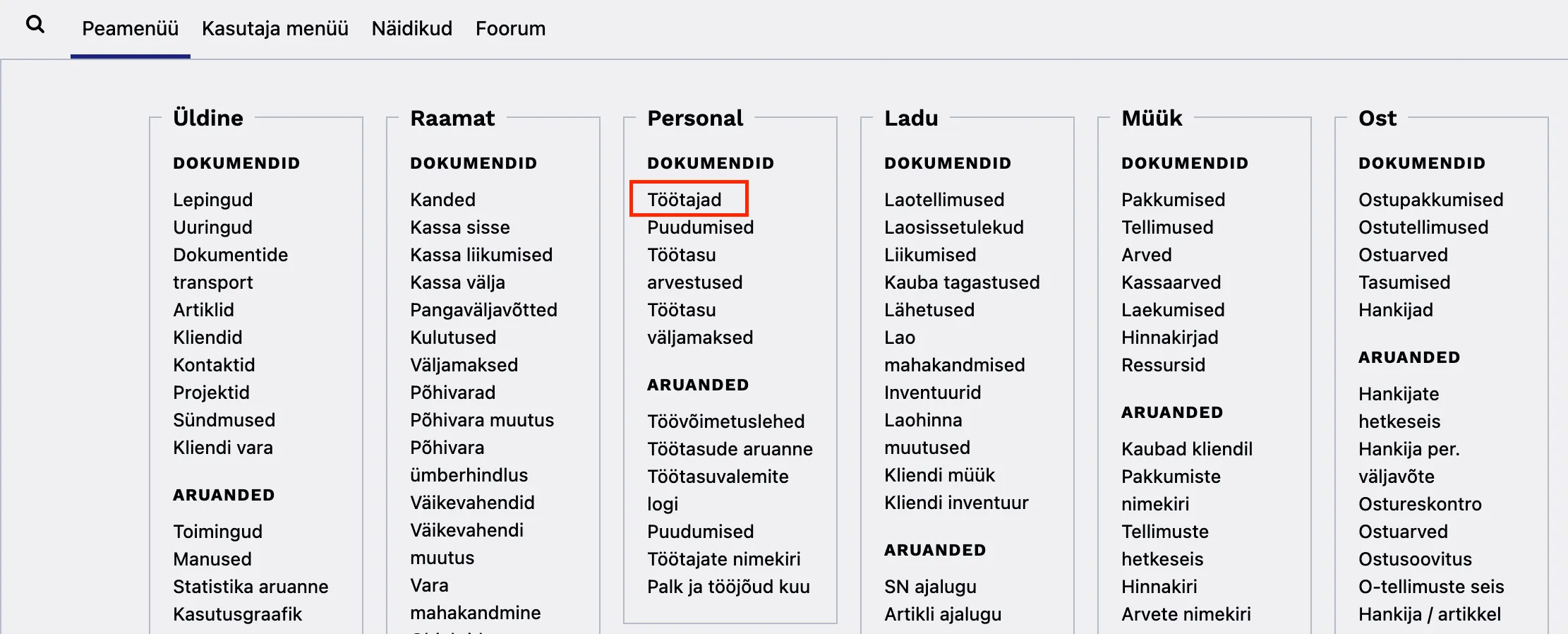
In Directo, open the Personal menu and choose Employees (Personal → Töötajad).
-
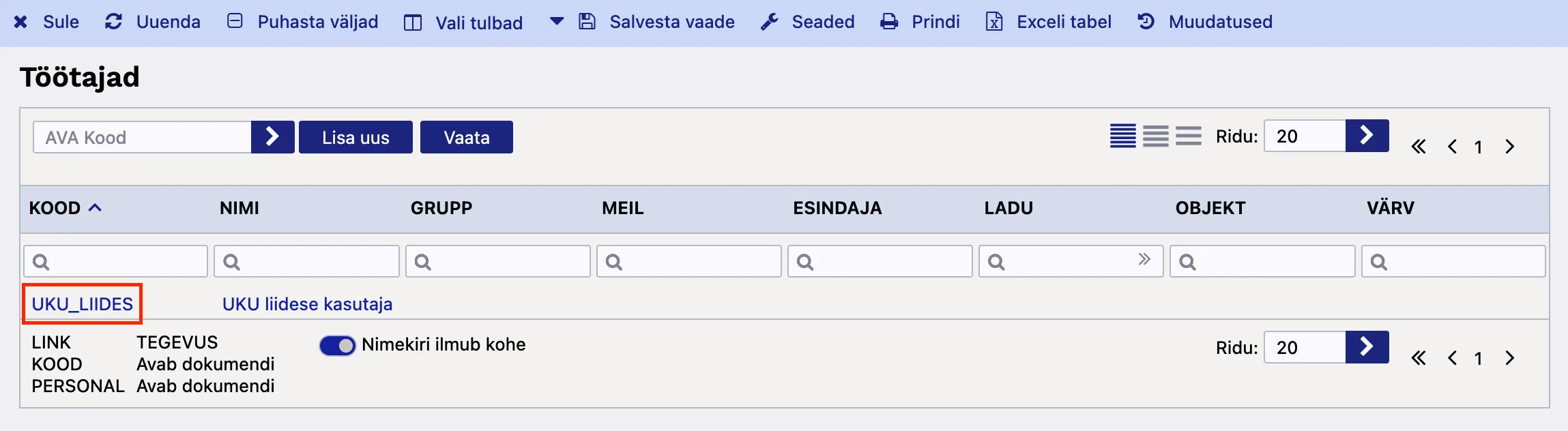
Find the employee created for the integration and click the entry in the Code column.
-
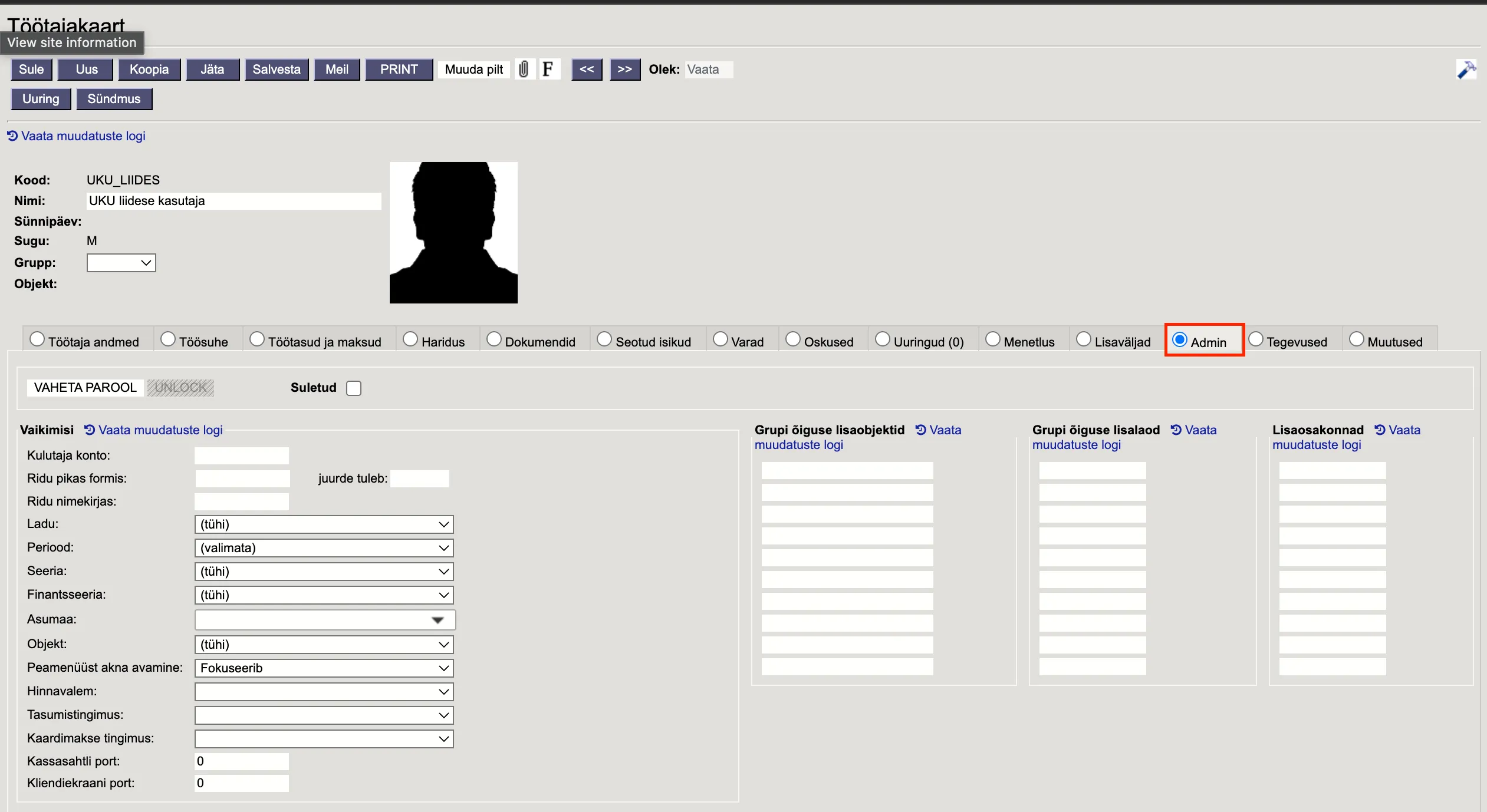
On the employee card, open the Admin tab.
-
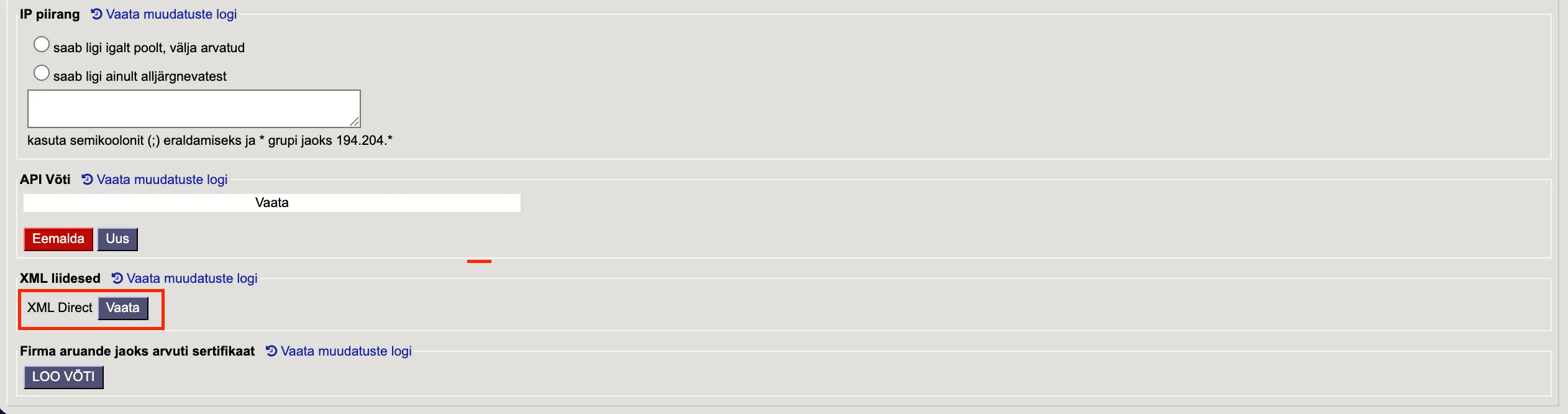
Scroll to the bottom of the page — the XML Direct key is shown there. Copy it.
Step 3: Paste the XML Direct key in Uku
Section titled “Step 3: Paste the XML Direct key in Uku”Path: Settings & Apps → Directo
- Open Settings & Apps in Uku and click the Directo card.
- Paste the XML Direct key into the connection field.
- Click Connect. Uku immediately starts the client import in the background.
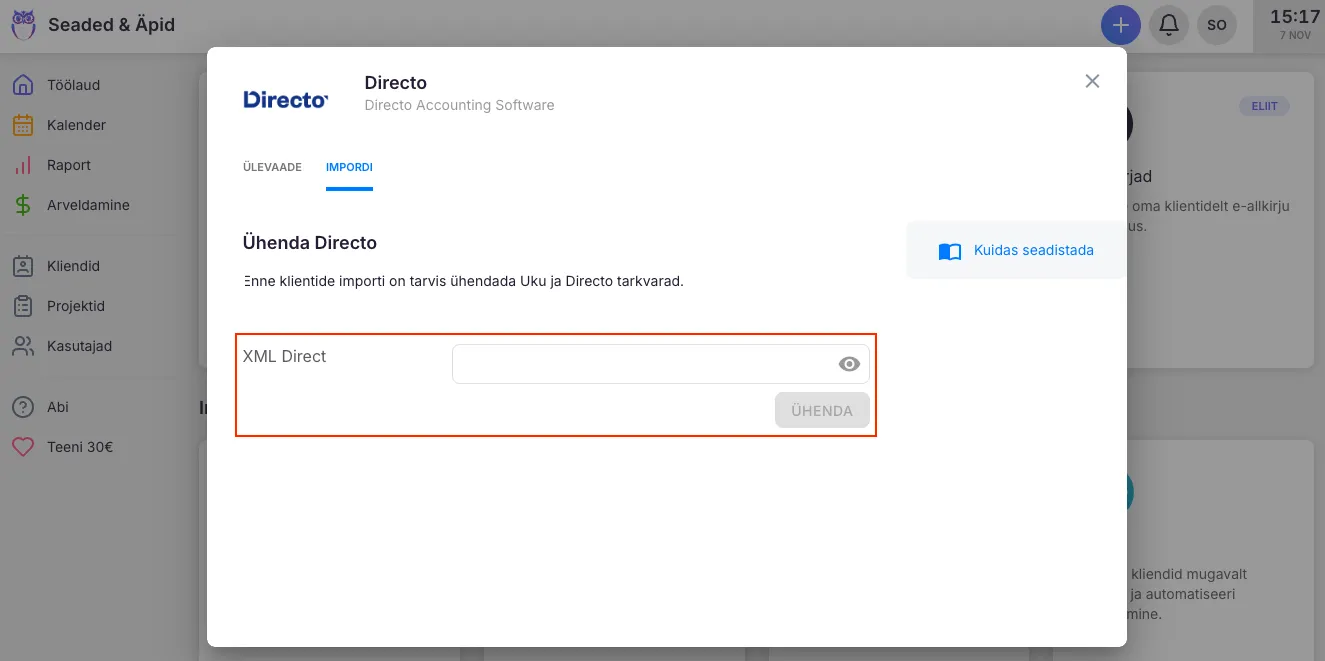
Step 4: Confirm which clients to import
Section titled “Step 4: Confirm which clients to import”When the client import finishes, Uku shows the clients it read from Directo. Pick which ones to add.
The following data is imported per client:
- Name
- Registration code
- VAT number
- Address
- Primary contact
Step 5: Connect Directo in the Billing app
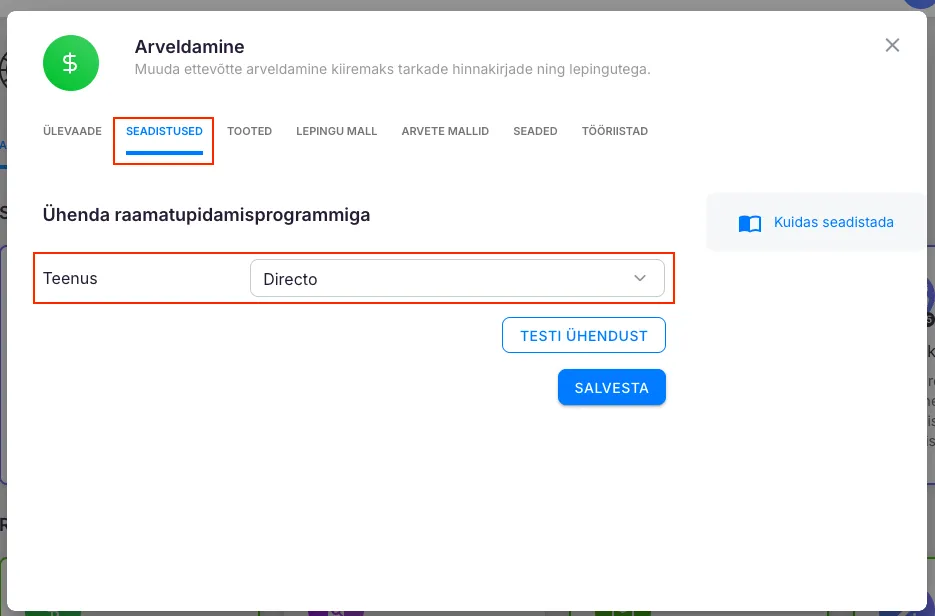
Section titled “Step 5: Connect Directo in the Billing app”Pasting the XML Direct key under the Directo app is enough for client and article sync. To export invoices to Directo, you also need to connect Directo under the Billing app.
- Open Settings & Apps → Billing.
- Find the Directo connection setting and click Connect.
Step 6: Set up products
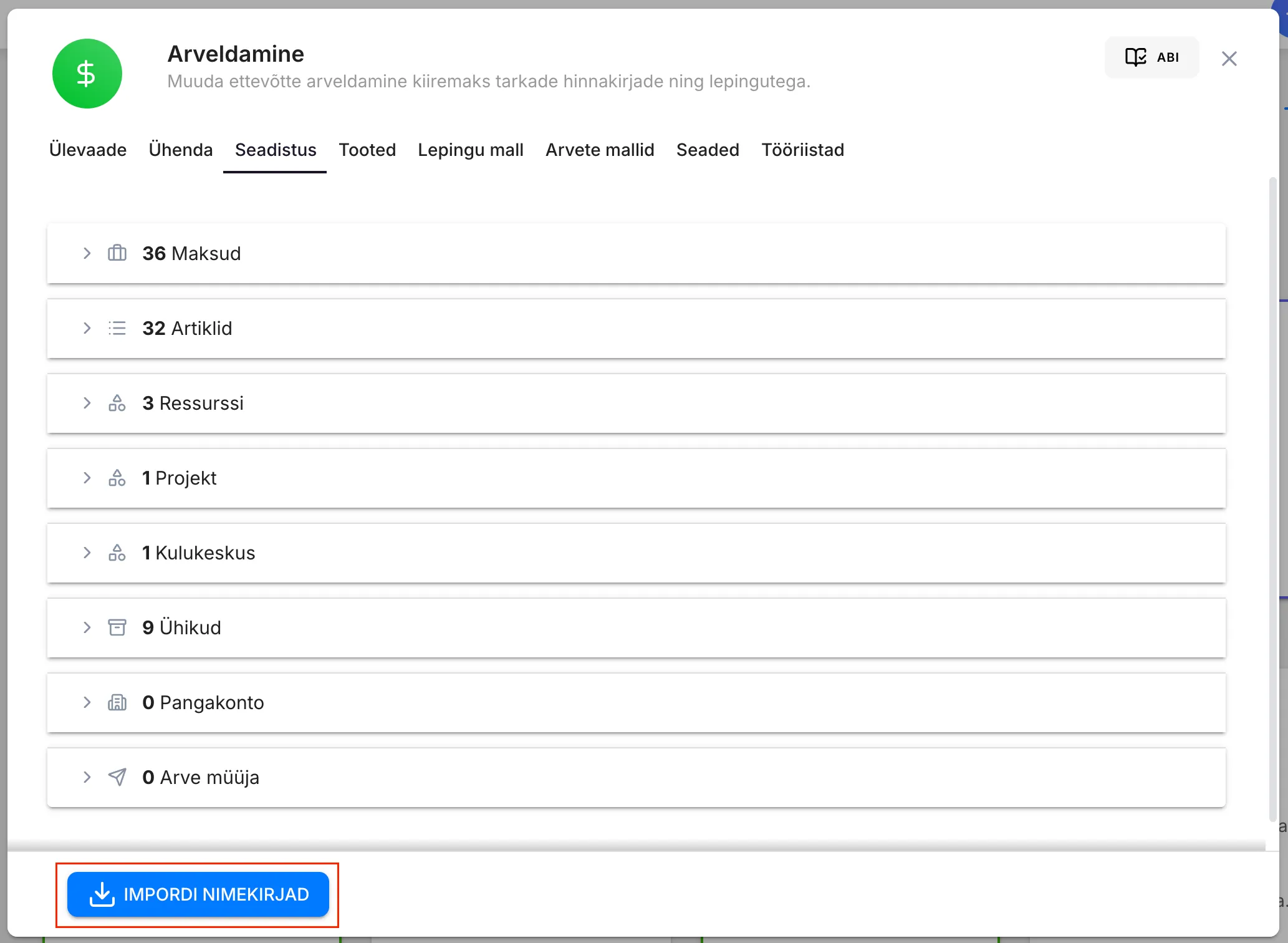
Section titled “Step 6: Set up products”Products that you bill clients for live in the Billing app under Products. For Directo customers, articles are pulled in via Import list.
The article import brings into Uku:
- The article code
- The article name
How invoice export works
Section titled “How invoice export works”When Uku exports an invoice to Directo, the resource (team member) on each invoice row is sent to Directo as the object / salesman code. The resolution logic is:
- If the invoice row has a resource in Uku, that resource’s external code is sent.
- If the row has no resource, the fallback is:
- The default resource in the client’s billing settings.
- The client’s Client Manager, if Default resource: Client Manager is set to Yes in billing settings.
- Resources must have an external code in the Uku integration settings that matches the salesman / object code in Directo. Without it, the row export fails.
The invoice-level Seller (Salesman) field on the Directo invoice is filled automatically from the client’s Client Manager. If that user has no external code, Uku falls back to the first available resource from the invoice rows.
Other things to know
Section titled “Other things to know”- Payment term (T-condition). The number of days between the invoice date and the due date flows from Uku to Directo as the payment term. The default comes from the due date period in the client’s billing settings.
- Invoice number. Directo invoice numbers must be integers. Uku extracts the numeric part of the Uku invoice number and sends that. (Example:
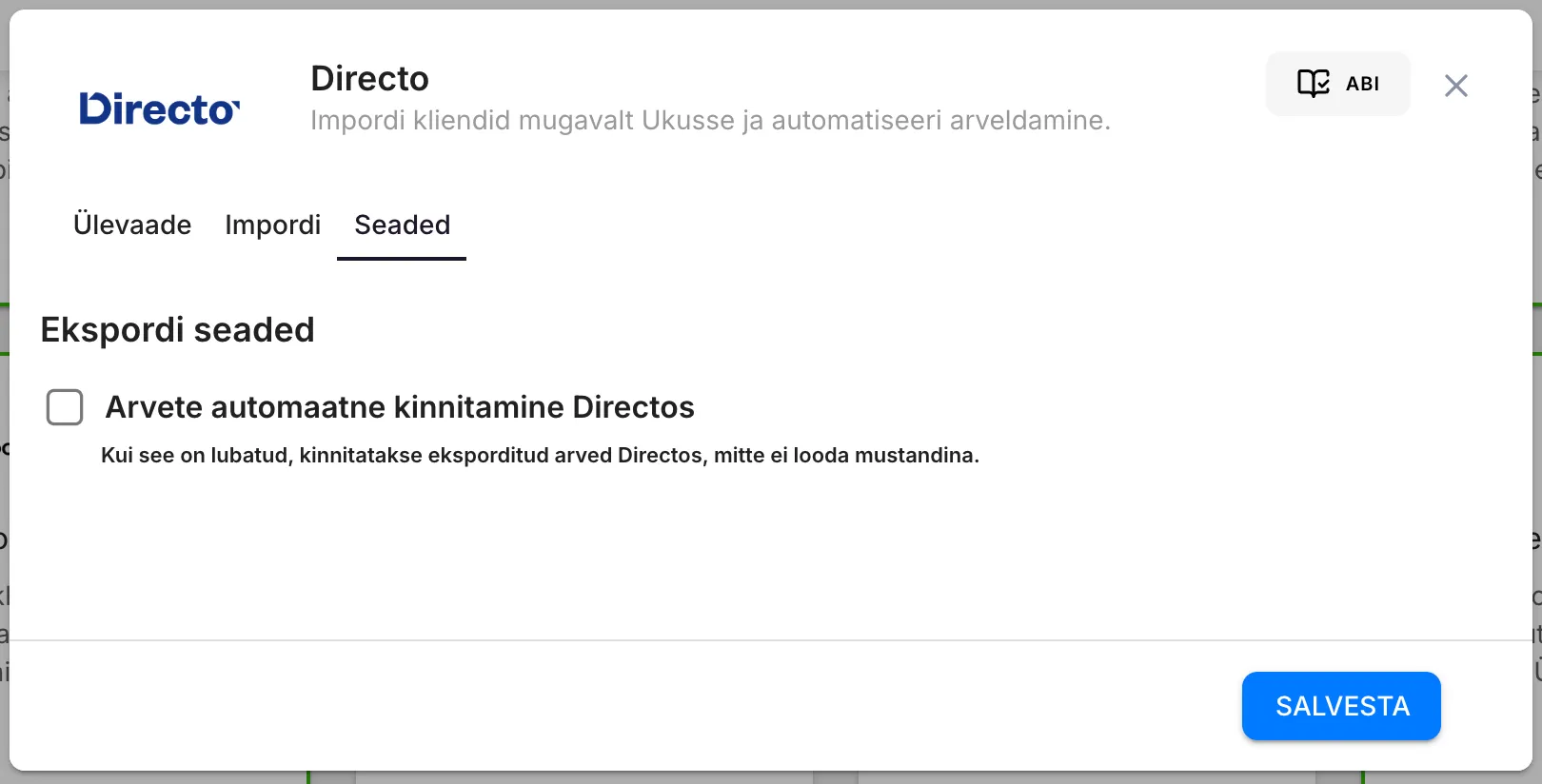
INV-2026-0042is sent as20260042.) - Automatic invoice confirmation. A per-integration setting in Uku (off by default). When on, invoices exported to Directo are confirmed automatically. When off, they are created as drafts in Directo.
Troubleshooting
Section titled “Troubleshooting”Connection fails right after pasting the XML Direct key
Section titled “Connection fails right after pasting the XML Direct key”Almost always one of:
- The key has leading or trailing whitespace. Re-copy it from the Admin tab in Directo.
- XML Direct was ordered but the three feed directions (Customers out / Invoices in / Articles out) were not activated. Ask Directo to check.
- The key belongs to a different Directo company than the one you want to connect.
Client import finished but some clients are missing
Section titled “Client import finished but some clients are missing”Directo only sends clients whose Customers out feed direction is active and who are not closed. Check the client’s status in Directo. If you only need a subset, you can choose which clients to add when Uku shows the import preview.
Invoice export fails with a VAT-code error
Section titled “Invoice export fails with a VAT-code error”The Uku VAT code’s external code does not match Directo’s VAT code. Open Settings & Apps → Billing → VAT codes in Uku and set the external code to match the one in Directo.
Invoice export fails with an article-code error
Section titled “Invoice export fails with an article-code error”The invoice has a row whose product is not present in Directo. Either import the article into Uku and re-link it, or make sure the Uku product’s external code matches a real Directo article code.
Invoice export fails with a salesman / object error
Section titled “Invoice export fails with a salesman / object error”The resource on the invoice row (or the client’s Client Manager) has no external code in the Uku integration settings, or the code does not match a salesman / object code in Directo. Fix the external code in the Resources section of the Directo integration settings.
What’s next
Section titled “What’s next”After Directo is connected, set up your billing products and then client contracts so invoices can be generated from monthly work.