
Filters and grouping let you narrow down and organize the tasks and data shown across Uku views so you only see what matters right now. Filters are available on the Dashboard, Calendar, Report, Monitoring, and Billing views. Grouping is available on the Dashboard. Once you have the right filter and grouping combination, save it as a bookmark for one-click access.
Who can do this
Section titled “Who can do this”- All team members can use filters on the dashboard, calendar, report, and monitoring views.
- Company Admins and Company Owners can save filter selections visible to the entire company (in the Report view).
Filters on the Dashboard
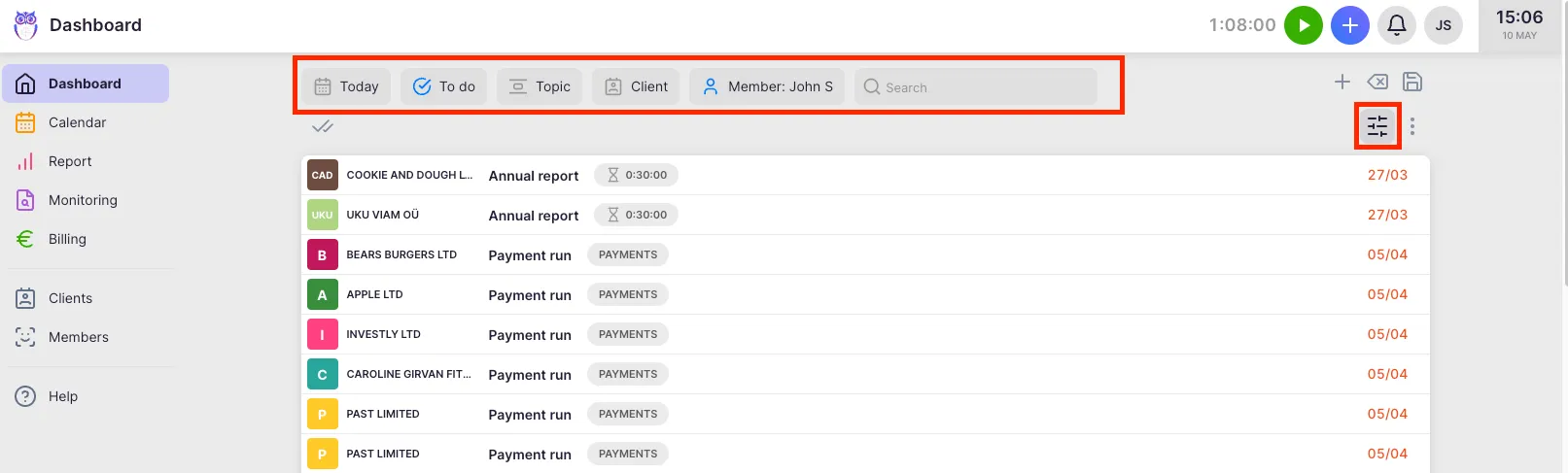
Section titled “Filters on the Dashboard”Click the Filter icon on the Dashboard to open the filter bar. Default filters:
- Time — tasks valid for a specific period
- Status — filter by Todo, Overdue, Delayed, Done, or Archived (see Task statuses)
- Topic — tasks on the selected topic
- Client — selected client’s tasks
- Member — tasks assigned to a specific member. On the Dashboard this defaults to you, so you see your own tasks first; clear or change it to see other members’ work.
Adding more filters
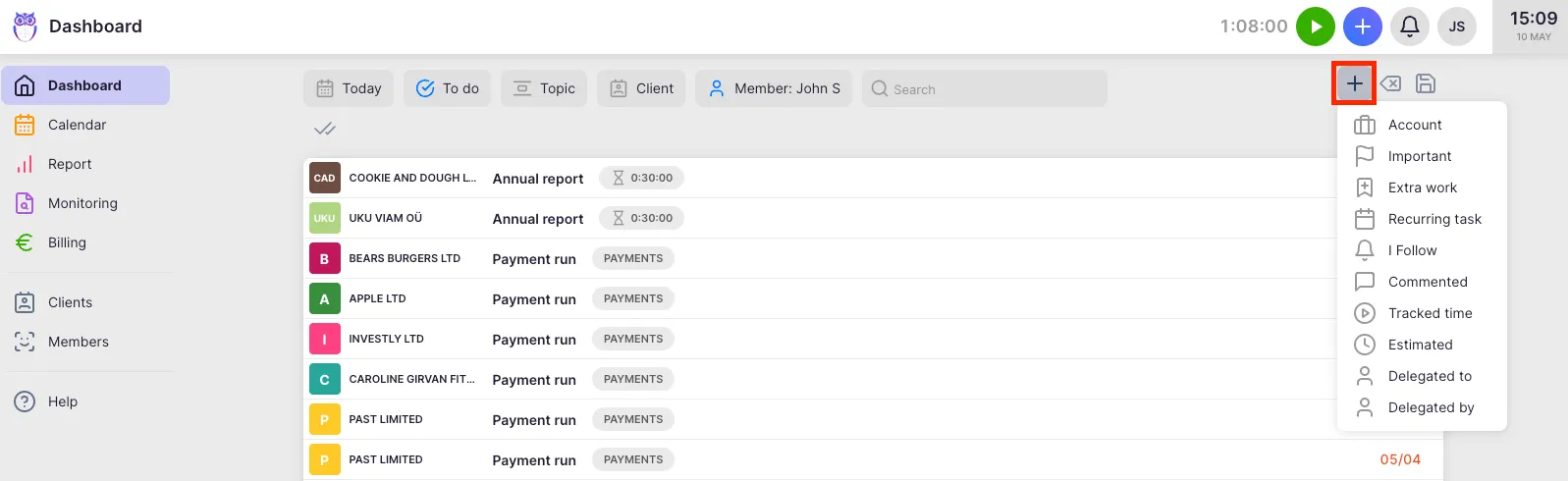
Section titled “Adding more filters”Click the + icon to add additional filters:
- Important — tasks marked as important
- Extra work — tasks marked as extra work
- Recurring task — recurring tasks only
- I Follow — tasks you are following as a follower
- Commented — tasks with a comment attached
- Tracked time — tasks for which time has been logged
- Estimated — tasks with a time estimation
- Delegated to — tasks delegated to you by others
- Delegated by — tasks you have delegated to others
- Client portal — tasks shared to the Client Portal (only when the Client Portal is enabled)
- Project — tasks belonging to a specific project (only when the Projects app is on)
- Project process — tasks in a specific project process stage (only when the Projects app is on)
- Account — tasks added to a specific company (multi-company setups)
Grouping tasks on the Dashboard
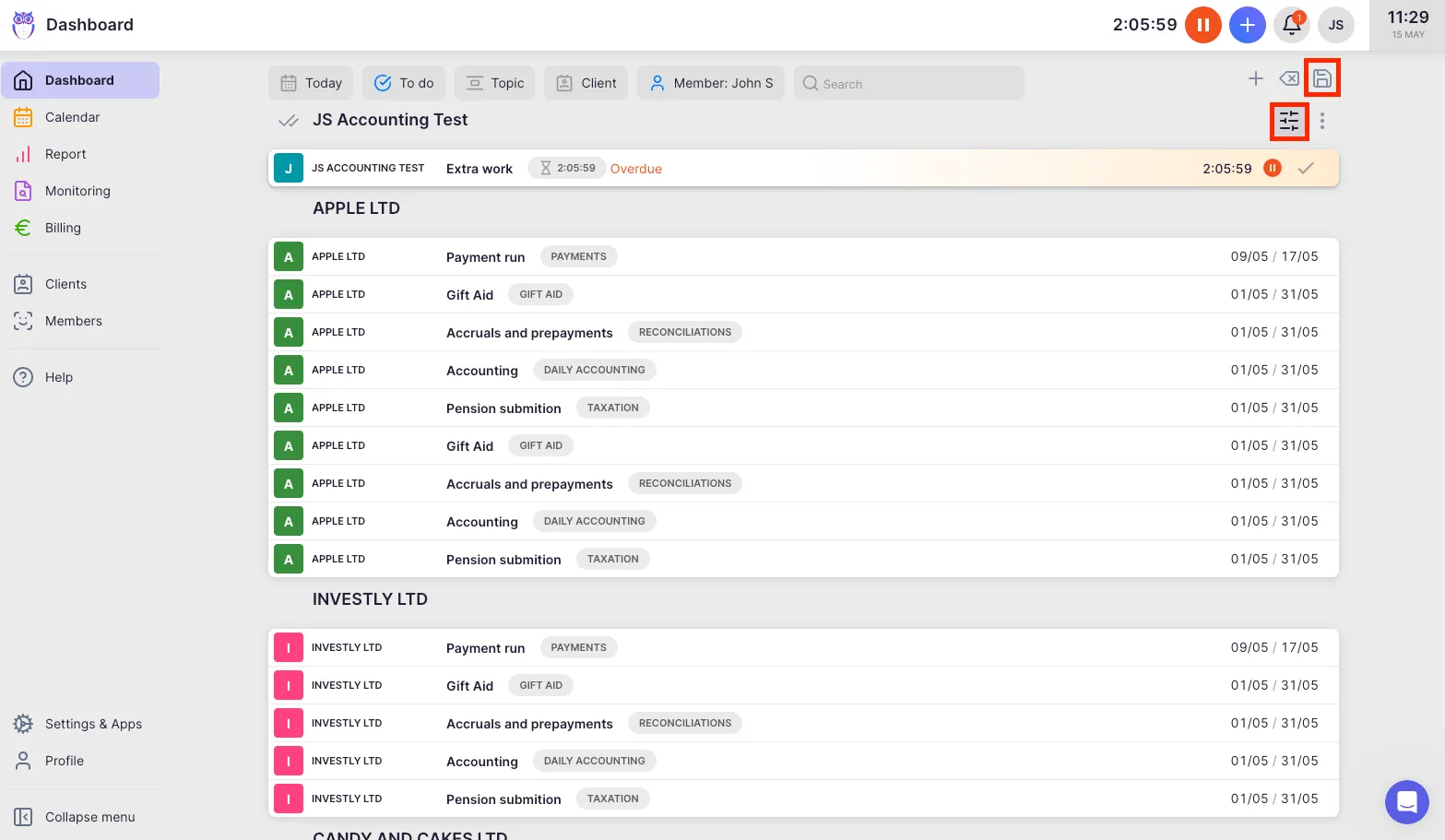
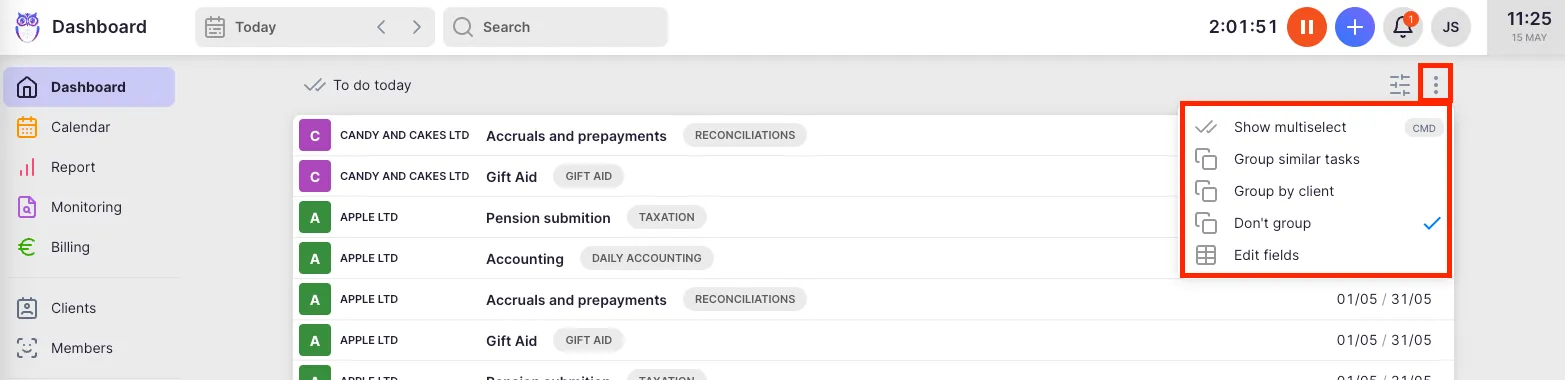
Section titled “Grouping tasks on the Dashboard”Click the Grouping icon on the Dashboard toolbar to organize tasks. The grouping you choose is independent of filtering — you can apply both at once.
Available grouping options:
- Don’t group — tasks sorted by start date, no grouping applied.
- Client — group the current view by client name (a temporary view sort); click a client name to expand their tasks.
- Project name — tasks grouped by project (shown when the Projects feature is enabled).
- Project process — tasks grouped by their project stage (shown when the Projects feature is enabled).
- Topic — tasks grouped by topic.
- Task status — tasks grouped by status (to-do, in progress, done).
- Member — tasks grouped by assigned member.
- Client group — group by the saved client groups from Settings (see Client groups and organization).
- Period — groups by day, week, or month.
If a grouping option seems to do nothing, the underlying tasks may be missing the field used for grouping (e.g. no topic set when using Group by topic).

Saving filter and grouping combinations
Section titled “Saving filter and grouping combinations”Once you have the right filters and grouping, save the combination as a bookmark:
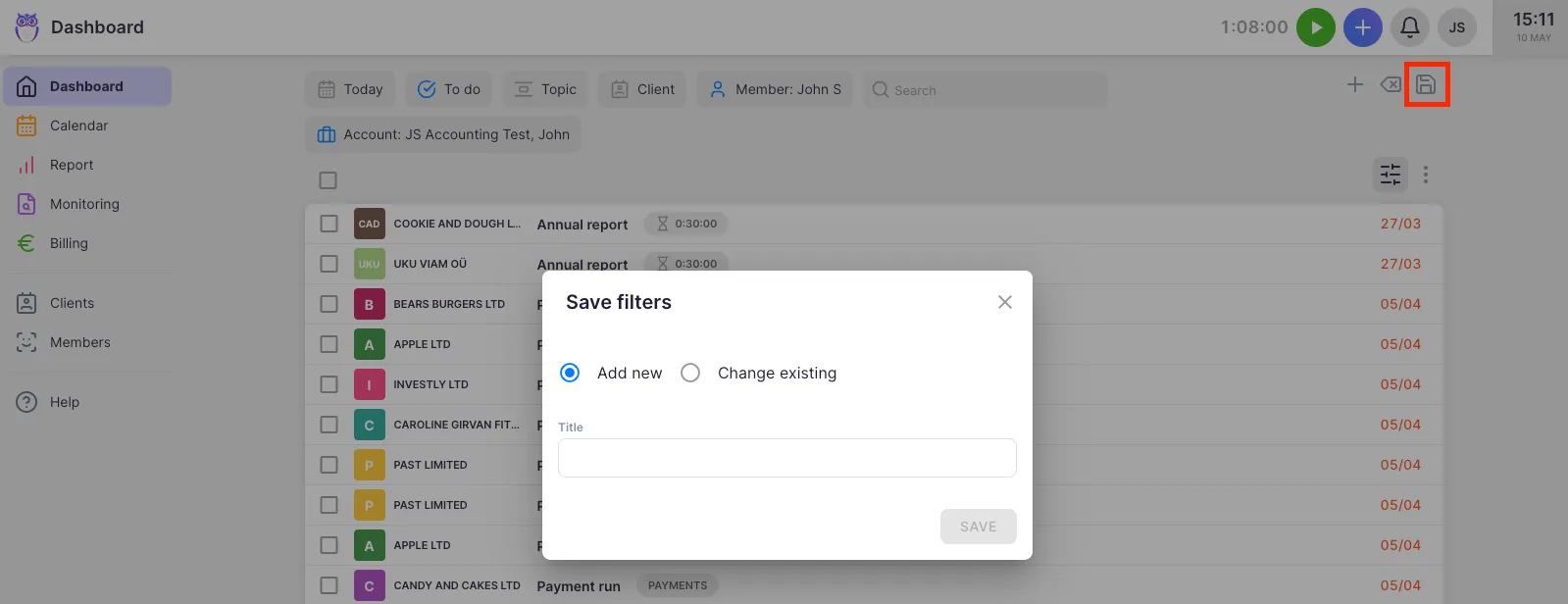
- Click the Save bookmark button (disk icon) in the filter bar.
- Enter a name for the bookmark.
- Optionally set it as your default view.
- Click Save.
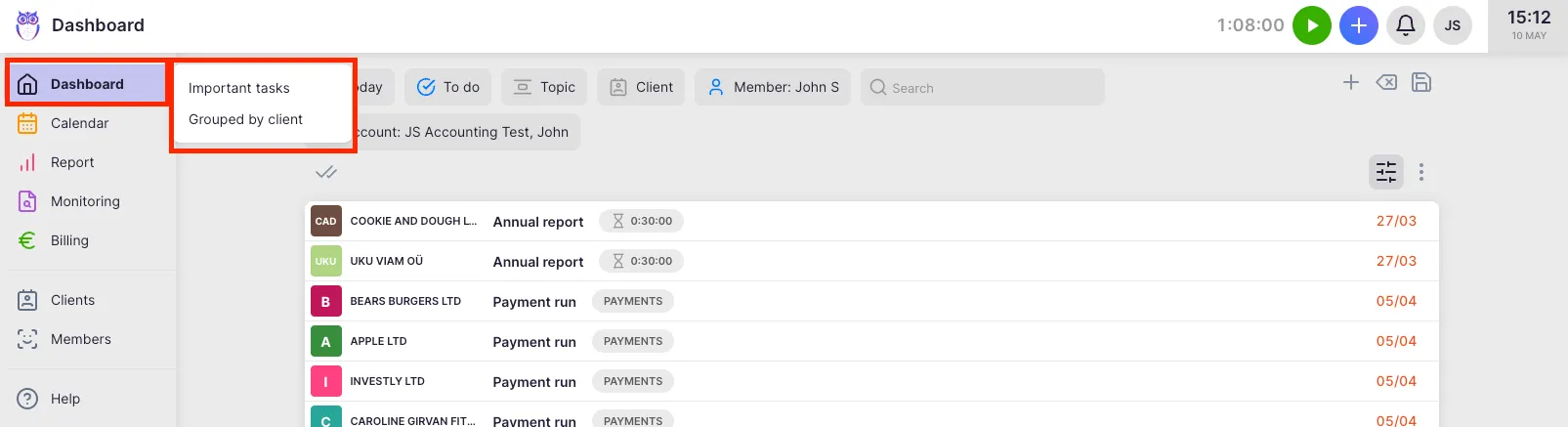
Access saved bookmarks by hovering over the view name in the main navigation (for example, Dashboard). Your saved bookmarks appear in the submenu. See the How to use bookmarks article for the full reference.
Filters in other views
Section titled “Filters in other views”Calendar
Section titled “Calendar”The Calendar view supports the same filter options as the Dashboard. Click the Filter icon to open the filter bar.
Report
Section titled “Report”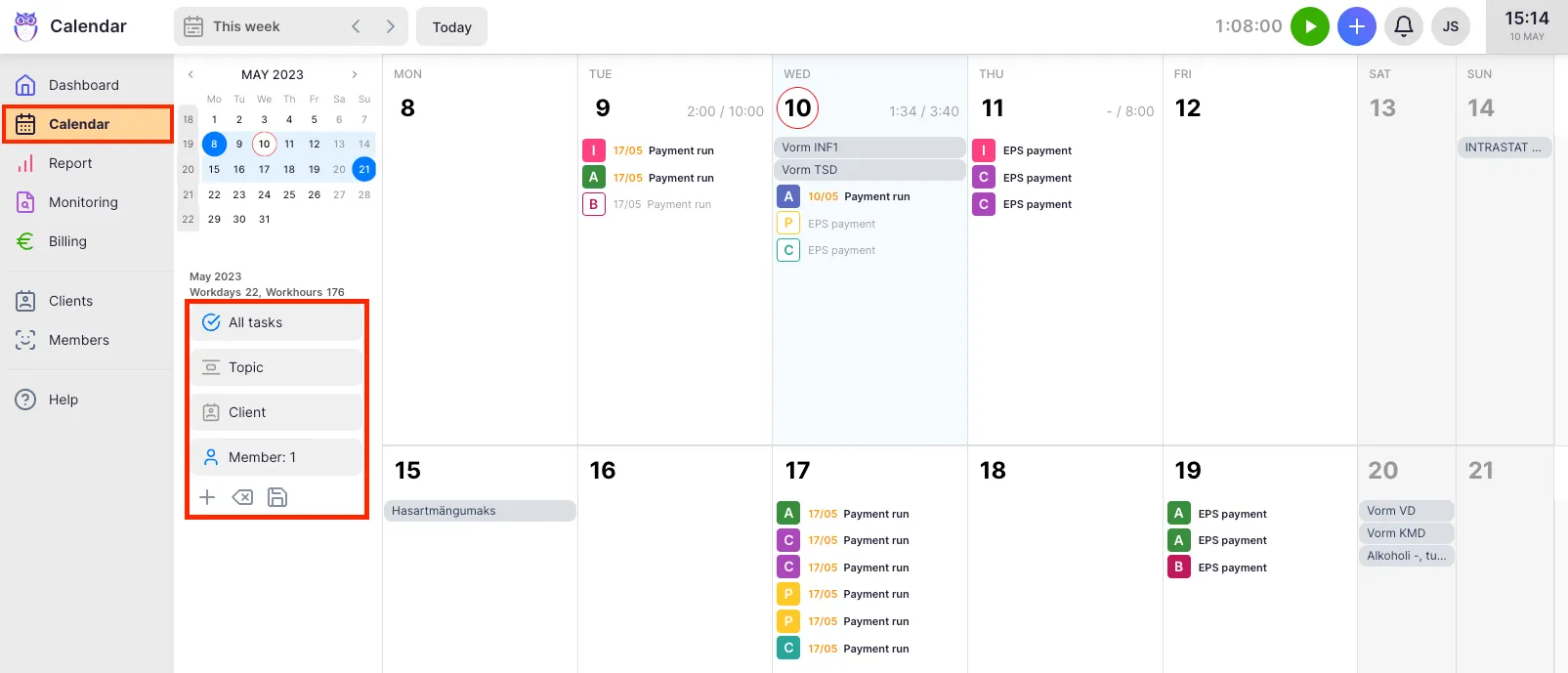
The Report view provides additional filter options for analyzing tasks and time entries. Filter selections saved in Report can be shared with the whole company by Company Admins and Company Owners.
Monitoring
Section titled “Monitoring”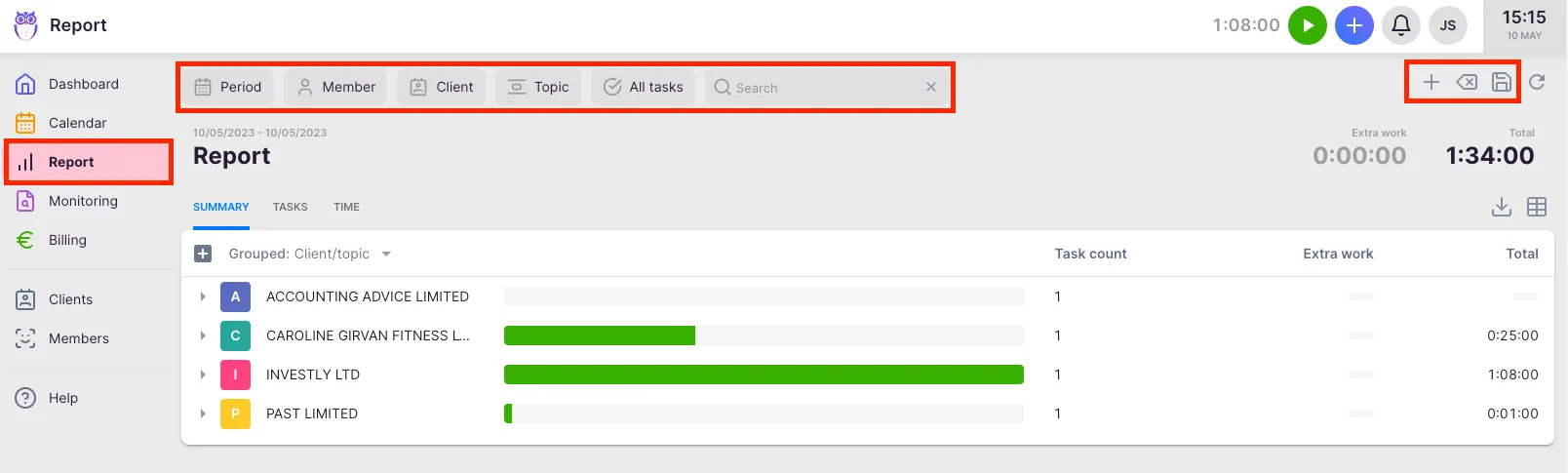
The Monitoring view supports filters to track compliance task progress across team members and clients.
Billing
Section titled “Billing”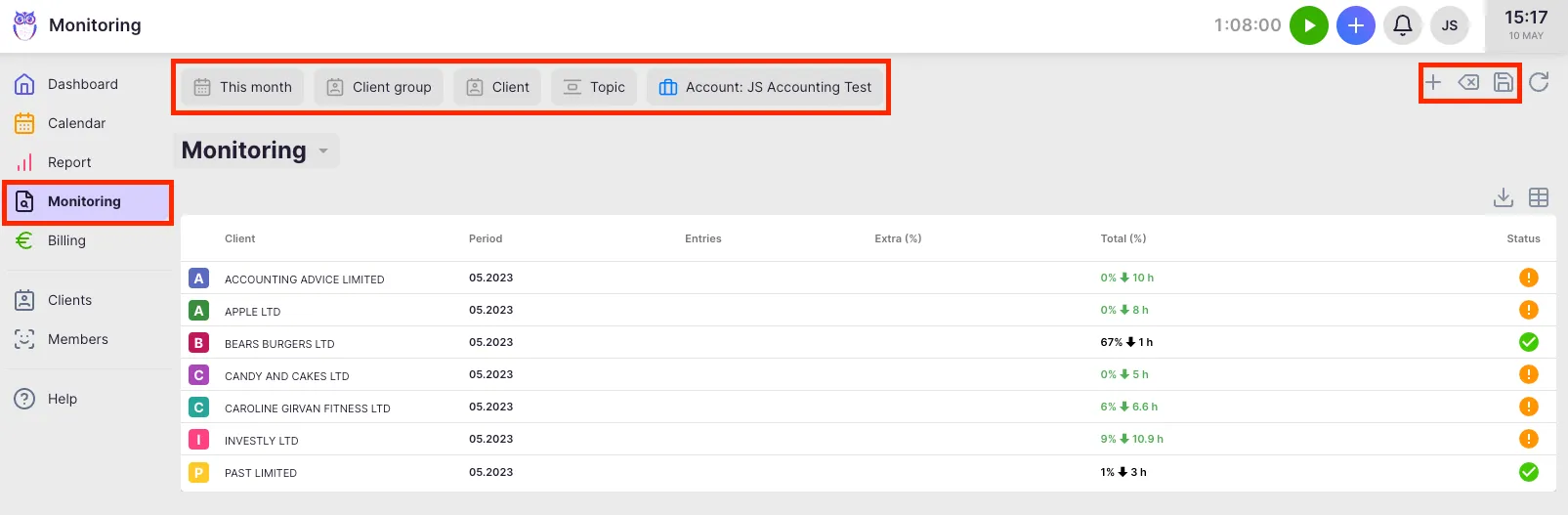
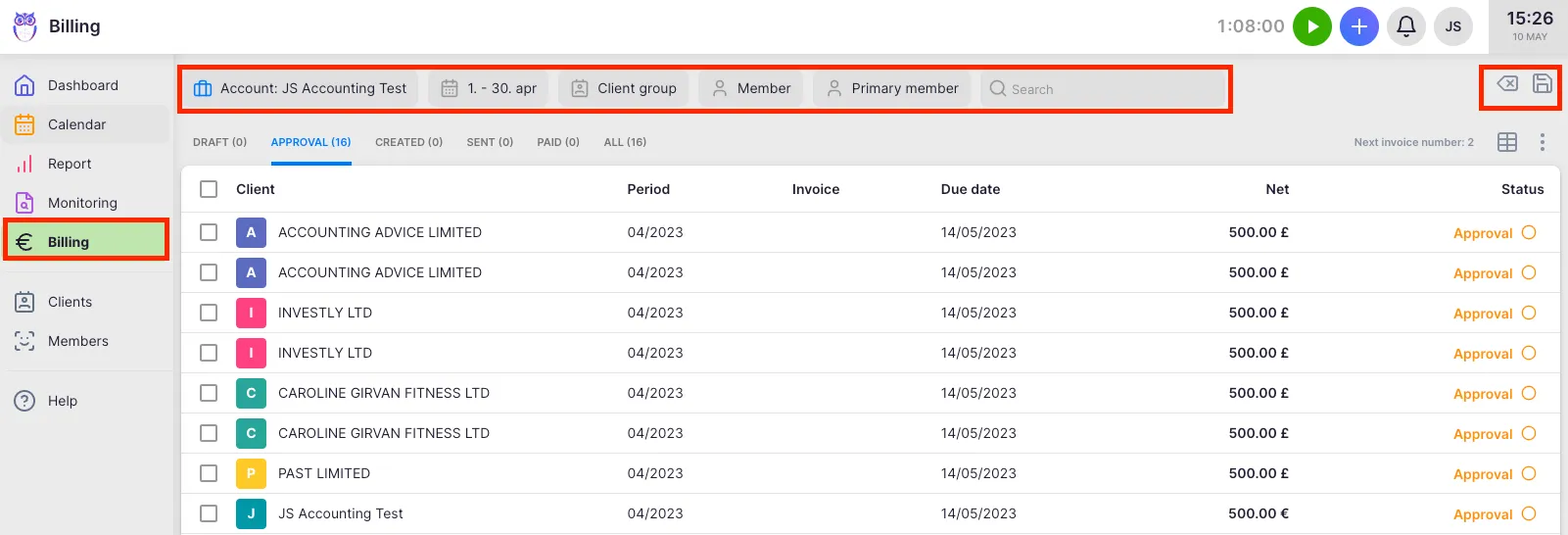
In the Billing view, available filters are fixed: Company, Period, and Client group. Custom filters cannot be added, but you can save filter selections as bookmarks.
Troubleshooting
Section titled “Troubleshooting”Saved bookmark is missing from the menu
Section titled “Saved bookmark is missing from the menu”Hover over the correct view name in the main navigation. Bookmarks are tied to the view where they were saved (e.g., a bookmark saved on the Dashboard only appears under the Dashboard menu item).
Filters are not showing expected results
Section titled “Filters are not showing expected results”Check for conflicting filters. For example, combining a Status filter set to “Done” with a Time filter for the current period may hide tasks completed outside that period. Remove filters one at a time to identify the conflict.
Cannot add custom filters in Billing
Section titled “Cannot add custom filters in Billing”This is expected. The Billing view only supports Company, Period, and Client group filters. Use the Report view for more granular filtering of billing-related data.
Company bookmark is not visible to other members
Section titled “Company bookmark is not visible to other members”Only Company Admins and Company Owners can save filter selections visible to the entire company. Regular members can only save personal bookmarks.