
Who can do this
Section titled “Who can do this”Company Admin or Company Owner role on a paid Uku plan (Solo, Team, or Elite). You also need a SmartAccounts login that has access to the company you want to connect — typically the SmartAccounts administrator.
SmartAccounts is the right integration for accounting firms in Estonia.
What the SmartAccounts integration does
Section titled “What the SmartAccounts integration does”The Uku ↔ SmartAccounts integration lets you:
- Import clients and contacts from SmartAccounts into Uku.
- Auto-generate monthly summary tasks that count sales invoices, purchase invoices, bank entries, and other accounting documents from SmartAccounts.
- Export invoices from Uku to SmartAccounts.
- Automatically fetch invoice paid status from SmartAccounts back to Uku.
Step 1: Activate the SmartAccounts integration in Uku
Section titled “Step 1: Activate the SmartAccounts integration in Uku”Path: Settings & Apps → SmartAccounts
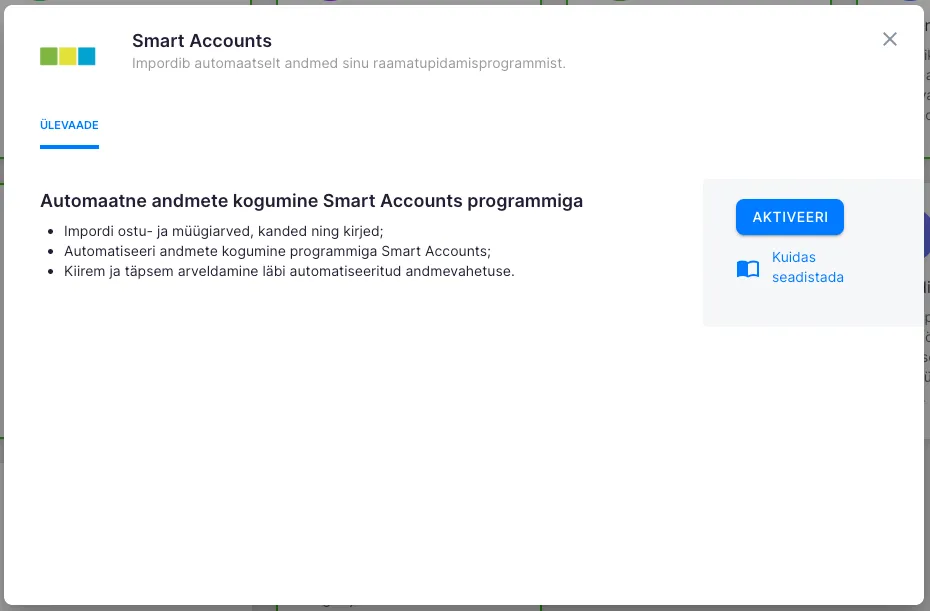
- Open Settings from the Uku main menu and click SmartAccounts.
- In the dialog, click Activate.
Step 2: Bulk-import clients with your SmartAccounts login
Section titled “Step 2: Bulk-import clients with your SmartAccounts login”There are two ways to start the import:
- From Settings & Apps: Open the SmartAccounts integration and switch to the Import view.
- From the client list: Open Clients, click the three-dot menu and choose Import clients, then pick SmartAccounts.
Either way, the same import flow runs.
- Enter your SmartAccounts user email and password.
- Click Start import.
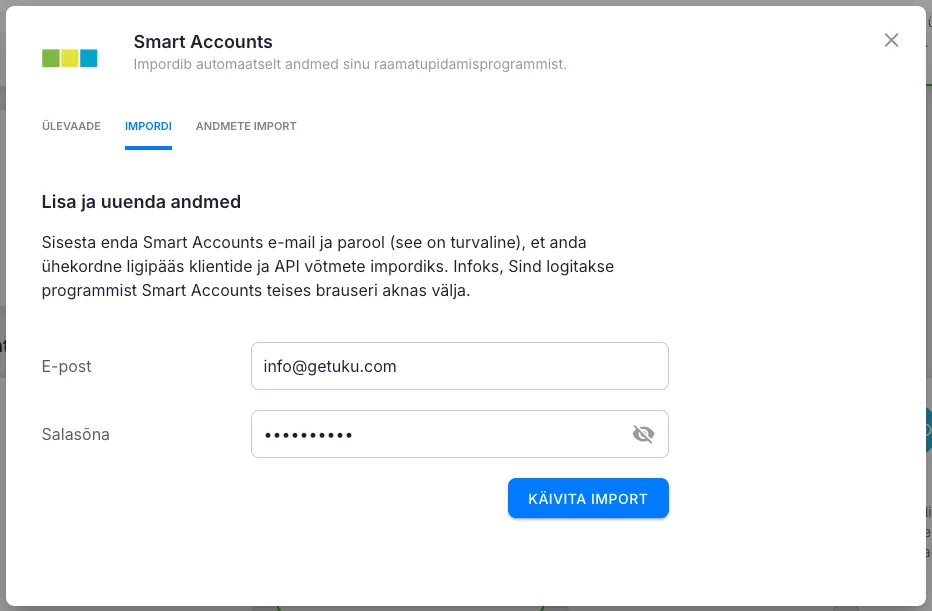
The connection is secure — Uku does NOT store your SmartAccounts password.
Wait for the import to finish. You can close the dialog and keep working — the import continues in the background. Larger client bases may take a few minutes.
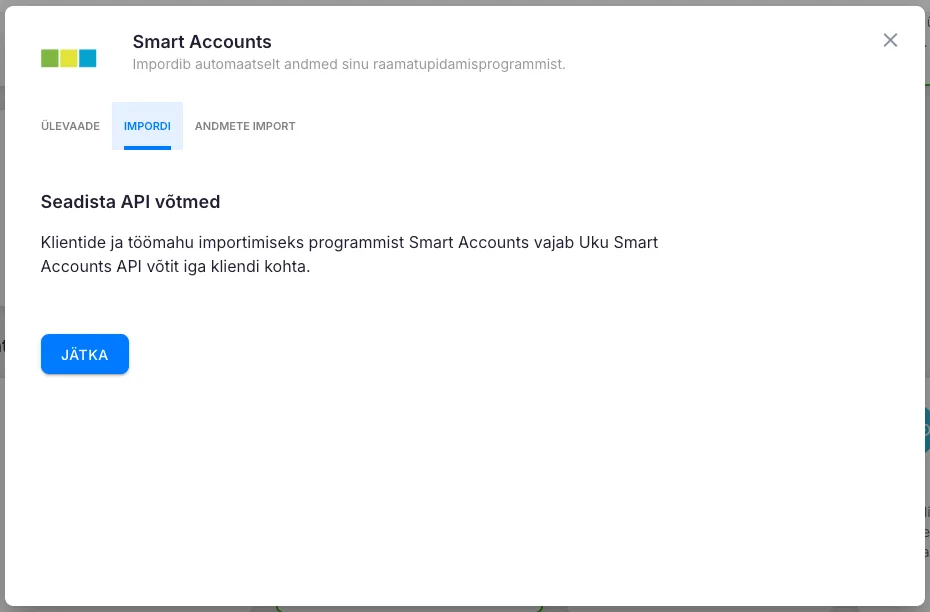
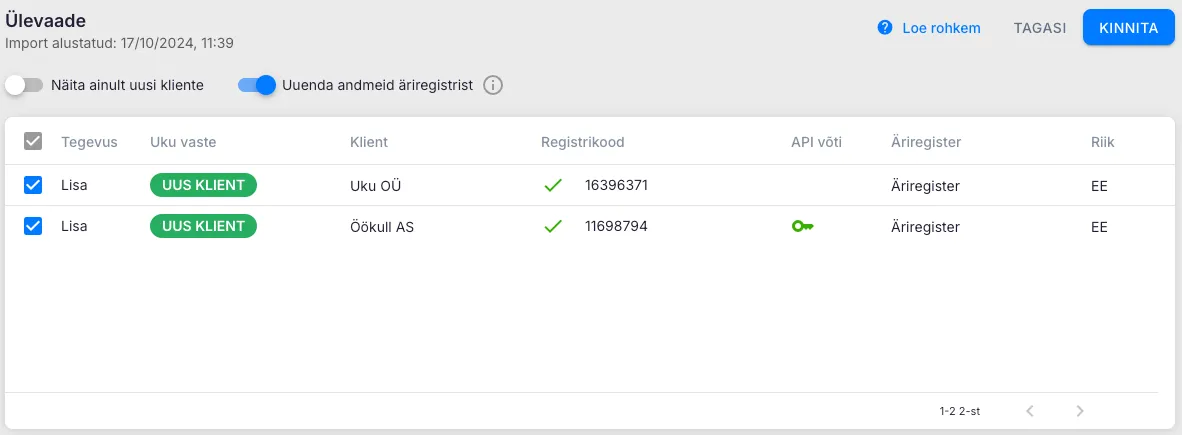
When the import is ready, click Confirm to review the list.
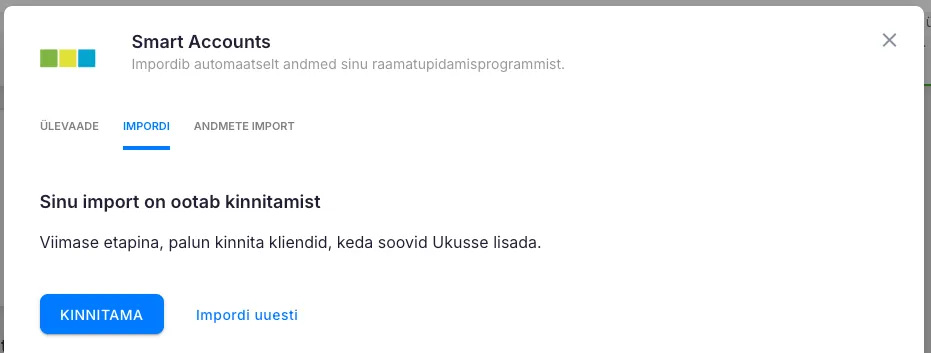
Deselect any client you don’t want to bring into Uku by clearing the Action column checkbox, then click Confirm.
Step 3: Enter per-client API keys
Section titled “Step 3: Enter per-client API keys”Unlike Merit Aktiva or Directo, SmartAccounts API keys are per-client, not per-company. After the bulk import, you connect each Uku client to its SmartAccounts company by entering that company’s API keys.
- Open the Clients view in Uku.
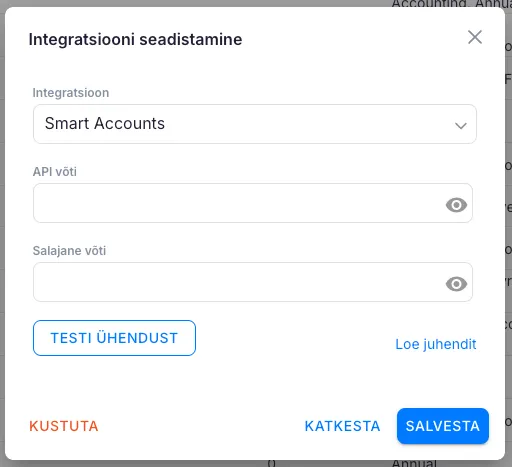
- On a client’s row, click the key icon to open the integration dialog for that client.
- In the dialog, pick SmartAccounts as the integration.
- Paste the SmartAccounts public API key and secret API key for that company. (Each SmartAccounts company has its own keys — generate them in SmartAccounts under the company’s API settings.)

Test the per-client connection
Section titled “Test the per-client connection”After pasting the keys, click Test connection. Uku reports whether the connection succeeded.
Repeat Step 3 for each Uku client you want to sync with SmartAccounts.
Step 4: Configure the monthly summary task
Section titled “Step 4: Configure the monthly summary task”Once clients are connected, open the SmartAccounts integration’s Data import tab to configure how Uku creates monthly summary tasks for each connected client.
Required fields:
- Task title — name applied to every auto-generated summary task.
- Topic — which topic the summary task is filed under.
- Data import — when in the month the import runs (last work day, last calendar day, or a specific day of the following month, 1st–28th).
Underneath, in the Configure data fields section, map each SmartAccounts data field to a Uku custom task field. SmartAccounts exposes:
- Sales entries — number of sales invoices in the month
- Purchase entries — number of purchase invoices in the month
- Bank entries — bank transactions
- Documents — other accounting documents
Click Show more to reveal additional less-common fields. Fields left unmapped are not imported.
If you also want to back-fill the previous 12 months immediately, use the Reload data button at the bottom of the tab.
Behind the scenes
Section titled “Behind the scenes”For each connected client, one summary task is created on the configured import day with the SmartAccounts counts written into your custom fields.
Step 5: Manual data refresh for one or more clients
Section titled “Step 5: Manual data refresh for one or more clients”You can refresh SmartAccounts counts at any time without waiting for the scheduled monthly run.
- In Clients, tick the checkbox next to one or more clients.
- Click Import data.
- Pick the integration (SmartAccounts) and the period to import.
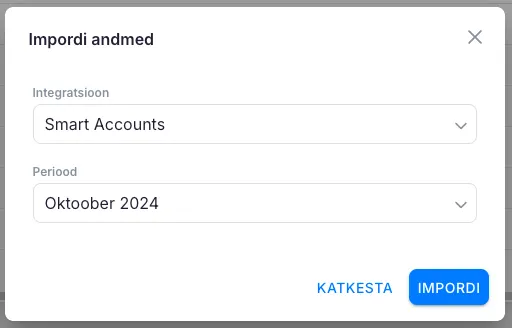
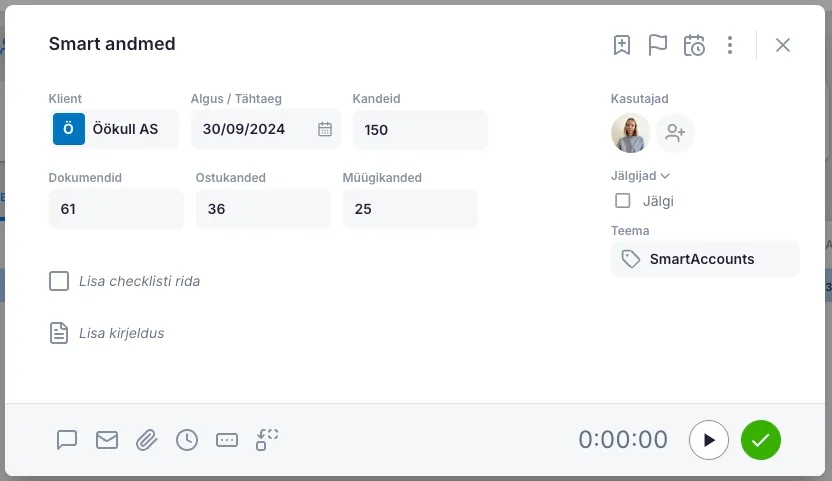
Uku notifies you when the import completes. The summary task lands in Reports for the last day of the imported month, with the counted fields populated.
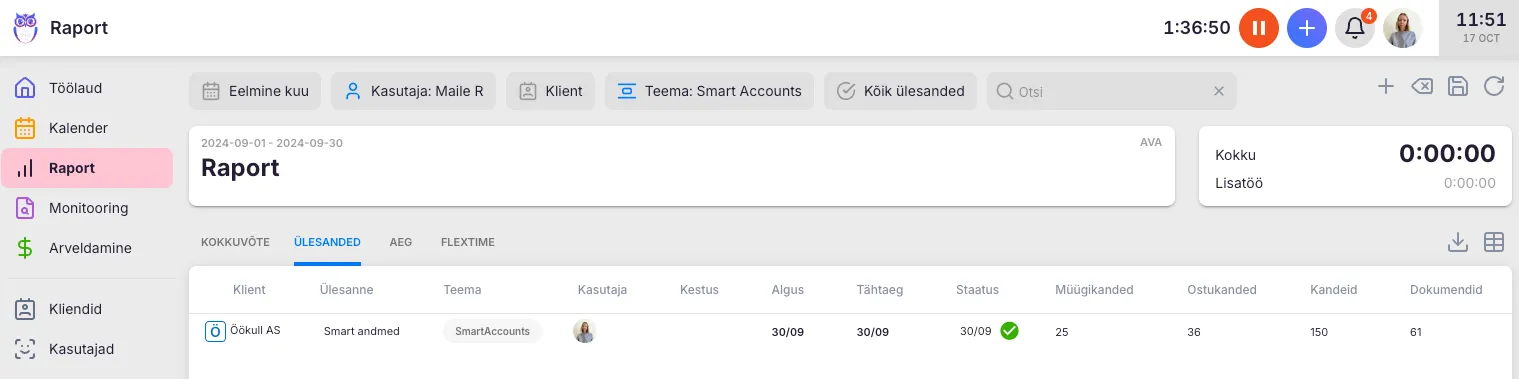
Click into the summary task to see the imported counts.
Disconnecting
Section titled “Disconnecting”Remove the whole integration
Section titled “Remove the whole integration”- Open Settings & Apps → SmartAccounts.
- Click Deactivate.
Remove the integration for a single client
Section titled “Remove the integration for a single client”- In the Clients view, click the key icon on the client’s row to open the integration dialog.
- Click Delete.
Troubleshooting
Section titled “Troubleshooting”Bulk import login fails
Section titled “Bulk import login fails”- Wrong SmartAccounts email or password — try logging into SmartAccounts directly to confirm.
- The SmartAccounts user is inactive or has no access to the company.
Per-client test connection fails
Section titled “Per-client test connection fails”Almost always one of:
- The public or secret key has leading or trailing whitespace. Re-copy directly from the SmartAccounts API panel.
- The secret was lost — SmartAccounts shows it only once at creation. Regenerate the pair and paste both into Uku.
- The keys were revoked in SmartAccounts.
Test connection succeeds but no data appears in summary tasks
Section titled “Test connection succeeds but no data appears in summary tasks”If the SmartAccounts per-client connection passes the test but no statistics show up in summary tasks, check:
- Each client’s Integration column on the client row is set to SmartAccounts (the key icon shows the configured integration).
- Summary task settings on the integration Data import tab are filled in (task title, topic, import day, data field mapping).
- Wait for the next scheduled import day, or trigger Reload data / Import data to back-fill.
A field shows no value after sync
Section titled “A field shows no value after sync”If a SmartAccounts field consistently arrives empty in Uku summary tasks, it is most likely unmapped. Open the integration Data import tab, find the field in Configure data fields, assign a Uku custom field, then click Reload data to back-fill.
A previously working client connection stopped syncing
Section titled “A previously working client connection stopped syncing”Usually a credential issue. SmartAccounts API credentials do not expire automatically but can be revoked when an administrator rotates them. Regenerate the pair in SmartAccounts for that client, paste the new values into the per-client integration dialog in Uku, and click Test connection.
A newly added client is not syncing
Section titled “A newly added client is not syncing”Manually-added Uku clients don’t inherit the integration. Open the client’s integration dialog (key icon in the Clients view), pick SmartAccounts, and paste that client’s keys.
What’s next
Section titled “What’s next”After SmartAccounts is connected, set up client workflow templates and configure your billing products so the monthly counts feed into invoicing.