Who can do this
Section titled “Who can do this”Company Owners and Company Admins can create and manage products. Company Admins’ product access comes from the Products team permission (granted to the Administrators team by default); if it’s removed, only the Company Owner can add or update products. See Members and Teams permissions.
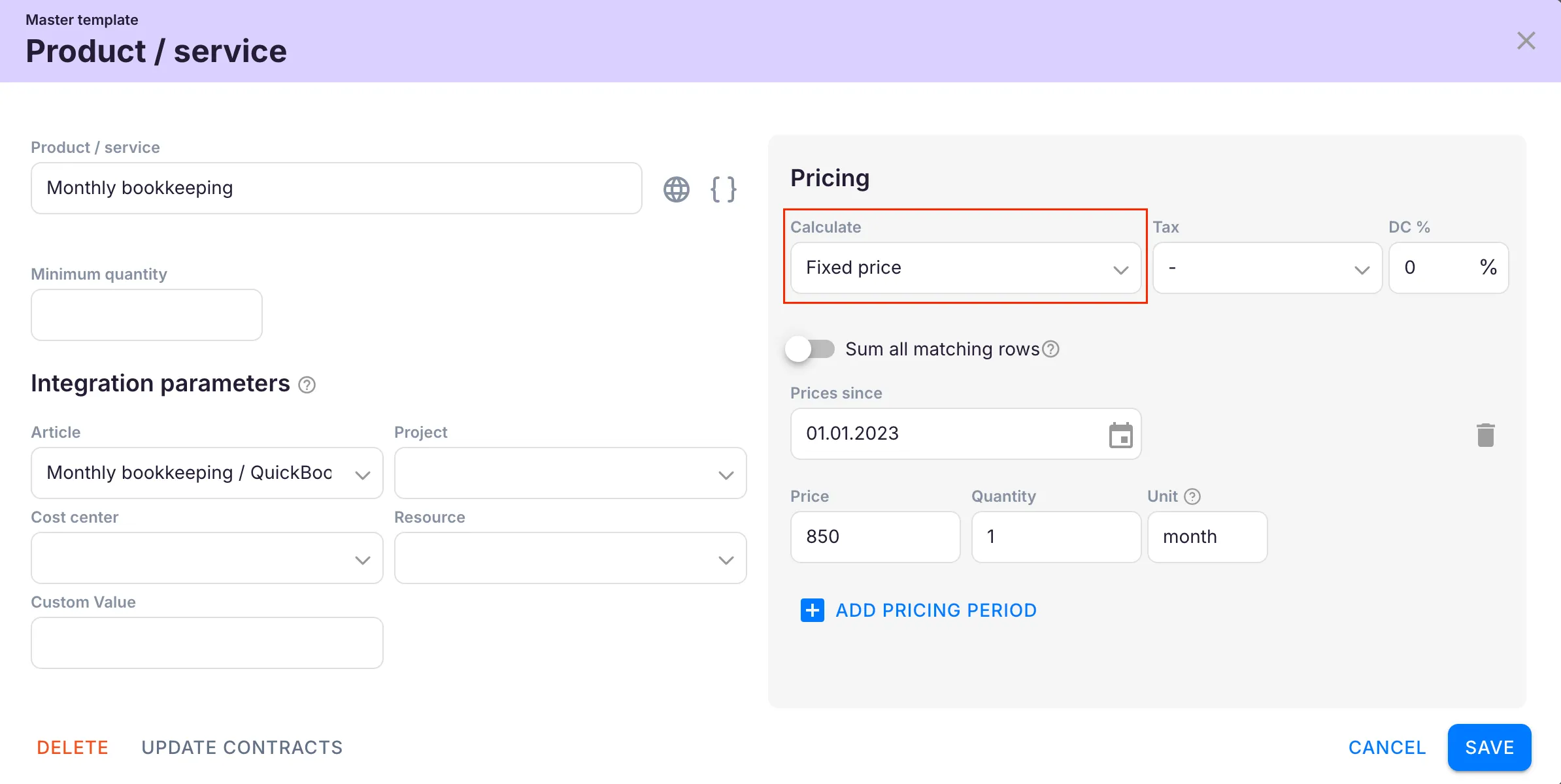
Creating a fixed price product
Section titled “Creating a fixed price product”- Open Settings & Apps > Billing > Setup > Articles and click + Add.
- Enter a descriptive name for the product (for example “Bookkeeping”).
- Set the pricing type to Fixed.
- Enter the fixed price amount for the billing period.
- Set the appropriate tax rate.
- Click Save.
Using placeholders in product descriptions
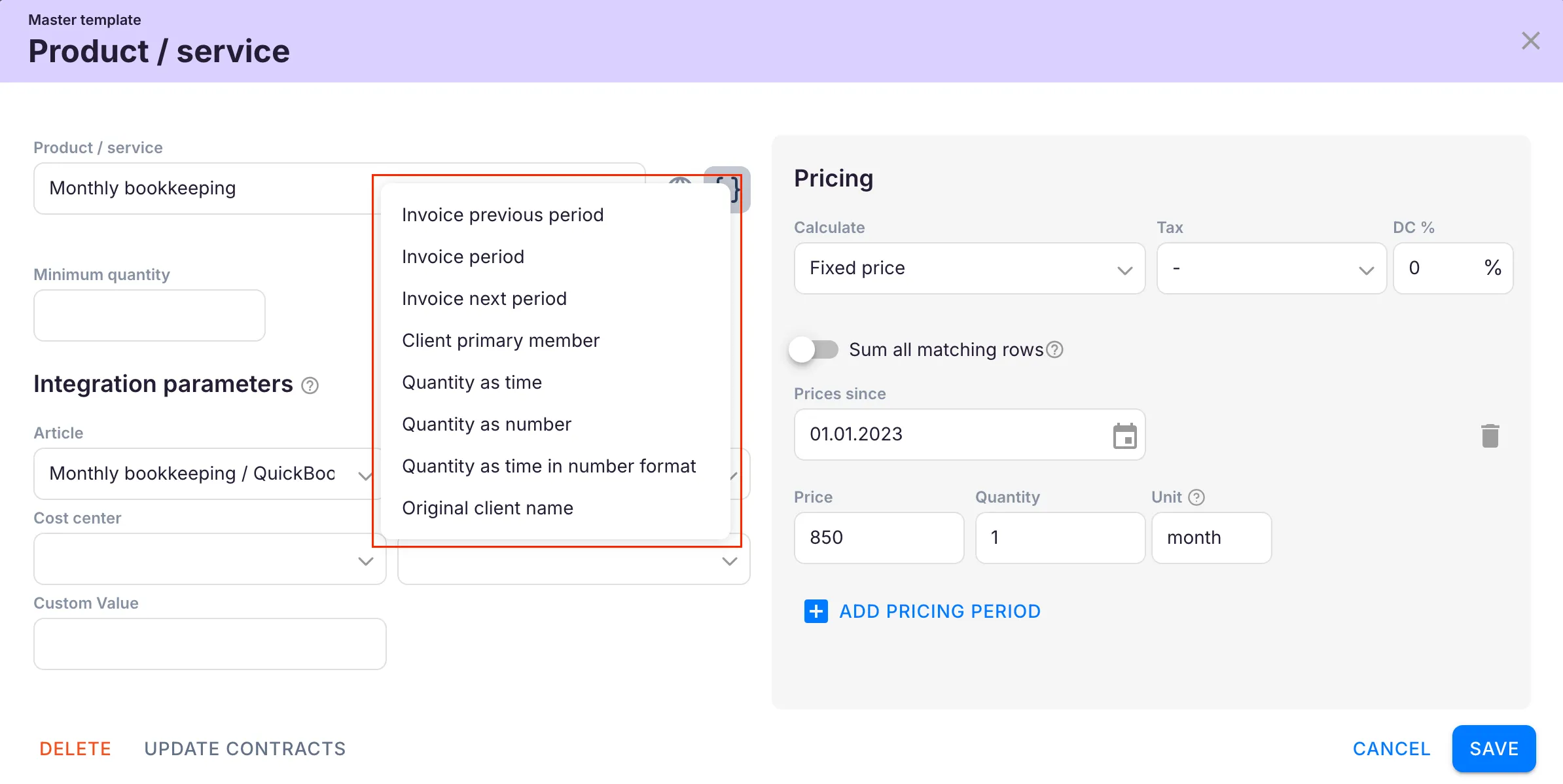
Section titled “Using placeholders in product descriptions”Placeholders can be added to the product name or description to automatically display information like the billing period on generated invoices. For example, “Bookkeeping for {{invoice_period}}” becomes “Bookkeeping for January 2026” when the invoice is created.
See Billing placeholders for the full list.
Troubleshooting
Section titled “Troubleshooting”The product does not appear on the invoice
Section titled “The product does not appear on the invoice”Verify that the product has been added to the client’s contract and that the contract covers the current billing period.
The price on the invoice is incorrect
Section titled “The price on the invoice is incorrect”Check the product configuration in Settings & Apps > Billing > Setup > Articles to ensure the correct fixed price amount is entered.
Placeholders are showing as raw text instead of actual values
Section titled “Placeholders are showing as raw text instead of actual values”Placeholders are only replaced when the invoice is generated, not in the product preview. Use the correct {{placeholder_name}} format.