
Who can do this
Section titled “Who can do this”- Company Owners and Company Admins can always edit any invoice.
- Company Members can edit an invoice if either:
- they hold Client Admin permission on that client, or
- one of their teams grants the Invoices permission at the Edit level (or higher).
- Billing permissions are granted in the Team permissions matrix — see Members and Teams permissions.
How to edit an invoice
Section titled “How to edit an invoice”- Open the invoice from Billing > Invoices or from the client profile > Financials > Invoices.
- Click the pencil icon in the invoice header.
- Make your changes in edit mode.
- Click Save to apply your changes.
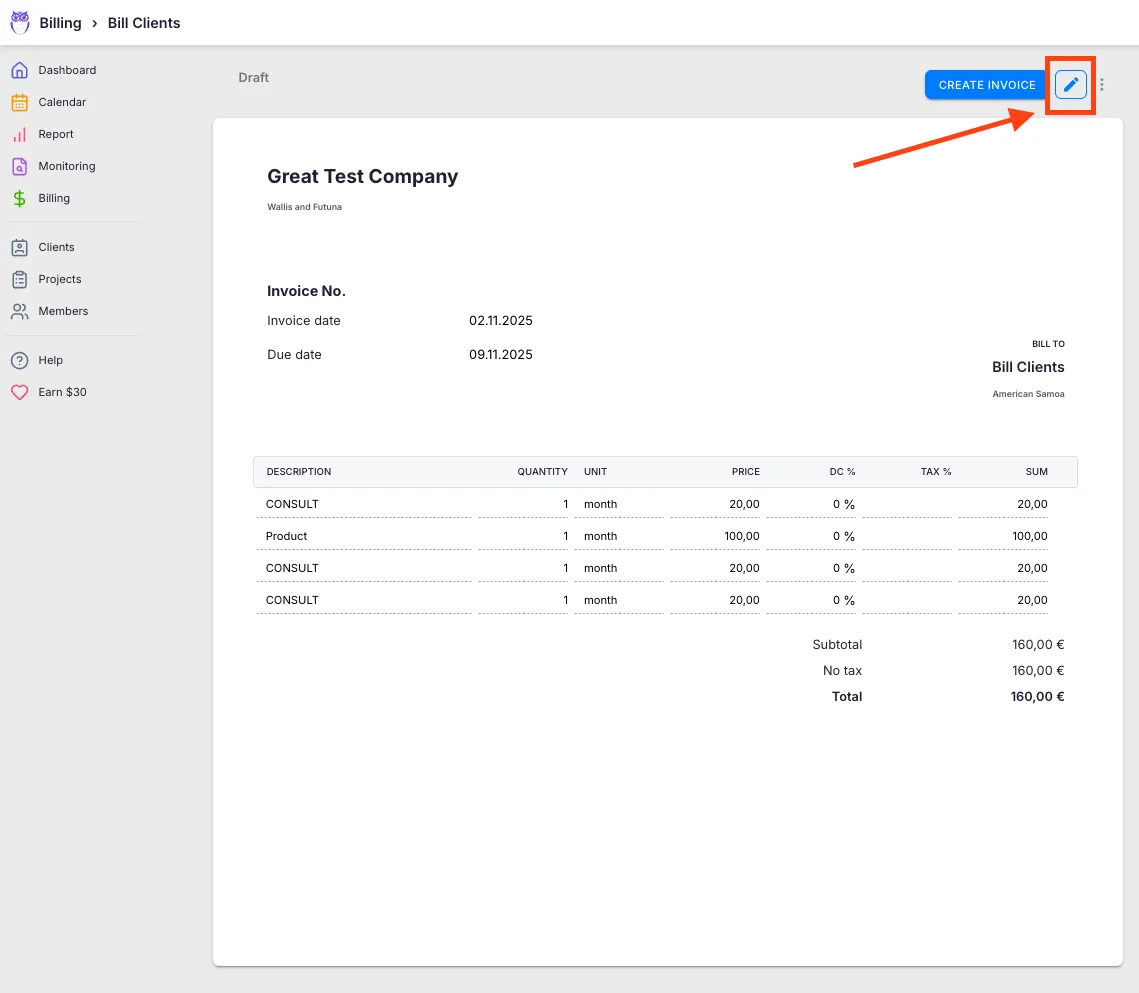
Understanding invoice permissions
Section titled “Understanding invoice permissions”Two independent things decide whether a Company Member can edit an invoice. Either one is enough.
Per-client permission (Client Admin)
Section titled “Per-client permission (Client Admin)”Each member holds a Client Admin or Client Member permission on every client they’re assigned to, set in the client’s Members tab (the dropdown shows Admin and Member). A member who is Client Admin on a client can create, modify, and delete that client’s invoices — regardless of their team-level Invoices grant.
Team permission (Invoices)
Section titled “Team permission (Invoices)”Billing capability is granted per team in the Team permissions matrix. The Invoices row has three levels: View (see invoices on accessible clients), Edit (create and modify invoices), and All (also send, export, and delete). A Company Member needs Edit to edit invoices. For the full matrix, see Members and Teams permissions.
How to check a team member’s client permission
Section titled “How to check a team member’s client permission”- Open the client profile.
- Go to the Members tab.
- Find the team member and check the permission dropdown:
- Admin — Client Admin permission on this client (can edit that client’s invoices).
- Member — Client Member permission; can edit invoices only if a team grants the Invoices Edit permission.
How to grant invoice editing rights
Section titled “How to grant invoice editing rights”There are two ways, depending on whether you want it for one client or company-wide.
Make them Client Admin on the client
Section titled “Make them Client Admin on the client”- Open the client profile > Members tab.
- Find the team member and open the permission dropdown.
- Select Admin (Client Admin). The change saves immediately.
Grant the Invoices permission on a team
Section titled “Grant the Invoices permission on a team”- Open Members → Teams and open a team the member belongs to.
- In the Permissions matrix, grant Invoices at the Edit level (or All to also send, export, and delete).
- Click Save.
See Members and Teams permissions for how grants combine across teams.
Troubleshooting
Section titled “Troubleshooting”The pencil icon does not appear on the invoice
Section titled “The pencil icon does not appear on the invoice”You don’t have permission to edit this client’s invoices. Ask a Company Admin to grant you Client Admin on the client, or to grant the Invoices (Edit) permission on one of your teams.
Permission was set to Client Admin but the user still cannot edit invoices
Section titled “Permission was set to Client Admin but the user still cannot edit invoices”Confirm the member is actually assigned to that client and holds Client Admin (not Client Member) on its Members tab. Client Admin on a client carries invoice edit access on its own — if it still doesn’t work, check that you’re looking at the correct client.
A new team member cannot see any invoices at all
Section titled “A new team member cannot see any invoices at all”The team member may not be assigned to the client. Open the client profile, go to the Members tab, and add them. Without a client assignment, no billing permission applies.
Invoice fields are greyed out in edit mode
Section titled “Invoice fields are greyed out in edit mode”The invoice may be in a finalised or sent status. For created invoices, the pencil icon re-opens edit mode and all fields become editable again.