
Your notification settings let you decide, type by type, how Uku reaches you — and they include a temporary snooze, per-client muting, and one-click quick setups so you can tune everything at once.
Who can do this
Section titled “Who can do this”- Every member manages their own notification settings. The Notifications section appears only on your own profile — you can’t change another member’s settings.
- Settings are personal and span all your companies: you have one notification profile, not one per company.
- Available on every plan (Team and Elite).
Open your notification settings
Section titled “Open your notification settings”Your notification settings live inside your profile, not in Settings & Apps.
Path: Profile avatar → Notifications section
Also: Profile (sidebar) → Notifications section
- Click your Profile avatar in the header, or Profile in the sidebar.
- Scroll to the Notifications section. It loads your current settings automatically.
Choose how each notification reaches you
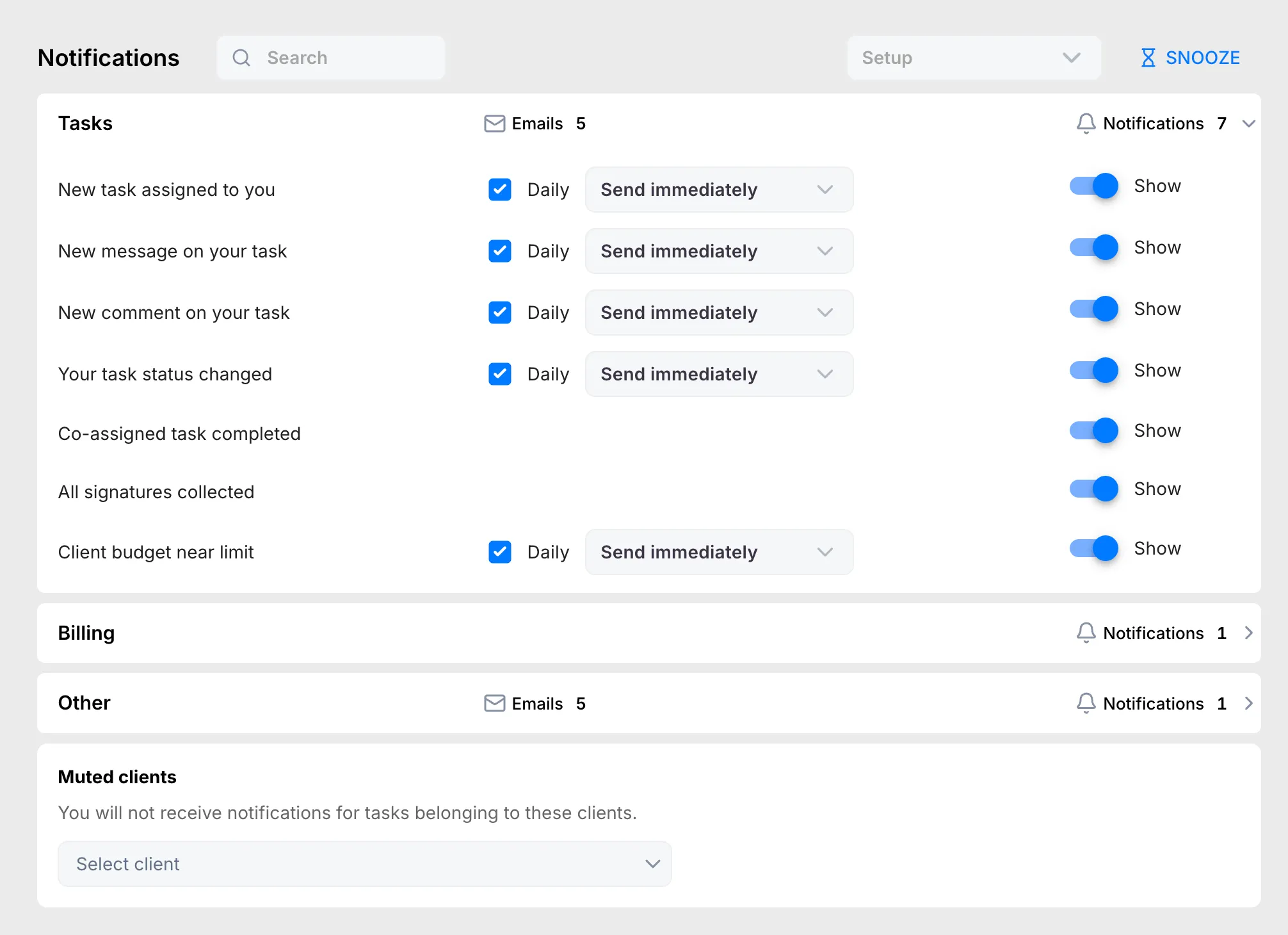
Section titled “Choose how each notification reaches you”Notifications are grouped into collapsible sections — Tasks & Clients, Billing, Workforce, System, Onboarding, and Other. Click a group header to expand it; one group is open at a time. Each header shows a running count of how many of its types are sending Emails and how many show as Notifications (in-app), so you can see at a glance how noisy a group is.
Inside an expanded group, every notification type has two controls:
- Email — choose Off or Daily. With Daily selected, a timing dropdown appears: Send immediately, Send in the morning (09:00), Send in the afternoon (14:00), or Send in the evening (18:00). Batching to a fixed time of day keeps email out of your live workflow while still delivering everything once a day.
- Notification — the Show toggle controls whether the type appears in-app under the notifications bell icon in the header.
Scheduled summaries (your daily task list, weekly and monthly summaries, the timesheet-lock reminder, and the long-running-timer warning) send at a time Uku sets, so their email control is a simple Off / Send with no timing dropdown.
Apply a quick setup
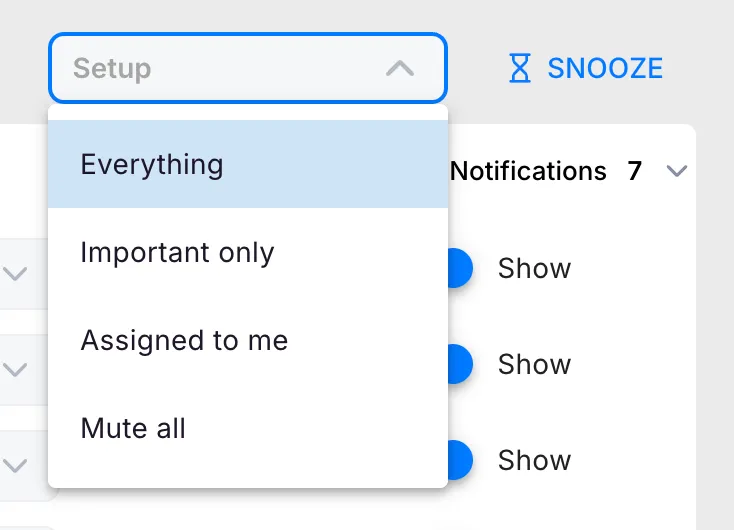
Section titled “Apply a quick setup”If tuning each row is more than you need, the Setup dropdown applies a whole preset at once. Picking one overwrites your current per-type choices.
- Everything — restores all defaults; every type fires on its default channels.
- Important only — only critical and important notifications. Quieter inbox; you still hear about payments and direct asks.
- Assigned to me — things about you specifically: tasks you own, your billing, your daily and weekly summaries.
- Mute all — everything off, except critical billing alerts, which stay on so you don’t miss a failed payment.
After you pick a preset, Uku shows a short note describing what it changed.
Snooze all notifications
Section titled “Snooze all notifications”When you need quiet for a while, click Snooze and choose For 1 hour, For 4 hours, Until tomorrow 9 AM, or Until Monday 9 AM. A banner shows the active snooze; click Cancel snooze to end it early. Snooze pauses delivery temporarily without changing any of your per-type settings.
Mute a client
Section titled “Mute a client”Muting a client stops notifications about that client’s tasks and activity — handy for clients you don’t actively work on.
- In the Muted clients block, select one or more clients from the picker.
- Click Save to apply, or Cancel to discard.
Notification emails and unsubscribing
Section titled “Notification emails and unsubscribing”Every notification email includes a one-click unsubscribe link in its footer that turns off that email type for you — you don’t have to open Uku.
Troubleshooting
Section titled “Troubleshooting”I’m getting too many emails
Section titled “I’m getting too many emails”Open Profile → Notifications, expand the relevant group, and set the Email control to Off for the types you don’t want — or set them to Daily with a morning, afternoon, or evening send time so they arrive batched instead of one at a time. The in-app Show toggle is separate, so turning off email keeps the bell notification.
I changed a setting but nothing seemed to happen
Section titled “I changed a setting but nothing seemed to happen”Notification settings save the moment you change them — there’s no Save button for the per-type controls (only Muted clients has explicit Save / Cancel). A short confirmation appears after each change. If a change didn’t stick, refresh the page and try again.
A preset undid my custom settings
Section titled “A preset undid my custom settings”Applying a Setup preset (Everything, Important only, Assigned to me, Mute all) overwrites every per-type choice at once. If you’d tuned individual rows, re-apply your changes after the preset, or avoid presets once your setup is dialled in.
I muted a client but still got a billing alert
Section titled “I muted a client but still got a billing alert”Muting a client only suppresses notifications about that client’s tasks and activity. Billing and account alerts — like a failed subscription payment — are never muted and always reach you.