
June 2026
This is the biggest update in Uku’s history. We moved all of Uku onto a new technical foundation, built to carry everything that comes next. And on top of it, we are shipping a whole set of long-requested features at once.
1. Quick Search: find anything, do anything in Uku
Section titled “1. Quick Search: find anything, do anything in Uku”Press Ctrl+K (⌘+K on Mac) to open Quick Search: a universal search and action palette covering all of Uku. Search clients, tasks, invoices, contacts, projects, and more from a single input. Create tasks inline, jump to a task by its number, or navigate to any page. From a task result, open its actions panel to start a timer or mark it done — all from the keyboard.
Why? Everything in Uku is now a couple of keystrokes away. Fewer clicks and menus, more time for actual work.
Examples:
+Annual report *Uku @Rain -Reporting !Today /1h— creates the task with the client, assignee, topic, due date, and time budget pre-filled./report today @me— opens your own report for today.
2. Members: Teams and feature rights
Section titled “2. Members: Teams and feature rights”Groups are now Teams, and with the new name comes granular permission management. For each team, decide what its members can do in Uku: who sees invoices and billing contracts, who can change them, who confirms vacations, who manages documents. Rights come in three levels (view, change, admin), and members get the combined rights of all their teams. When you turn on Billing, Workforce Management, or BI Analytics, Uku automatically creates a ready-made team for it, pre-configured with sensible rights — so you don’t start from a blank matrix.
It also brings every member permission into one place. Per-member rights that used to live under Company settings and Billing settings now sit under Teams, so there’s a single screen to manage who can do what.
Why? The old model forced an all-or-nothing choice. Now you can give an account manager view access to billing contracts without edit rights: they see what an invoice is based on and can approve it, without interrupting the admin.
Example: An HR team can be given access to member profiles only — not to any clients — keeping personnel data separate from client work.
3. Workflows: role-based task assignment
Section titled “3. Workflows: role-based task assignment”Assign work by the role someone plays for a client — Accountant, Payroll Specialist, Auditor — instead of by name. Tag template tasks with a role, then map each role to a person or Team on the client; Uku routes every generated task automatically. When staffing changes, remap the role on the affected clients — in bulk if you like — and all their tasks move with it.
Why? With hundreds of clients and dozens of workflows, assigning task by task doesn’t scale. With roles, a reshuffle is a few clicks, and a new client-list filter shows where a role is still unmapped.
Example: Mari is the Accountant on some clients and the Payroll Specialist on others. When she leaves, her accounting work should go to one colleague and her payroll work to another. Because every task carries its role, you remap the Accountant role to the first colleague and the Payroll Specialist role to the second — and each set of tasks moves to the right person automatically, with no sorting through her tasks by hand.
4. Vacations: automatic task delegation
Section titled “4. Vacations: automatic task delegation”When submitting a vacation, pick who covers for you: one or more people, or a whole team. When the vacation starts, Uku hands your open tasks to the delegates; when it ends, it takes them back automatically. New tasks that come in during your vacation reach your delegate too. Optionally, grant delegates access to your clients’ details. The same works for sick leave and other absences.
Why? Covering for a colleague no longer means reassigning tasks one by one, and coming back from vacation no longer means cleaning up: everything moves to the delegate automatically and comes back automatically.
Example: Split the coverage by client — send one set of clients’ tasks to one colleague and the rest to another. Arrange it while you plan the vacation, and the moment it starts everything is already in the right hands, so nothing falls behind while you’re away.
5. Client Portal: invoices
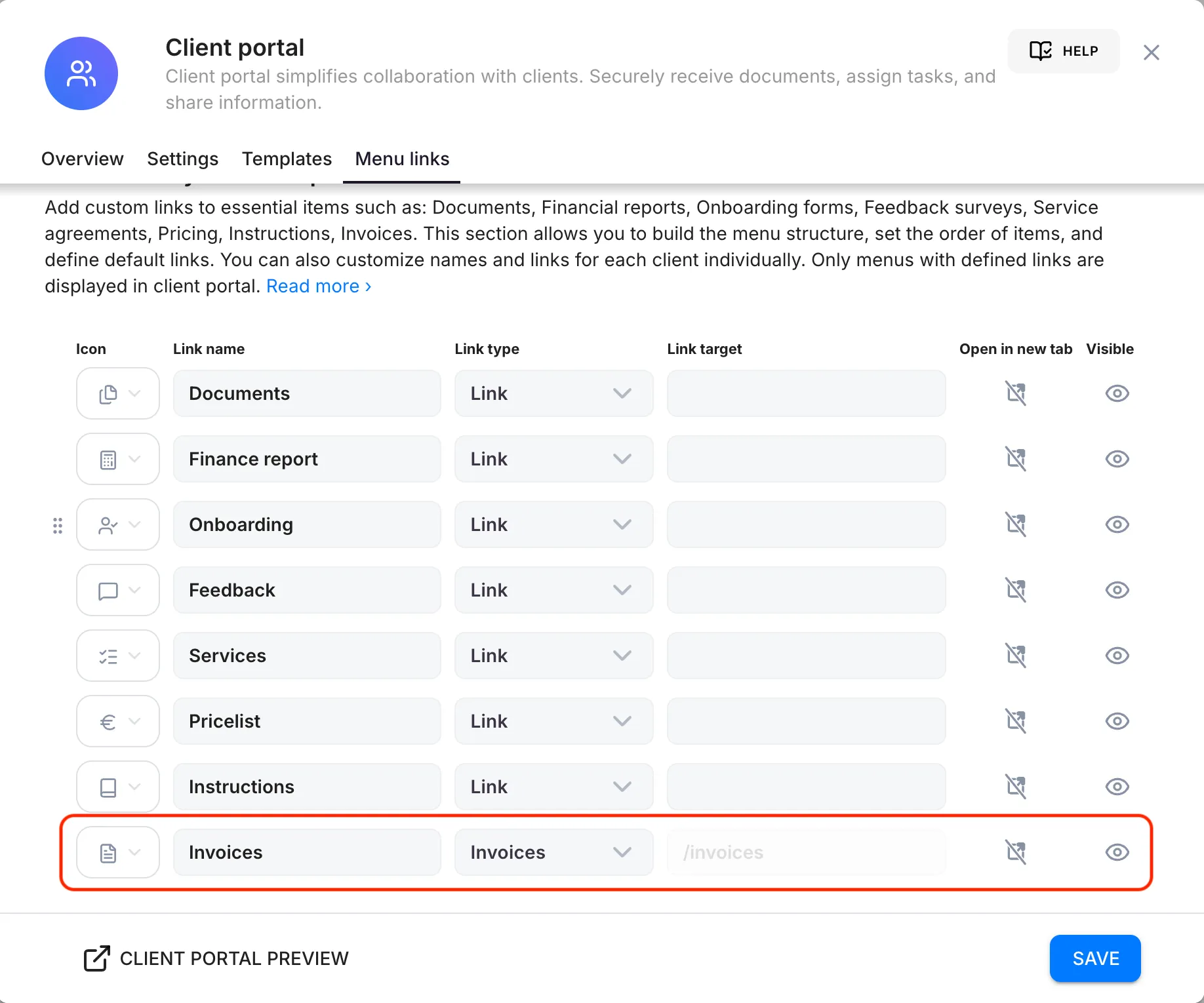
Section titled “5. Client Portal: invoices”Your clients can now see their invoices directly in the Client Portal — a list with dates, totals, and status (sent, paid, overdue), each invoice opening as a PDF. To turn it on, add a Client Portal menu link with the type Invoices.
Once it’s set up, clients see all their invoices in one place when they log in to the portal.
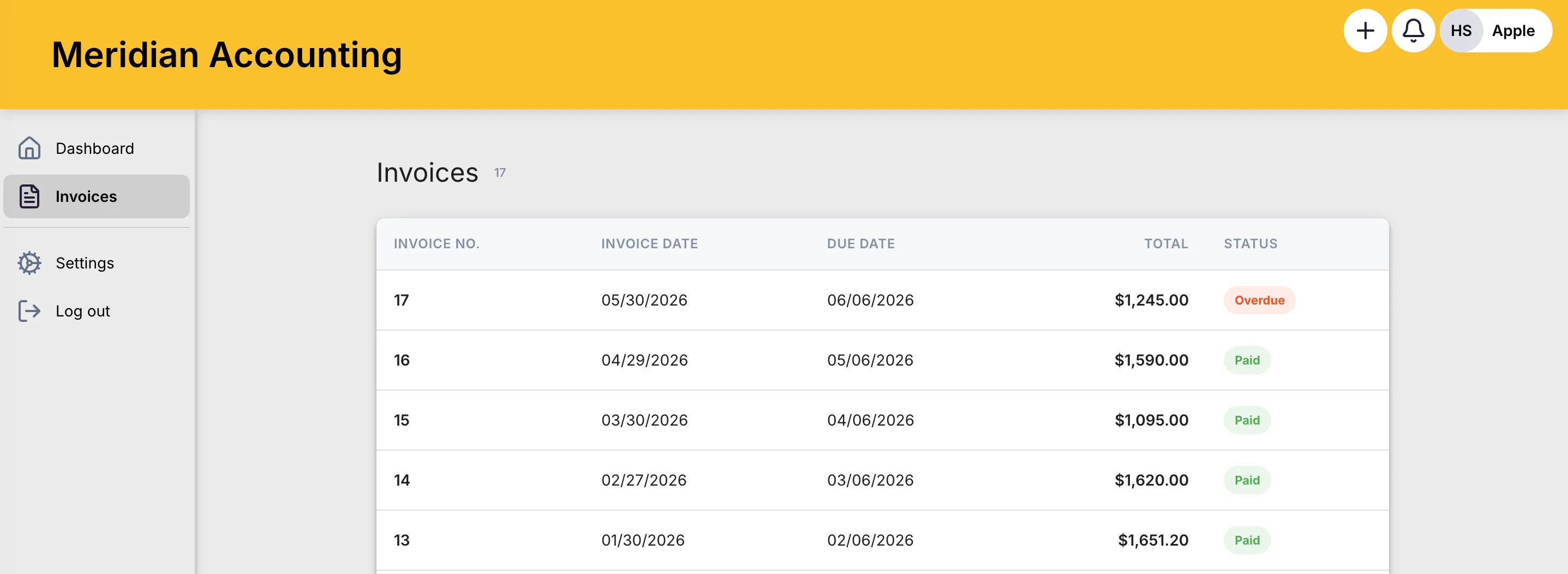
Why? Clients no longer need to ask for an invoice or dig through their inbox: all their invoices are always in one place.
Now available: clients can pay an invoice with one click. The pay button goes on the invoice email, a debt reminder, the invoice PDF, and the portal. Connect Stripe, Montonio, or a payment page you already use. See Payment links.
6. Client Portal: shared notes
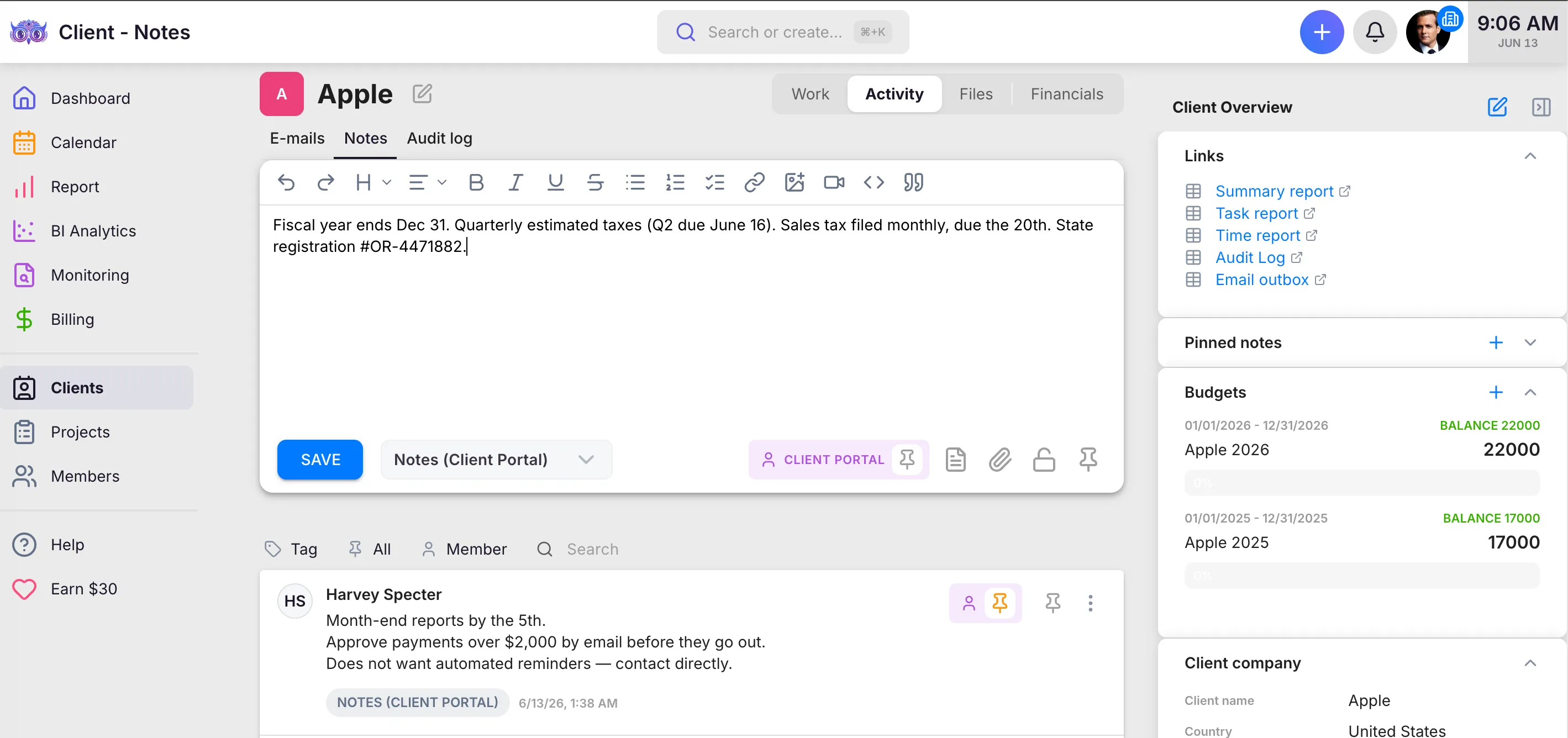
Section titled “6. Client Portal: shared notes”Notes now work both ways in the Client Portal. You can leave a note for your client, and your client can leave one for you. Notes are good for information that should stick around — agreements, who’s responsible and by when, links to the right places, instructions, and anything else worth keeping at hand on the client. Notes a client adds also appear under that client’s Notes tab in Uku, marked as coming from the Client Portal.
On your side in Uku, you write and read these notes under the client’s Notes tab. Each note can be pinned in two places independently — pin it in Uku to keep it on top for your team, and pin it in the Client Portal to keep it on top for your client.
Your client sees the shared notes — and anything you’ve pinned for the portal — on their Client Portal dashboard.
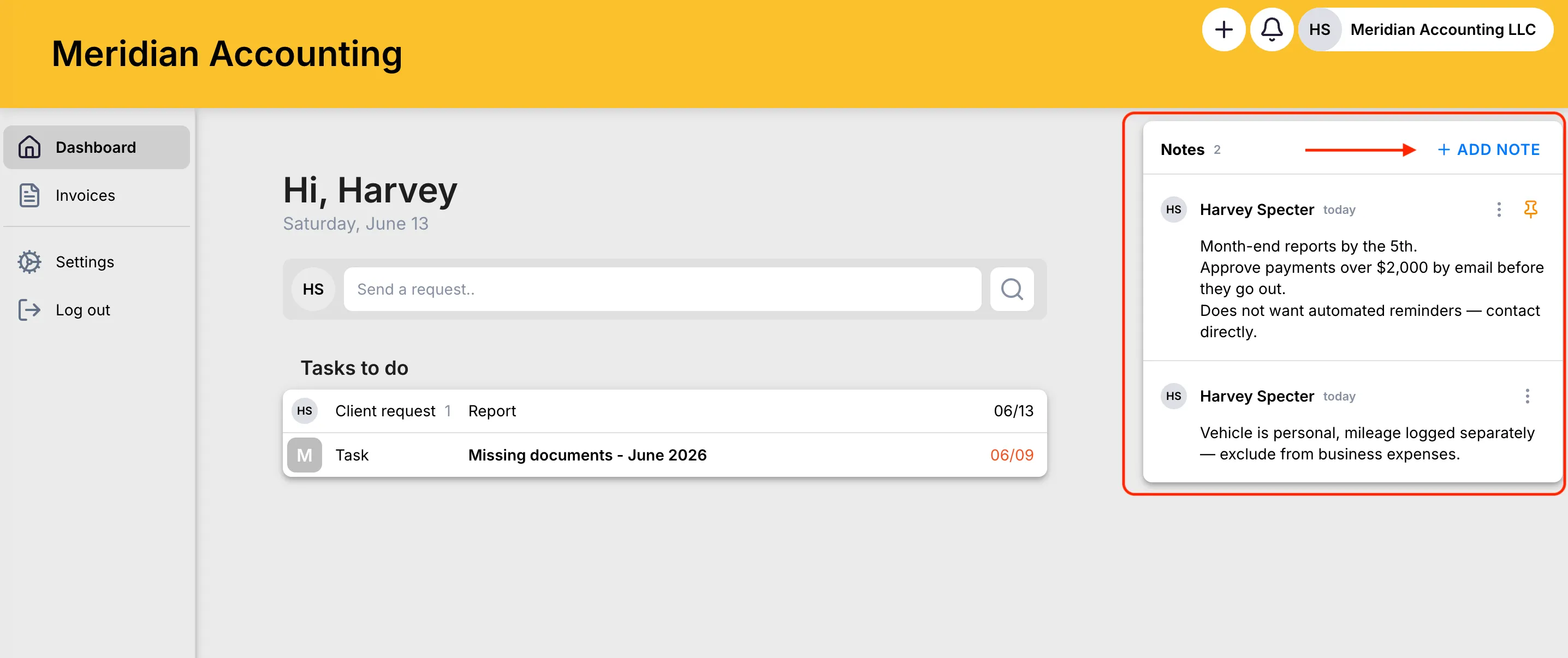
Why? Notes like “hold the salary run until I confirm” no longer get lost in email or messaging apps: they are in writing, attached to the right client.
7. Client Portal: info correction requests
Section titled “7. Client Portal: info correction requests”Clients can review their contact and company information in the portal and submit a correction request when something has changed or is wrong. You see the request in Uku, review it, and the record updates on approval.
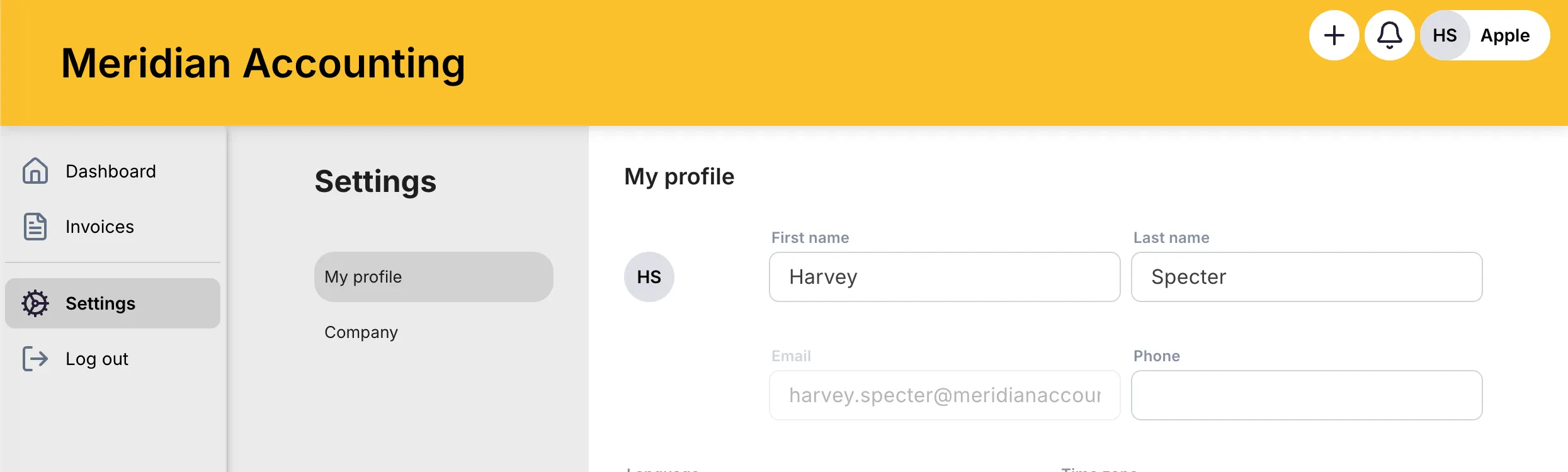
Why? An address or phone change no longer requires a call or an email thread, and client data stays fresh.
8. Tasks: placeholder variables in recurring tasks
Section titled “8. Tasks: placeholder variables in recurring tasks”Recurring task templates can now use variables: client name, registration number, client card custom fields, periods, and dates. Type # in a text field and pick a variable. When a task is generated, Uku replaces the variables with the client’s current data, and dates are formatted according to the contact’s locale.
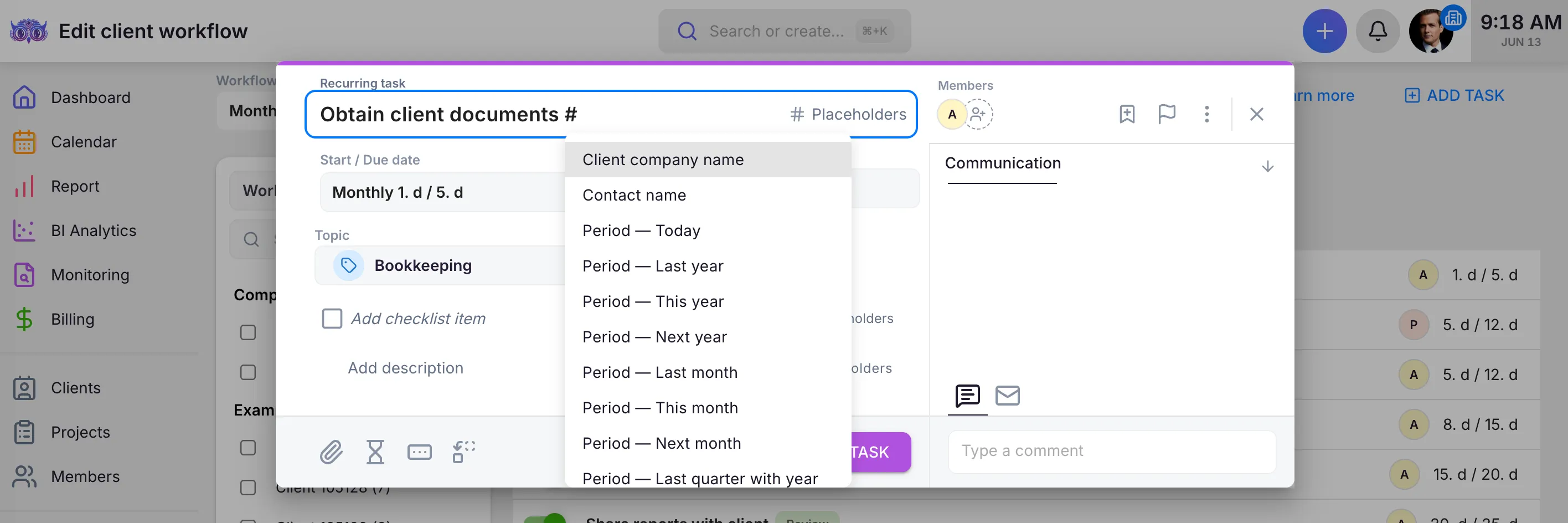
Why? The client card stays the single source of truth where you keep and update data. Templates stay clean, and every new task always gets up-to-date values.
Example: The template “Annual report {{cl_name}}” is generated as the task “Annual report Acme Ltd”.
9. Tasks: multi-language titles
Section titled “9. Tasks: multi-language titles”Task titles can now have translations. Each client sees the title in their own language in the Client Portal and in notification emails, and recurring tasks inherit translations from the template automatically. If no translation exists, the original title is shown.
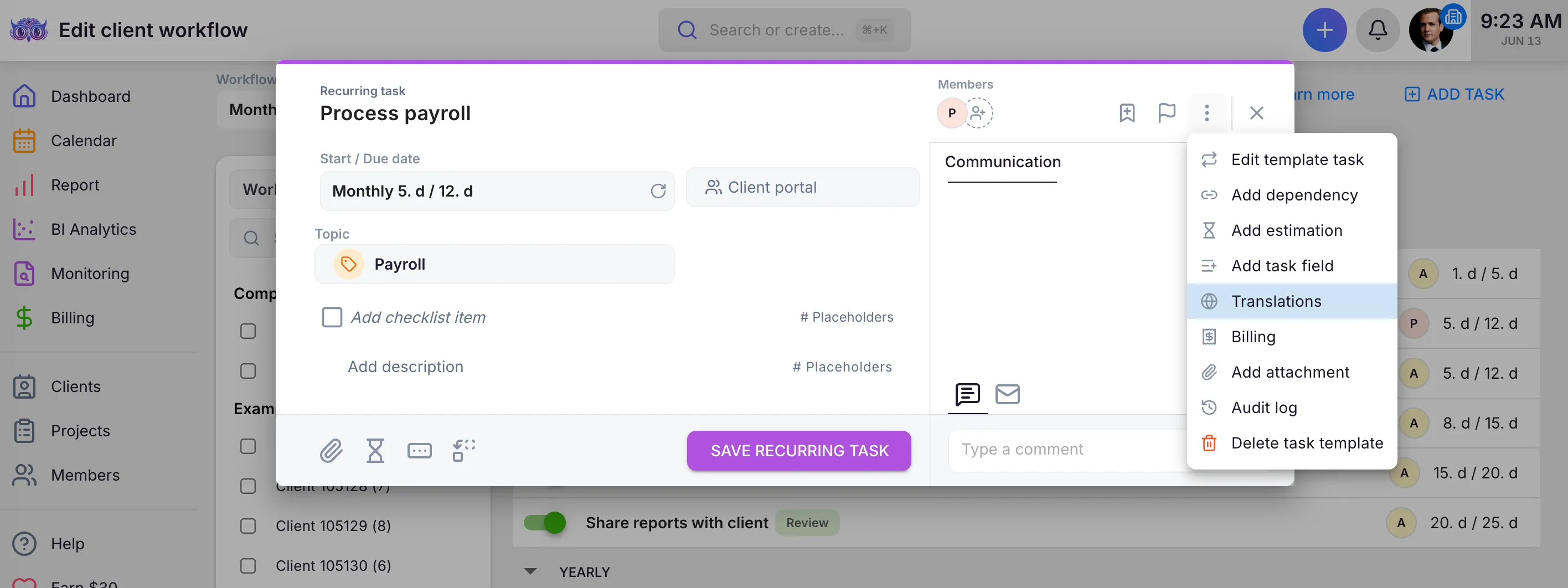
Why? Serving a multilingual client base no longer requires duplicate tasks, and every client gets a notification they can understand.
10. Email: send manually and pause automations
Section titled “10. Email: send manually and pause automations”Task email automations can now use a manual trigger: the email is prepared with content and recipients, but only goes out when you click Send now. You can also pause all pending emails on a task with one click and resume later, without losing the setup. Emails that would have fired during the pause become manual sends on resume, so nothing stale goes out unexpectedly.
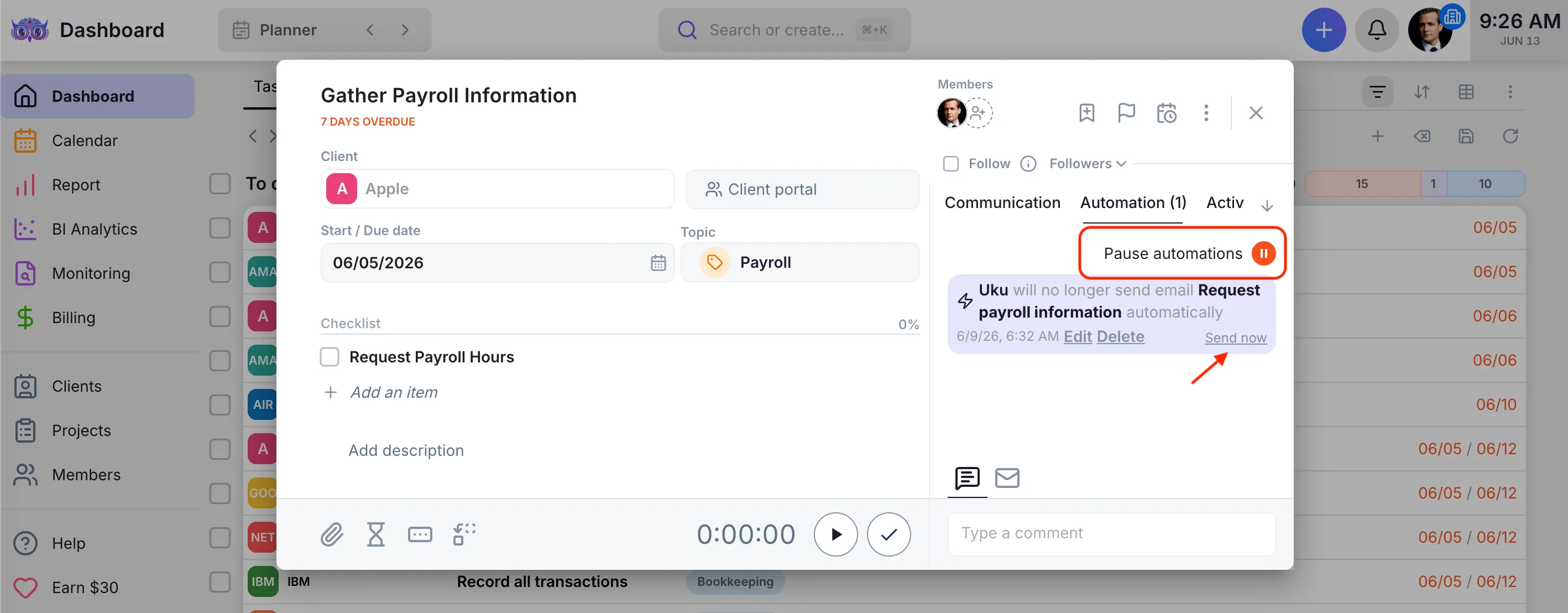
Why? You have full control over what reaches your client and when. Putting a client on hold or a national holiday no longer means deleting automations and rebuilding them later.
Example: Set the payroll-information request email to send manually. It waits on the task, ready with its content and recipients, and you click Send now the moment the client’s hours are in — so the request never goes out too early.
Improvements
Section titled “Improvements”- Client reply emails can be deleted from a task’s communication feed when they contain sensitive data (GDPR). The row becomes a placeholder showing who deleted it and when; the rest of the task history stays intact.
- Bulk-updating a task template now also adds newly added template tasks to client workflows.
Projects
Section titled “Projects”- Archive multiple projects at once, straight from the project list.
- Export the project list to Excel, including custom fields.
- Adding links in notes, Excel export from the Summary drill-down, time entries when opening a task from the Calendar, decimal working hours, client color no longer changes on API updates, and e-signature fixes.