
September is one of the most important updates in Uku’s history. You can now run Uku from an AI assistant, and document management has been rebuilt from the ground up. Alongside them, invoices gain a pay button, Billing Review recovers work an invoice missed, and the system emails have a new design. Your team can now chat inside Uku, too.
1. AI assistant: run Uku from Claude or ChatGPT
Section titled “1. AI assistant: run Uku from Claude or ChatGPT”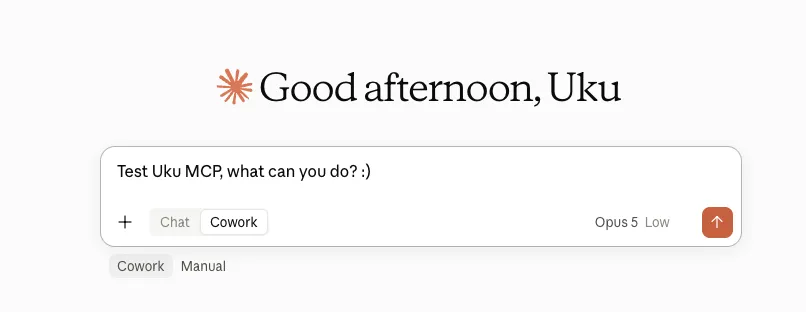
Uku is now an MCP server. Connect Claude or ChatGPT, ask in plain language, and the assistant does the work in Uku for you. Every request passes the same permission checks as Uku itself, so the assistant never reaches further than you do.
Why? Most of a firm’s day is small, repeated work: finding a figure, logging hours, checking what is overdue. Each one costs a few clicks and a change of screen. Now you say what you want, from the chat you already have open.
Ask about your work:
- Your day — “what is overdue?”, “what is in my catch-up?”
- Hours and figures — logged hours by client, utilisation, on-time rate, tasks done and overdue.
- What happened — “who changed this due date?”, “what happened on Apple Ltd this week?”
- How Uku works — the answer comes from this Help Center, in English or Estonian.
Or ask it to do the work:
- On the first ask — log time, create a task, tick a checklist item, upload a file.
- In bulk — reassign, reschedule or complete up to 200 tasks in one request.
- Set up a client — contacts, access, Client Manager, workflow roles, folder templates.
- With financial access — raise, edit and send invoices, and manage contracts and prices.
Everything beyond the everyday list previews first and waits for your yes.
Examples:
- “Analyse the last year of time on Apple Ltd, then set median estimates on its workflow tasks.” The assistant reads the logged hours task by task and works out the median for each recurring task. The assistant then writes each median back as a time estimate on the client’s workflow. You see every proposed estimate before anything changes.
- “Find every client where we handle crypto transactions, and add the new Kraken import step to their workflow checklists.” The assistant works out who counts from everything Uku holds: custom fields, the client profile, notes your team wrote, and the workflow itself. The assistant then shows you the list and makes the change once you agree.
Getting started: an Elite feature. Any active member connects their own account, and no key changes hands. Connect Uku to Claude · Connect Uku to ChatGPT · What the AI assistant can do
2. Documents: client document management, rebuilt
Section titled “2. Documents: client document management, rebuilt”The Documents app is new from the ground up. Until now it copied files to your cloud storage and stopped there. Now every client has a Documents tab inside Uku, with one folder tree your firm designs once and Uku builds for every client. Files attached to a task, a note or an email are filed there automatically, and your clients get a Documents page in the Client Portal.
Why? Client paperwork used to live in three places: a task, a mailbox and a drive. Finding last month’s bank statement meant remembering which one.
What is new:
- A Documents tab on every client — Recent holds the newest files. New files receives your clients’ uploads, and Uku files them automatically. Search and filters sit alongside.
- Preview inside Uku — images, PDFs, spreadsheets, text and Word files, with arrow keys to move through a folder.
- Folder structure templates — design one tree and assign it to many clients at once. Choose which folders the client sees, and where each kind of file goes.
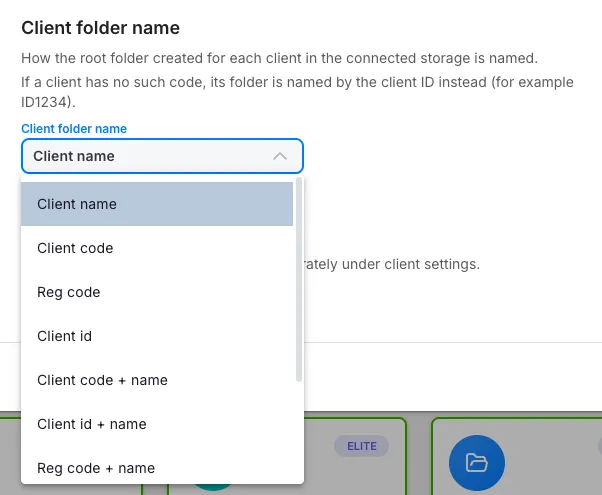
- Uku Document Management, or your own drive — the default needs no set-up. Connect Google Drive, OneDrive, SharePoint or Dropbox, and Uku keeps a backup copy. Choose how each client’s folder on the drive is named.
- A Documents page in the Client Portal — clients drag files in, then preview, download and copy share links.
- Digitisation — select a document, click Digitise, and the outcome lands on a task. Your clients can send their own paperwork the same way.
- Folders through the API and the AI assistant — templates, structures, uploads and digitisation are no longer browser-only.
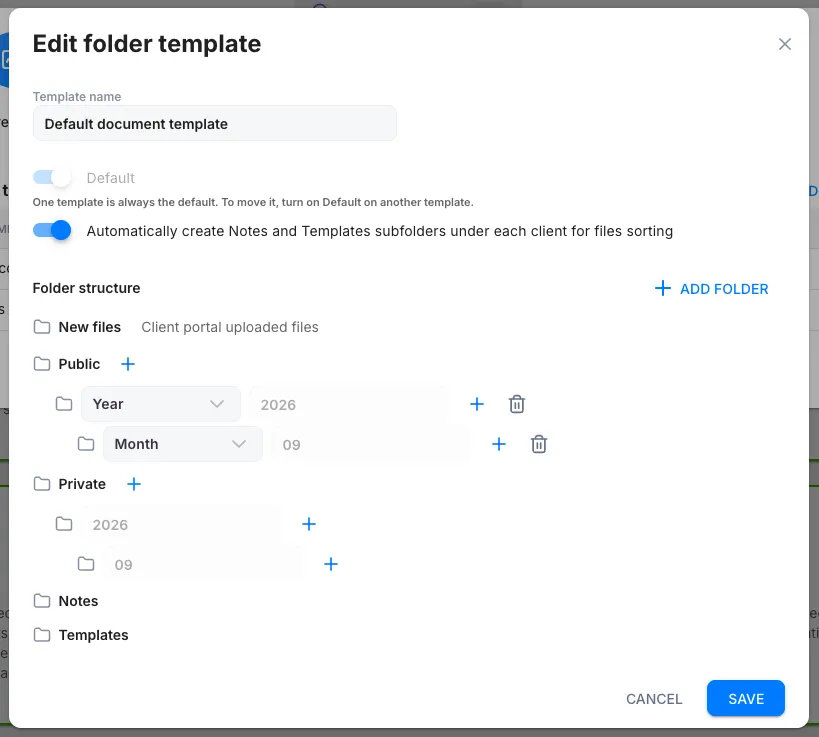
Example: Your client drags a bank statement onto the portal. The file lands in New files on your side, and Uku files it into the right folder about an hour later. Click File now to file it at once.
Getting started: an Elite feature, switched on under Settings & Apps → Documents. How client folders work · Folder structure templates · Browse and manage · Connect your document storage · Find your documents
3. Billing: a payment link on your invoices
Section titled “3. Billing: a payment link on your invoices”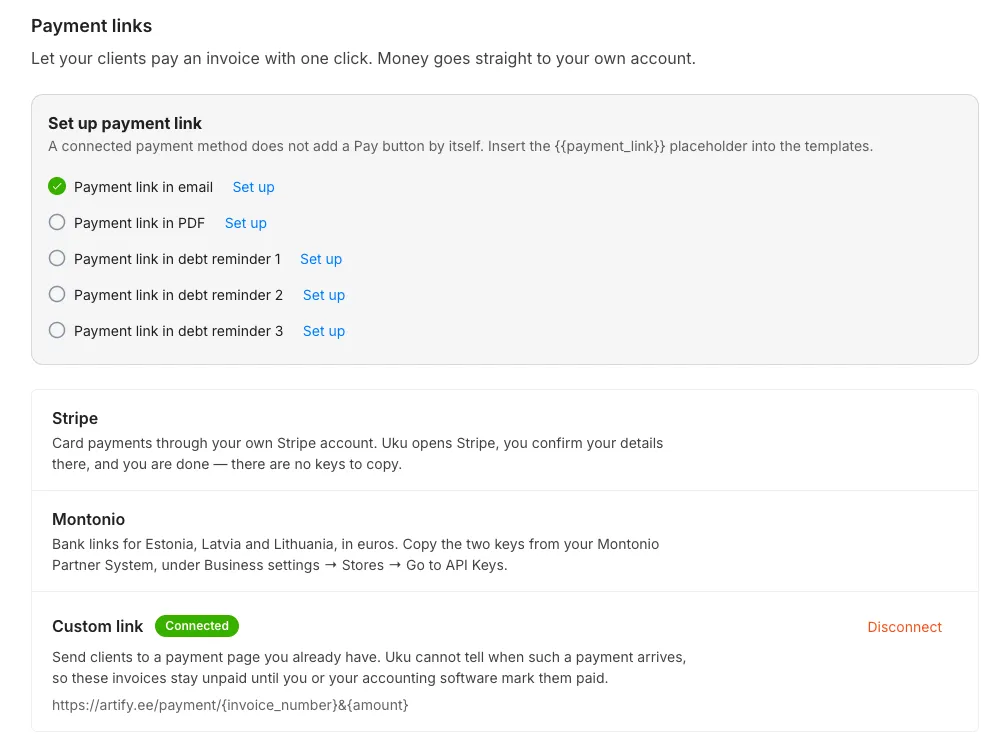
Your client can now pay an Uku invoice in one click. The button appears wherever they meet the invoice: the email, the debt reminder, the PDF, or the Client Portal. One durable link serves all of them, and it works with Stripe, Montonio, or a payment page you already use.
Why? Every step between “the invoice arrived” and “the invoice is paid” is a step where payment stalls. Your client no longer has to open their bank and retype your details.
Setting it up: connect one method under Settings & Apps → Billing → Payment links. Then add the {{payment_link}} placeholder to your invoice, PDF and reminder templates. Payment links
Worth knowing: Stripe and Montonio mark the invoice paid by themselves once the full amount arrives; your own payment page does not. Uku is never the merchant and never holds your money.
4. Billing: find the work that never made it onto an invoice
Section titled “4. Billing: find the work that never made it onto an invoice”The new Billing Review page finds billable work stranded in a period you have already invoiced, and carries it onto a future invoice. Open Clients → Billing Review and read the Discrepancies list. Hours logged after the period closed, a topic relabelled to client work, a contract line corrected later: all of it used to go uncharged.
Why? None of this is new revenue. The money was already earned, and it was leaving the firm quietly because nothing pointed at it.
Example: Someone enters Friday’s four hours on Monday, after the month has closed. Uku now finds those hours and offers them on the next invoice.
Worth knowing: Uku switches Billing Review on firm by firm, so contact support if your plan includes it and the tab does not appear. Billing Review · Catching missed billing weekly
5. Chat: message your team without leaving Uku
Section titled “5. Chat: message your team without leaving Uku”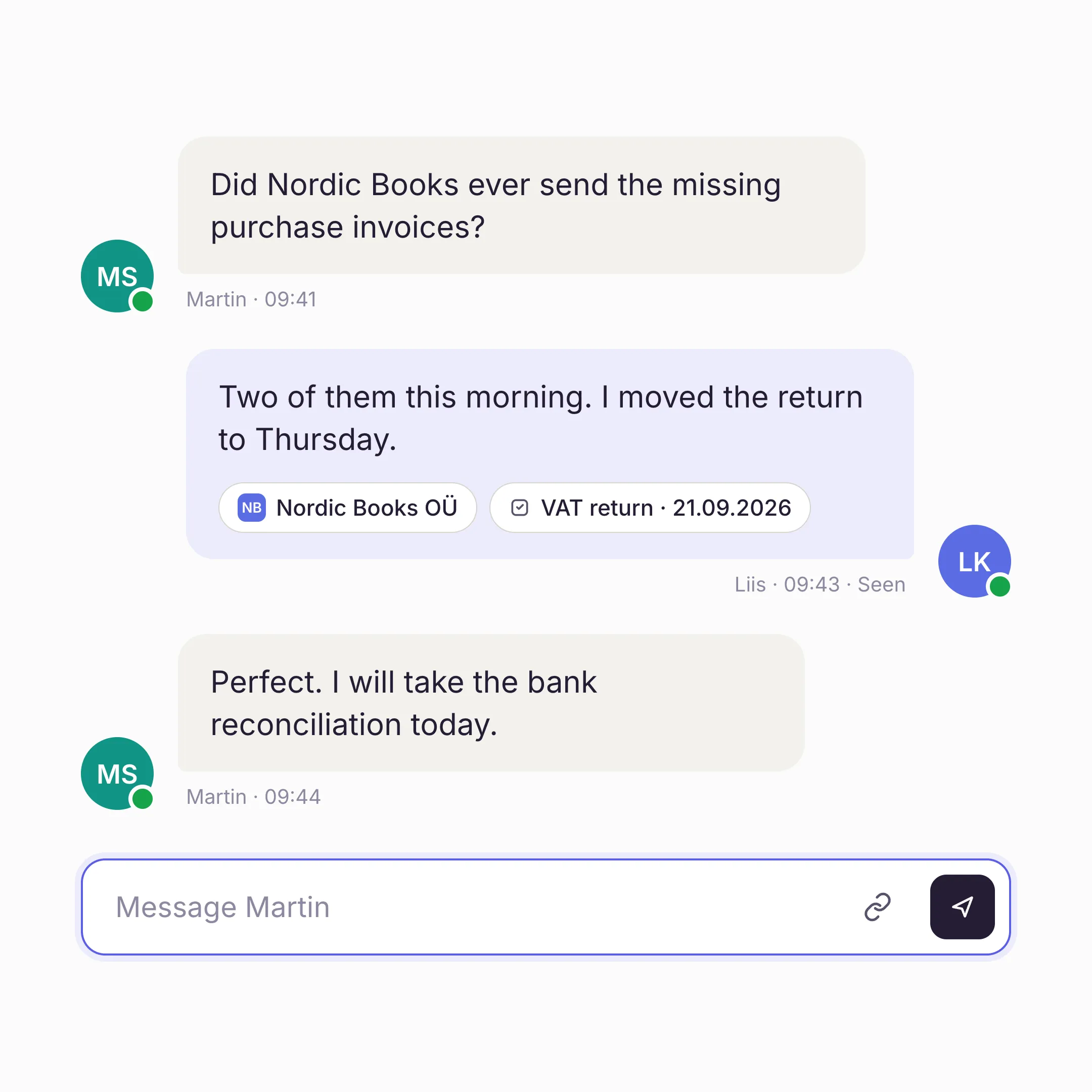
Chat is now an app inside Uku. Message a colleague directly, or open a channel for the team. Point any message at the client, the task or the person it is about. Your Company Admin switches it on, and it is included in every plan.
Why? The quick back-and-forth about client work (“did they send the invoices?”, “I moved the return to Thursday”) rarely lands in the task’s comments. The talk happens in Messenger, WhatsApp or email, where the client and the task do not exist. So every message starts by explaining which one you mean.
What is new:
- Direct messages and channels — message one colleague, or create a channel for a piece of work (“Year-end close”) and add the people it needs. Anyone in a channel can rename it and add or remove people.
- Mentions that point at things — type
@for a colleague or a team,*for a client,#for a task. The message carries the reference, and the reader opens it from there. - Reactions and quotes — react with an emoji, or quote a message to reply to it.
- 30-day history — messages are kept for 30 days. Chat is the talk around the work; the task’s comments remain the record.
Example: “Did Nordic Books ever send the missing purchase invoices?” “Two this morning, I moved the return to Thursday,” with *Nordic Books and #VAT return attached. Whoever reads it opens the return in one click.
Worth knowing: Chat is for your firm’s own members. Client communication stays in the Client Portal. Anything that needs to survive past 30 days belongs on the task or the client, not in Chat.
Getting started: included in every plan. Your Company Admin switches it on under Settings & Apps → Chat.
Improvements
Section titled “Improvements”Documents
Section titled “Documents”- OneDrive and SharePoint folders shared with your firm, or added as a shortcut, now appear in the folder picker.
- Assigning many tasks at once sends one notification and one email, not one per task. The old behaviour hit the hourly email limit and dropped the rest.
- Tasks without a client no longer break bulk actions or the Complete button on the Catch up and Later tabs.
- A bulk action that reports failures now tells you which clients failed, not only how many.
Billing
Section titled “Billing”- Excel export is back on the invoice selection toolbar. You could export the whole list, but not the invoices you had just selected.
Emails
Section titled “Emails”- Uku’s system emails have been redesigned: the notifications, digests and vacation decisions Uku sends to your team. Each is sent in the language set on the recipient’s profile.
Members and time
Section titled “Members and time”- The Vacation tab opens for deactivated members again, so balances are reachable for a final settlement.
- Report Time no longer shows false overlap warnings. Consecutive days were compared in the wrong order.
- Changing a client’s name no longer appears to wipe the contact list. The contacts were never removed; the form looked like they were.
- BI customer lifetime value no longer inflates across a multi-month view, and the accounts receivable aging buckets show real numbers.