
Connecting Claude to Uku lets you ask an AI assistant about your clients, tasks and hours in plain language. You can also have it log time or draft tasks for you.
Who can do this
Section titled “Who can do this”Any active member of a company on the Elite plan can connect their own account by signing in from Claude. No special access level is needed.
Every connection is personal: it acts as the person who signed in, with exactly that person’s access. Nobody can connect Claude for a colleague.
The headless route below is the exception, because it needs an assistant key. Only Company Owners and Company Admins see the Public API tab where keys are made.
Connect claude.ai, the Claude desktop app or mobile
Section titled “Connect claude.ai, the Claude desktop app or mobile”You need nothing from Uku beyond your normal login. The whole setup happens in Claude.
Add the connector
Section titled “Add the connector”Path: Settings → Customize → Connectors
- In Claude, open Settings and go to Customize → Connectors. Click Add custom connector.
- Name the connector Uku, and paste
https://app.getuku.com/mcpas the address. Click Continue. - Claude reads Uku’s settings and marks its own choices Detected: Always required under Authentication, and No client ID — register one automatically under OAuth client. Leave both as they are, and click Add.
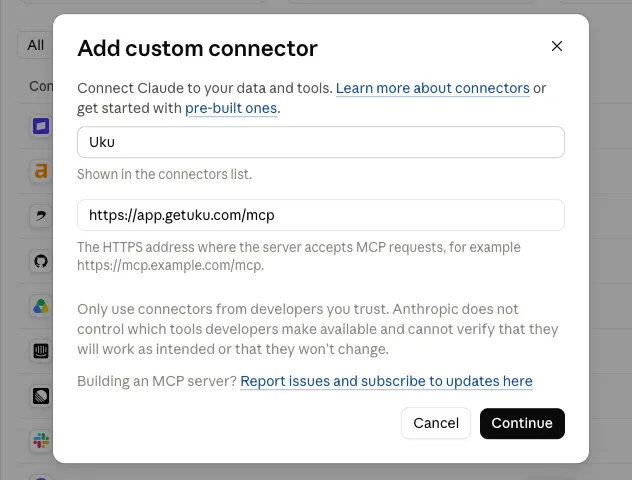
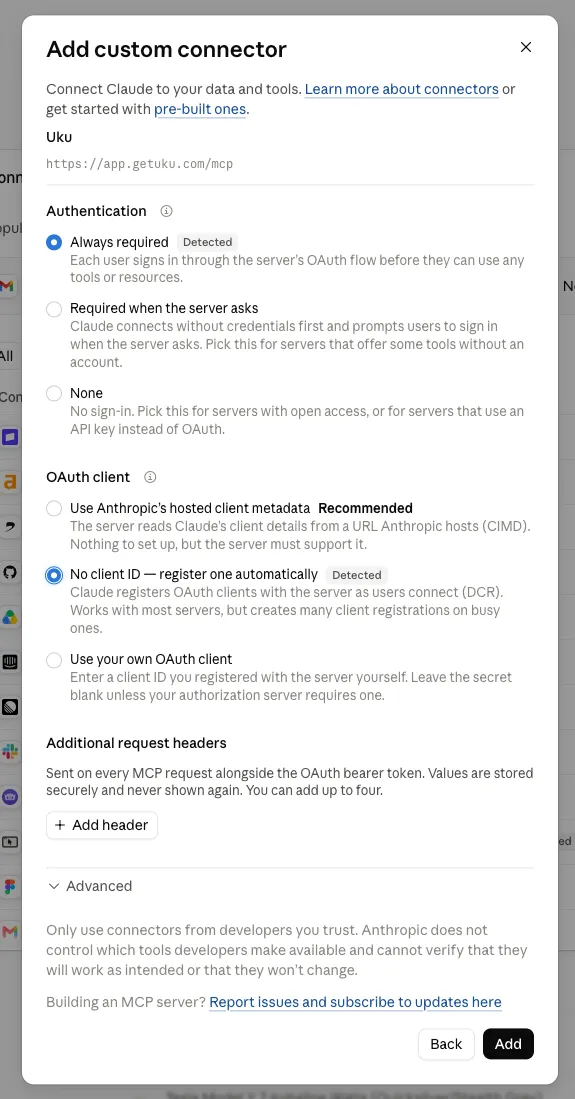
There is nothing to fill in under Additional request headers or Advanced. Uku registers your Claude app automatically, so the OAuth client ID and secret stay empty.
Sign in to Uku
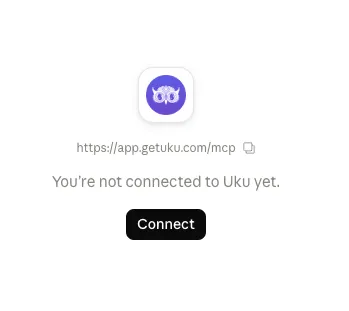
Section titled “Sign in to Uku”Adding the connector does not connect it. Claude shows You’re not connected to Uku yet. until you sign in.
- Click Connect.
- A browser window opens on Uku’s Connect to Uku? screen, naming the app that is asking. Sign in to Uku if you are not signed in already.
- Pick the company to give access to under Company.
- Click Allow. Claude now sees Uku in every chat.
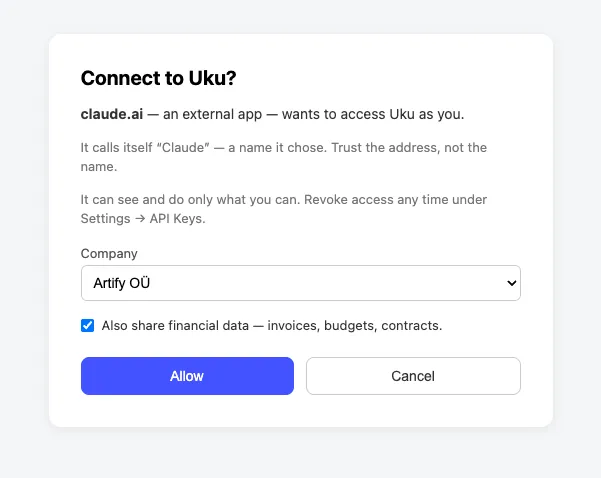
Check the address before you click Allow. Any app can call itself Claude, so Uku warns on the screen: “Trust the address, not the name.”
If your Claude subscription is Claude Team or Claude Enterprise, an organisation Owner adds the connector once under Organization settings → Connectors. Each member then signs in themselves. Both names belong to Anthropic’s plans for the Claude app. The Uku side of the connection always needs Elite, whatever your Claude plan is.
Connect Claude Code
Section titled “Connect Claude Code”Signing in is the recommended route for Claude Code too, and no key changes hands.
- Run
claude mcp add --transport http uku https://app.getuku.com/mcp. - In Claude Code, type
/mcp, select uku, and choose Authenticate. - A browser opens. Sign in to Uku and click Allow.
Run claude mcp list to see whether uku is connected. Run claude mcp remove uku to take the connection out again.
Headless machines and scripts
Section titled “Headless machines and scripts”On a server, a container or any machine with no browser, there is nobody to click Allow. Use an assistant key instead, in Claude Code’s own .mcp.json file.
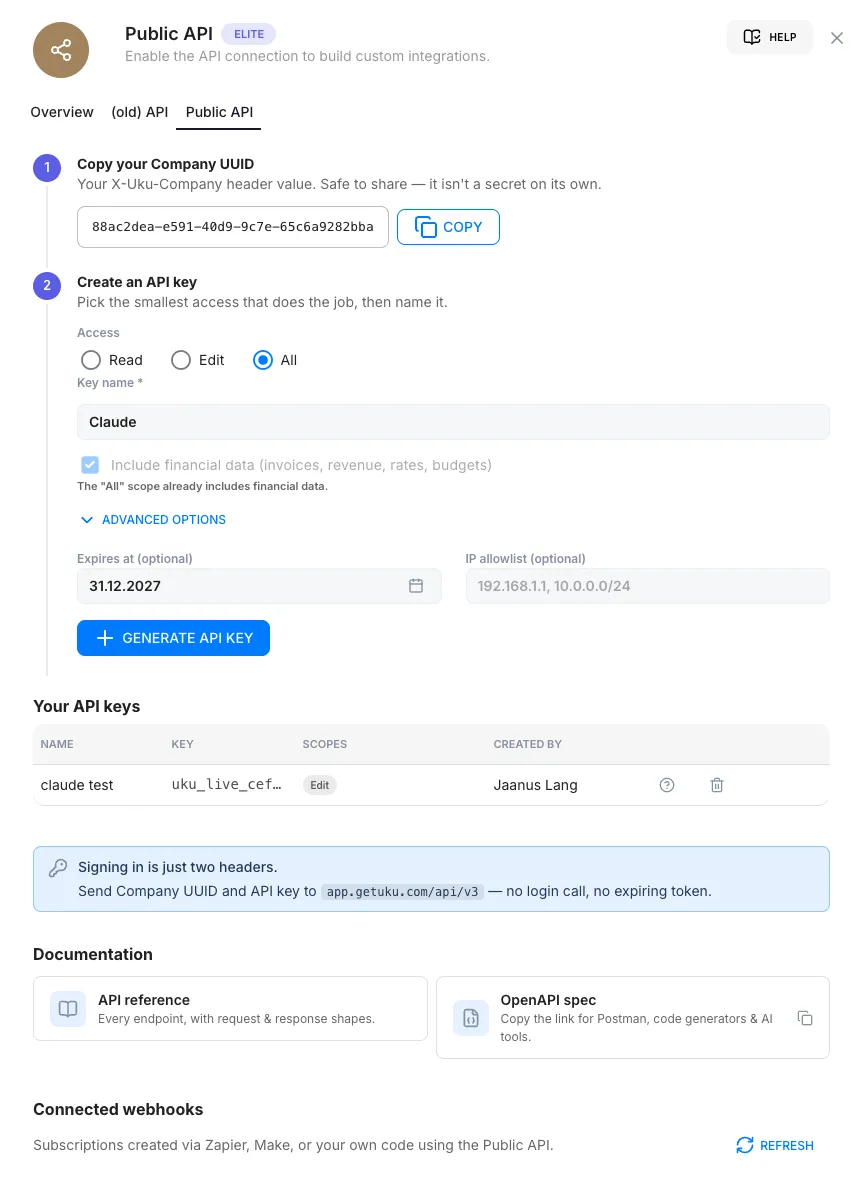
Path: Settings & Apps → Public API → Public API
- Open Settings & Apps and go to Public API.
- At the step Copy your Company UUID, click Copy. The value is your
X-Uku-Companyheader. - Scroll to the Connect an AI assistant (Claude) panel and expand Developer setup (Claude Code and other clients that take headers).
- Click Generate assistant key, then Copy configuration. The block already carries both values.
- Put the block in
.mcp.json.
{ "mcpServers": { "uku": { "type": "http", "url": "https://app.getuku.com/mcp", "headers": { "X-Uku-Company": "YOUR_COMPANY_UUID", "X-API-Key": "YOUR_ASSISTANT_KEY" } } }}Connect part of Uku instead of all of it
Section titled “Connect part of Uku instead of all of it”The address you connect decides how much of Uku the assistant sees. https://app.getuku.com/mcp is the whole assistant: every action, one connection.
Uku also publishes four narrower addresses. Each one carries a slice of the assistant, and you connect as many as you need:
| Address | What it carries |
|---|---|
/mcp/core | Who you are, search, the general-purpose read and write actions, the capability map, and this Help Center |
/mcp/work | Tasks and time |
/mcp/money | Invoices, contracts, products, budgets and performance figures |
/mcp/admin | Clients, their document folders and templates, document upload and digitisation, client e-mail, teams and members |
Always connect /mcp/core alongside the others: it holds the shared actions the rest build on. Add each address as its own custom connector and sign in to each. In Claude Code, run claude mcp add again with a different name, such as uku-work.
What the assistant reaches, and what it changes
Section titled “What the assistant reaches, and what it changes”Financial data is the one thing a personal connection does not carry by default. The tick box on the sign-in screen is the only way to add it.
Most changes show you a preview and wait for your approval. A short list acts on the first request instead: logging time, creating a task, uploading a file and refreshing the performance figures. What the AI assistant can do has both lists in full, and Your data and AI assistants covers what travels to your AI provider.
Choose which actions Claude may run on its own
Section titled “Choose which actions Claude may run on its own”Claude asks before it calls an Uku action, and you can settle those answers in advance on the connector itself.
Path: Settings → Customize → Connectors → Uku
Under Tool permissions, Claude sorts the Uku actions into Read-only tools and Write/delete tools. Each group carries one setting for everything inside it, and every action can also be set on its own: allow, ask each time, or never.
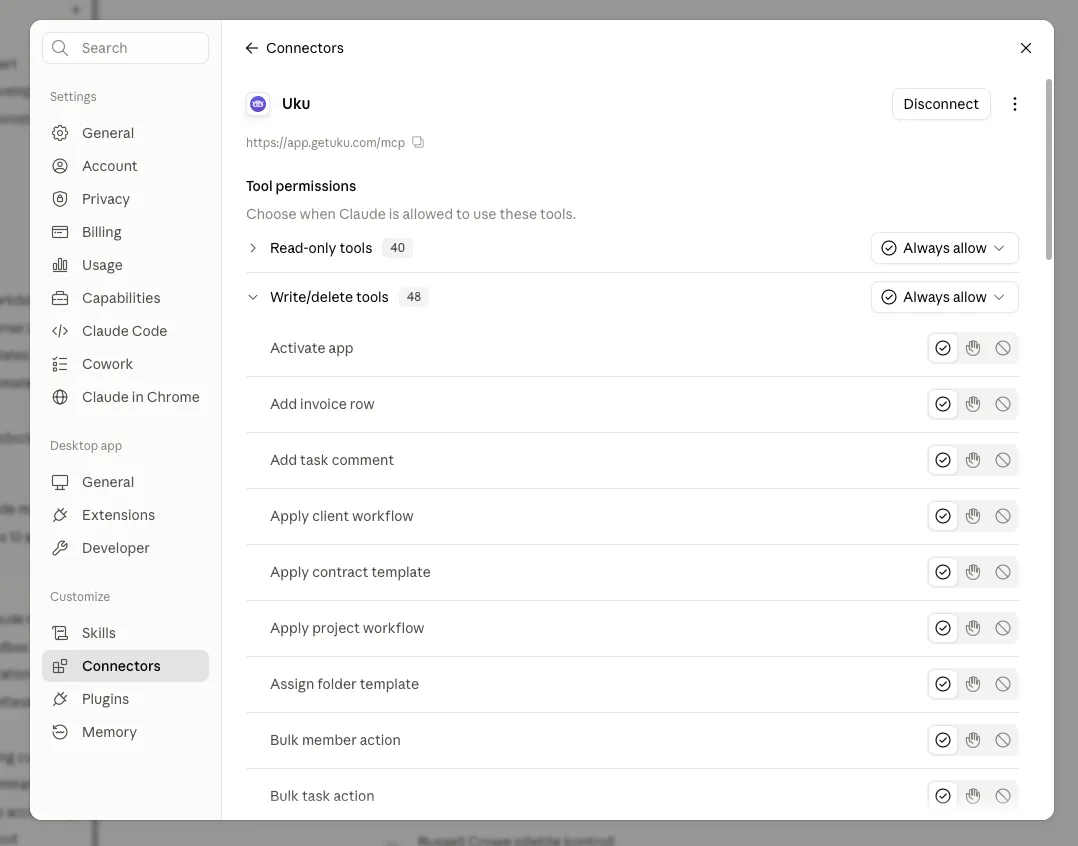
Set Read-only tools to Always allow and leave Write/delete tools asking. A read changes nothing in Uku, so confirming each one only costs clicks. A write does change something, and one confirmation is cheap.
Manage or remove access
Section titled “Manage or remove access”Every connection is a credential to your own Uku view. Remove one the moment you no longer need it.
- Remove a signed-in connection in Claude: open Settings → Customize → Connectors, click Uku, then Disconnect. Deleting its row from the key list on the Public API tab works too, and stops the connection immediately.
- Each row shows its key prefix, such as
uku_live_xxx…, so you can match a row to its connection. The help icon at the end shows last use, IP allowlist and creation date. - A signed-in connection renews its own 24-hour key while it stays authorised. An assistant key generated by hand never expires.
- A deactivated member’s connection stops working. Uku checks on every request that the owner is still an active member.
- A plan downgrade takes the connection down. The plan is checked on every request, so moving your firm off Elite kills a working connection straight away.
- Uku records what the assistant did — which action was called, when, and by which person and key. The names and types of the values passed are stored, rather than the values themselves.
Troubleshooting
Section titled “Troubleshooting”- Nothing happens after you paste the address. Your Claude plan may not include custom connectors. On Claude Team or Claude Enterprise, your organisation Owner may not have added Uku yet.
- You sign in, but Claude cannot call Uku. The connection row was deleted in Uku, or your Uku membership was deactivated. Remove the connector in Claude and add it again.
- Financial figures are missing. The financial-data box was not ticked, or you do not hold the account-management right. Someone who holds it has to make the connection.
Claude cannot reach Uku from your network
Section titled “Claude cannot reach Uku from your network”A signed-in connector calls Uku from Anthropic’s servers, not from the computer you are sitting at. Uku’s address therefore has to be reachable from the public internet. A firewall rule, a VPN-only setup or an IP allowlist naming your office blocks the connector, while Uku still works normally in your browser. Claude Code calls from your own machine instead, so an allowlist covering your address lets it through.
Keys generated from the assistant panel, and the ones a signed-in connection creates for itself, carry no allowlist at all. Allowlists are set on the Create an API key step, under Advanced options.
Claude does not offer any Uku actions
Section titled “Claude does not offer any Uku actions”Restart the Claude client. In Claude Code, run claude mcp list and confirm uku is connected.
If some actions are offered and others are missing, you have probably connected a narrower address. Check which address is configured against the table above.
Claude Code reports a 401 or a 403 on the headless route
Section titled “Claude Code reports a 401 or a 403 on the headless route”The assistant key has been deleted, or one of the two values is wrong. Open the Public API tab and confirm the AI assistant (Claude) row is still listed. Generate a new key, copy the Company UUID again, and replace both values. Replacing only the key leaves a wrong company identifier in place, which fails the same way.
A 403 carrying a message about your plan means the firm is no longer on Elite.
I pasted a key into a Claude chat
Section titled “I pasted a key into a Claude chat”A key goes into a file, never into a conversation. If you pasted one into a chat, the key is now in that transcript. Delete its row from the key list on the Public API tab and generate a new one.
The panel says “Available on the Elite plan”
Section titled “The panel says “Available on the Elite plan””Your firm is not on Elite. To check, go to Settings & Apps → Company → Overview; Uku plans explained covers what each plan includes.
I cannot find the Public API tab
Section titled “I cannot find the Public API tab”You do not need the tab to sign in from Claude. The tab appears only for Company Owners and Company Admins, with the Public API app activated on the Elite plan.
Do I need my own Claude subscription?
Section titled “Do I need my own Claude subscription?”Uku does not provide Claude. You connect a Claude app you already use, and the Uku side comes with the Elite plan. Whether your Claude account can add a custom connector is set by Anthropic.
The two sets of plan names overlap, so read them carefully. Anthropic sells Claude Team and Claude Enterprise; Uku sells Team, Elite and Enterprise. An Uku Team plan does not include the AI assistant on any Claude subscription.